
Two-step verification
When you log in to the SceneCut console, after your password you also enter a one-time code from the authenticator app on your phone. You link it once, the first time you log in; it takes about 2 minutes. The desktop app works with an activation code and does not need two-step verification.
Before you start: install an authenticator app on your phone
An authenticator is a phone app that generates one-time codes. Any one of the following will do.
Tencent Authenticator
A WeChat mini program. Search for “腾讯身份验证器” (Tencent Authenticator) in WeChat and open it; nothing to download.
Microsoft Authenticator
Search for it in your phone's app store and install it. It supports cloud backup, which makes changing phones easier.
Google Authenticator
Search for it in your phone's app store and install it.
Linking for the first time
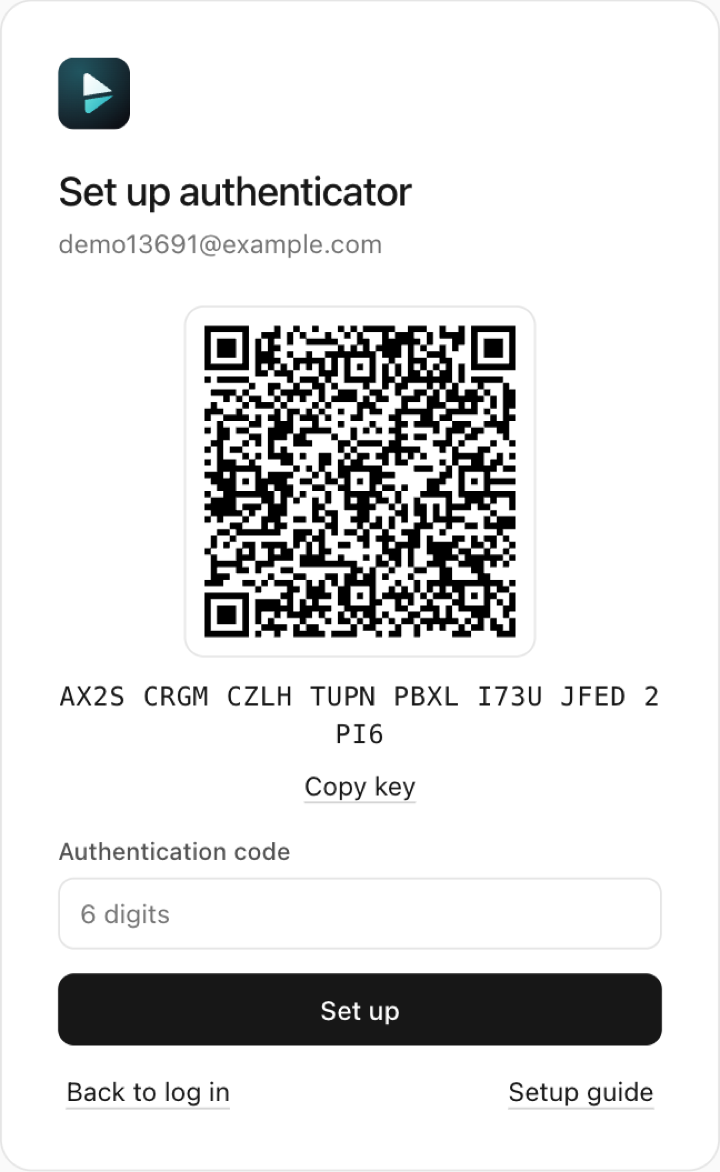
After you sign up or log in for the first time, the page shows “Set up authenticator”
The page shows a QR code with a secret key underneath. When a member logs in for the first time, they also land on this page after opening the activation link from their admin and setting a password.
Open the console on your computer and scan the QR code on the computer screen with your phone.
Scan with your authenticator
Open the authenticator app on your phone, tap + or “Scan QR code”, and scan the QR code on your computer screen.
Once added, a new SceneCut row appears in the authenticator, showing your account and a 6-digit number. That number is your one-time code, and it changes every 30 seconds.
Enter the authentication code and click “Set up”
Enter the current 6 digits from the SceneCut row into “Authentication code” and click “Set up”. If the number is about to change, wait for the next one.
Save your recovery codes
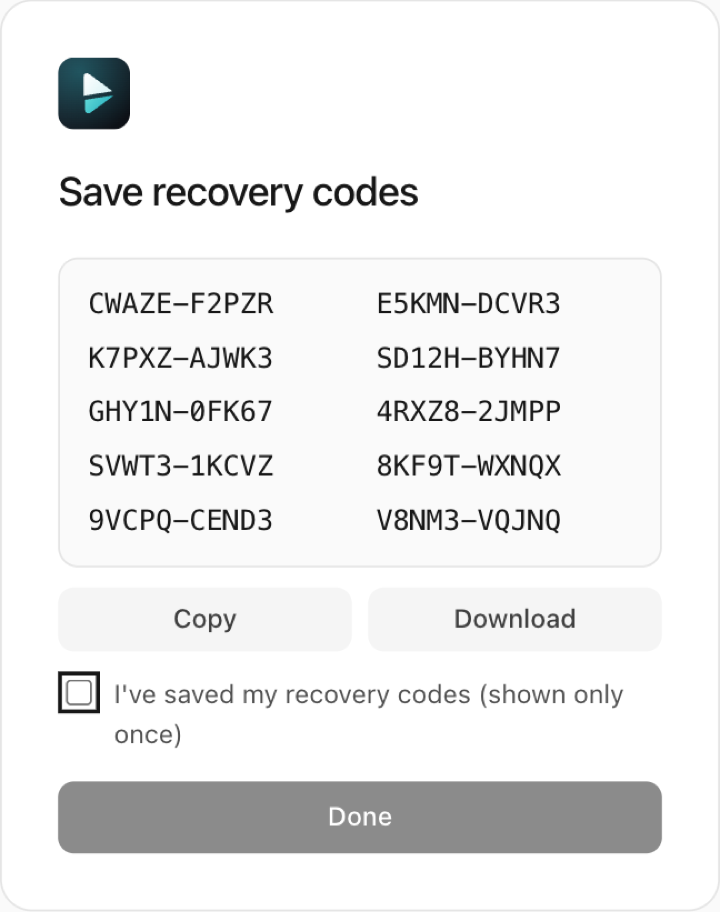
Once linked, 10 recovery codes are shown, and only this once. If you lose or replace your phone, you need a recovery code to link again.
Click “Download” to save them as a file, or “Copy” them somewhere safe. Don't keep them only on this phone; print them or store them on your computer. Once saved, tick “I have saved my recovery codes” and click “Done”.
Logging in after that
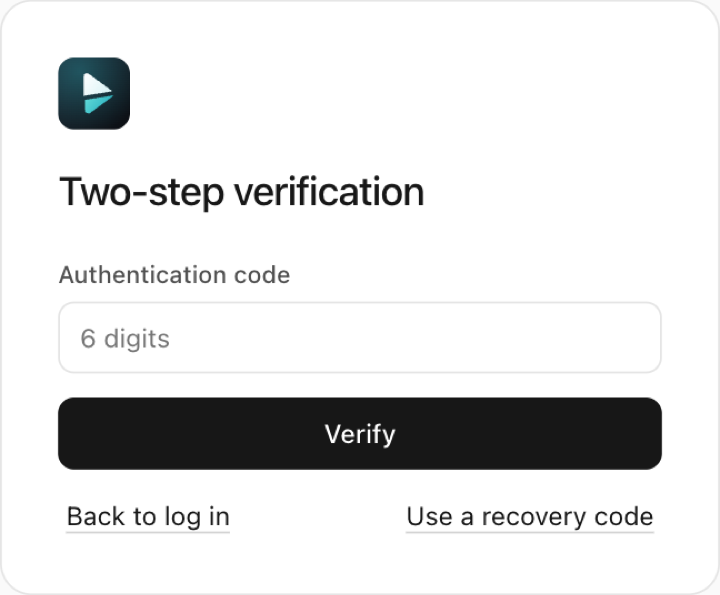
Enter your account and password, then the one-time code
After logging in you reach the “Two-step verification” page. Open the authenticator on your phone, enter the current 6 digits from the SceneCut row, and click “Verify”.
If your phone isn't at hand, click “Use a recovery code” and log in with one of your recovery codes.
FAQ
It says “Incorrect one-time code”
- If your phone's clock is off, codes will be wrong. Turn on “Set date and time automatically” in your phone's settings.
- Make sure you are entering the number from the SceneCut row, not another site's.
- If the number just changed, wait for the next one. Each number can be used only once, so if you just used it, wait for the next one too.
- When linking, scan the QR code on the current page. If you go back to the login page and come in again, the QR code changes and the one you scanned earlier no longer works; delete it and scan again.
After 5 wrong attempts in a row, the account is locked for 15 minutes and then unlocks automatically.
You changed or lost your phone
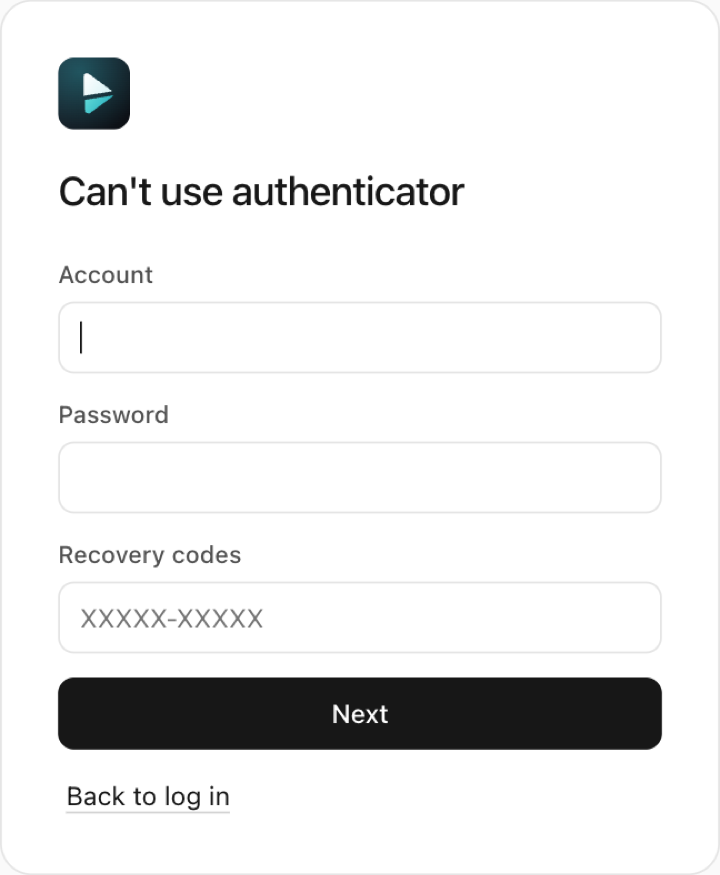
On the login page, click “Can't use authenticator”, enter your account, password and one recovery code, then follow the steps above to link your new phone.
Linking again generates 10 new recovery codes. Your old recovery codes and the SceneCut entry on your old phone stop working, so save the new recovery codes.
If you use Microsoft Authenticator with cloud backup turned on, sign in to the same account on your new phone to restore it; no need to link again.
You forgot your password
On the login page, click “Forgot password”, enter your account, the one-time code from your authenticator and one recovery code, then set a new password.
You have neither your phone nor your recovery codes
Ask your business admin to find you under “Account & members” in the console and click “Send reset link”. Open the link to set a new password and link an authenticator again. The link is valid for 72 hours and can be used only once.
If you are the only admin of your business, contact your account manager.
A colleague also needs to log in to the console
Ask an admin to click “Add member” under “Account & members” and send the generated activation link to that colleague. Everyone uses their own account and their own phone; don't share one account between several people.
Ready? Open the console on your computer to start linking.
Log in to the console