
Help / Making videos
Scripts
Write scripts
In a project's “Script” tab:
- Write scripts from one sentence: type what kind of scripts you want in the input box. Type @ to pick products, offers, audiences, frameworks, hooks, edit styles, styles, or scripts that took off. Click “Write scripts” when you're done, or press ⌘ / Ctrl + Enter to send.
- When writing finishes, the batch opens automatically. The batch name is built from what you @-mentioned and the count; for example, “Write 5 @mashup for @office workers” gets the batch name “Office workers · Mashup 5”.
- One sample script first: for a new product, a new offer, or an approach no one in this project has confirmed yet, “Write scripts” writes just 1 script first. Review the sample on the batch page, then click the main button “Continue writing” to write the rest.
- A batch is written using the team's mix: pure offer, pure efficacy, offer + efficacy, light and funny, all elements.
- To go all the way from writing scripts to previews, click “One-click batch videos” on the project overview; see Projects.
- You can also just tell Kaka “make 3 mashups”. It turns that into a work order and writes the scripts, makes rough cuts, self-checks and revises, all the way through export; see The interface.
- Advanced: under the one-sentence box, use “Advanced: choose frameworks, hooks, and offer tier mix individually”, make your choices step by step, then click “Start writing”.
- “New script batch” in Scripts or on a product page: first choose a project, then you're taken to that project's one-sentence box.
- Import scripts (“Import scripts” on the Script tab and “New → Import scripts” on the Videos tab open the same window):
- With “Make into videos directly” off: scripts go into Scripts as Approved and are split into batches automatically by product and offer.
- Paste text or click “Choose file…”; .txt, .docx, .csv and .xlsx are supported. Separate scripts with a blank line; spreadsheets are read from the “Script / Copy / Voiceover” column (an English “Script” header works too). When importing in Scripts, choose a brand first.
- Click “Preview” to see whether each script is “New”, “Merge”, “Already exists” or “Problems”.
- Click “Import N”.
- If something was imported by mistake, click “Revert” under “Recent imports”.
- With “Make into videos directly” on (only inside a project): paste scripts a person has already confirmed, one sentence per line, with a blank line between scripts. Choose the “Video type”, and if there are several offers, choose “Which offer”. Click “Create N videos” and SceneCut makes the rough cuts automatically. It's on by default when opened from the Videos tab.
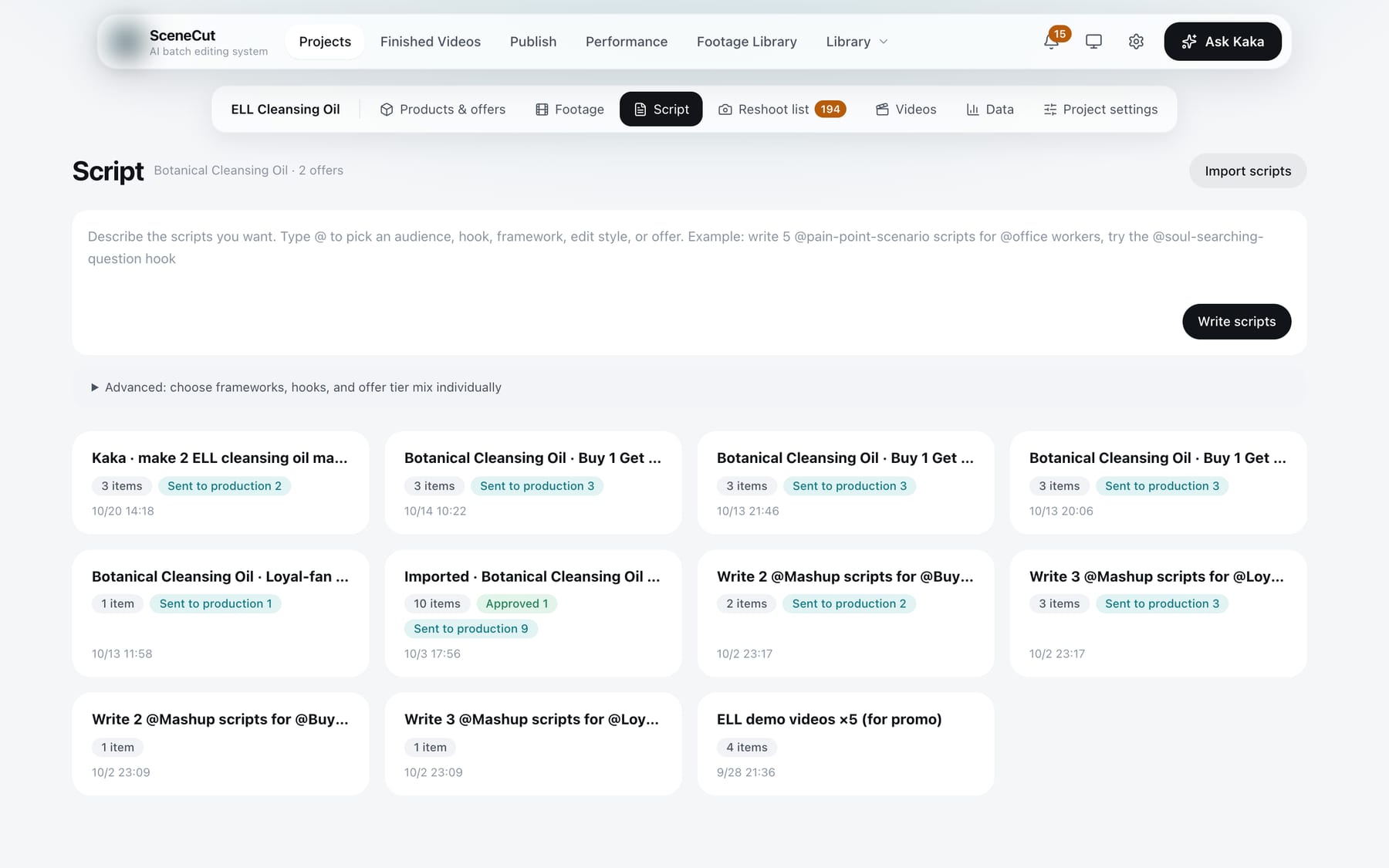
Imported and hand-written scripts are “Approved” right away; AI-written ones need you to pick.
Scripts
Go to “Library → Scripts” in the top navigation to see scripts from all projects.
- Tabs: “Script batches”, “Script”, “Frameworks”, “Hooks”.
- The “All brands” dropdown at the top right filters by brand (shown when there are two or more brands).
- The “Script” tab can be filtered by status; click a script to open the batch it belongs to.
- Top right: “Import scripts”, “New script batch”.
Batch page
Click a script batch to open it.
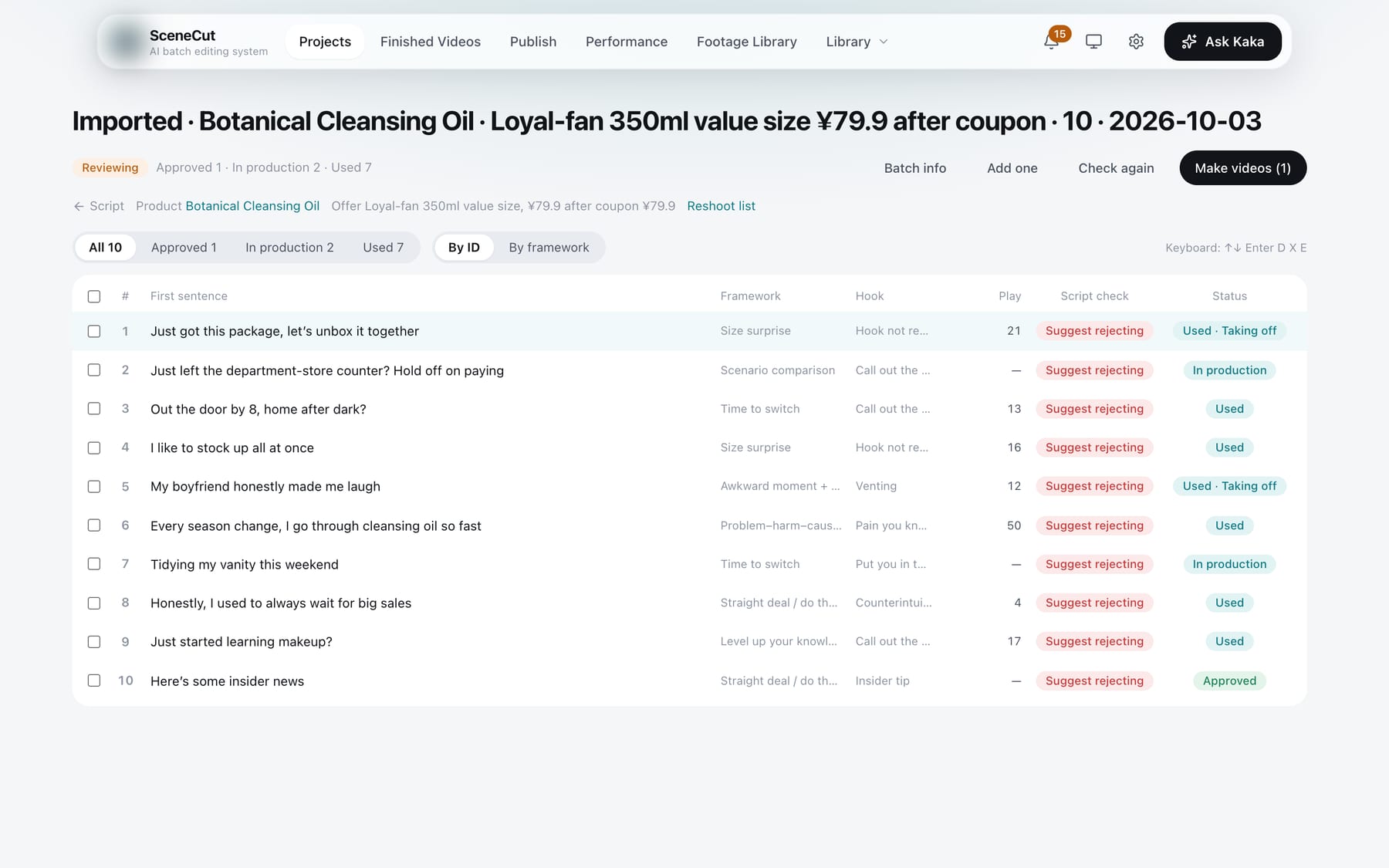
- Header buttons:
- “Batch info”: source, product, offer, framework and so on.
- “Add one”: write a script yourself in this batch. Paste the whole thing in (each sentence ending with a period, question mark or exclamation mark), choose an edit style, and click “Add”.
- “Filter by check result” (only when there are scripts to review), “Check again”, “Rewrite those to review”.
- The info line under the title has a “Reshoot list” link (only when scripts in this batch have been sent to production): it opens the project's reshoot list showing only this batch.
- Main button “Make videos (N)”: the selected scripts are approved, sent to production, added to the reshoot list and rough-cut automatically, in one step. With nothing selected, it makes videos from this batch's approved scripts that don't have videos yet.
- Unselected scripts stay in “To review”. They aren't rejected, and you can pick them and make videos later.
- If any selected script has a “Must fix” issue, they're listed and you're asked: click “Send to production without changes” to make videos anyway.
- If some lines have no matching shots in the footage, you're asked: click “Make videos first” to go ahead. The missing shots are left empty in the rough cut, to be filled later from the reshoot list.
- The list can be filtered by status (All / To review / Approved / In production / Used / Rejected) and switched between “By ID / By framework”.
- After selecting some or all scripts, you can also use the bulk actions “Approved”, “Reject”, “Back to To review” and “Delete”.
- Keyboard: ↑↓ to switch scripts, Enter to view the full text, D to approve, X to reject, E to edit the first line.
Script details
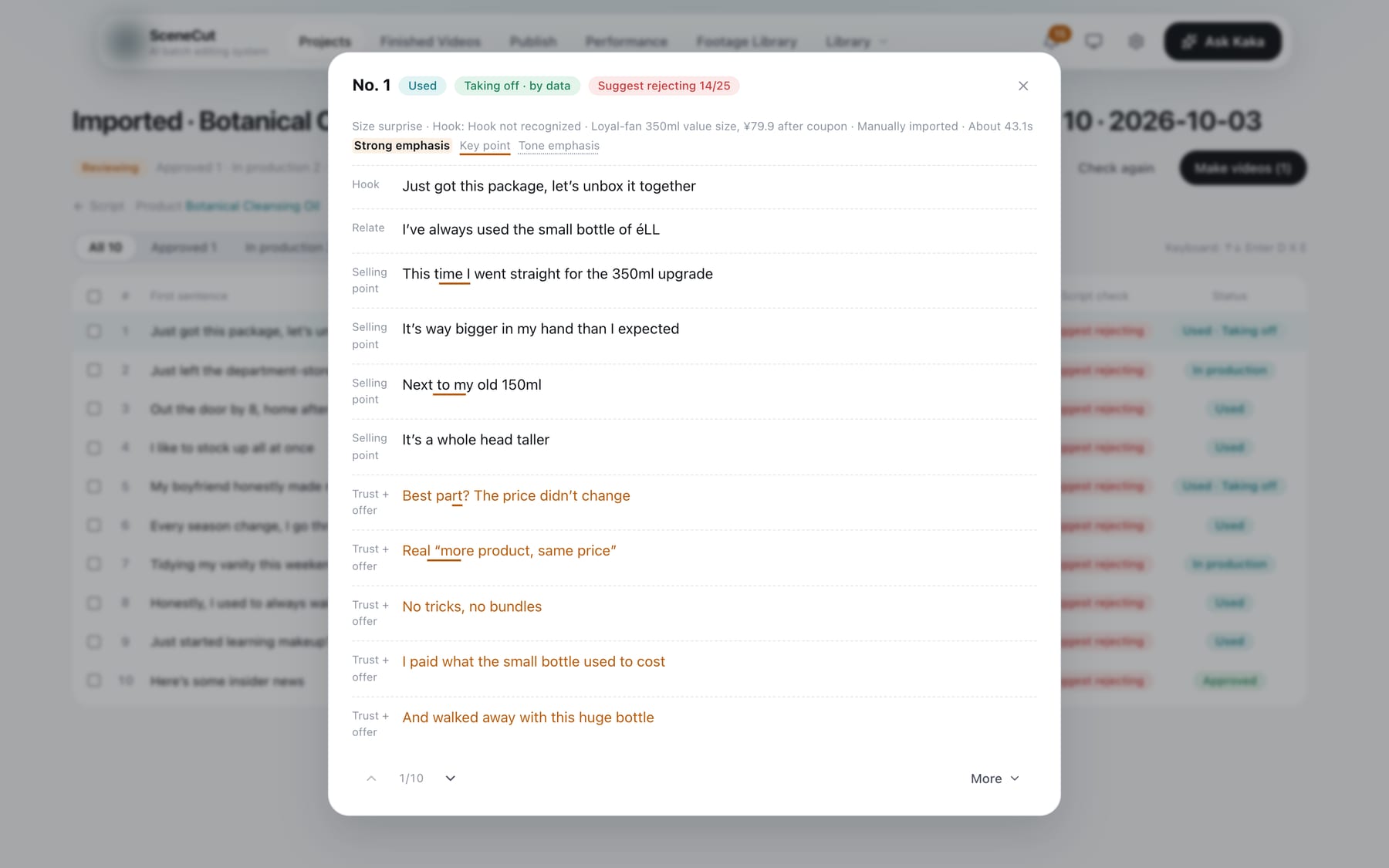
Click a script in the list to open “No. N”.
Edit a line
- Click a line to start editing it (or click “Edit” on the right).
- Change the text at the top. Select a few characters in the text and click “Strong emphasis”, “Key point”, “Tone emphasis” or “Remove emphasis”.
- The result is shown live below.
- Click “Done” to save, “Cancel” to discard, or “Delete” to remove the line.
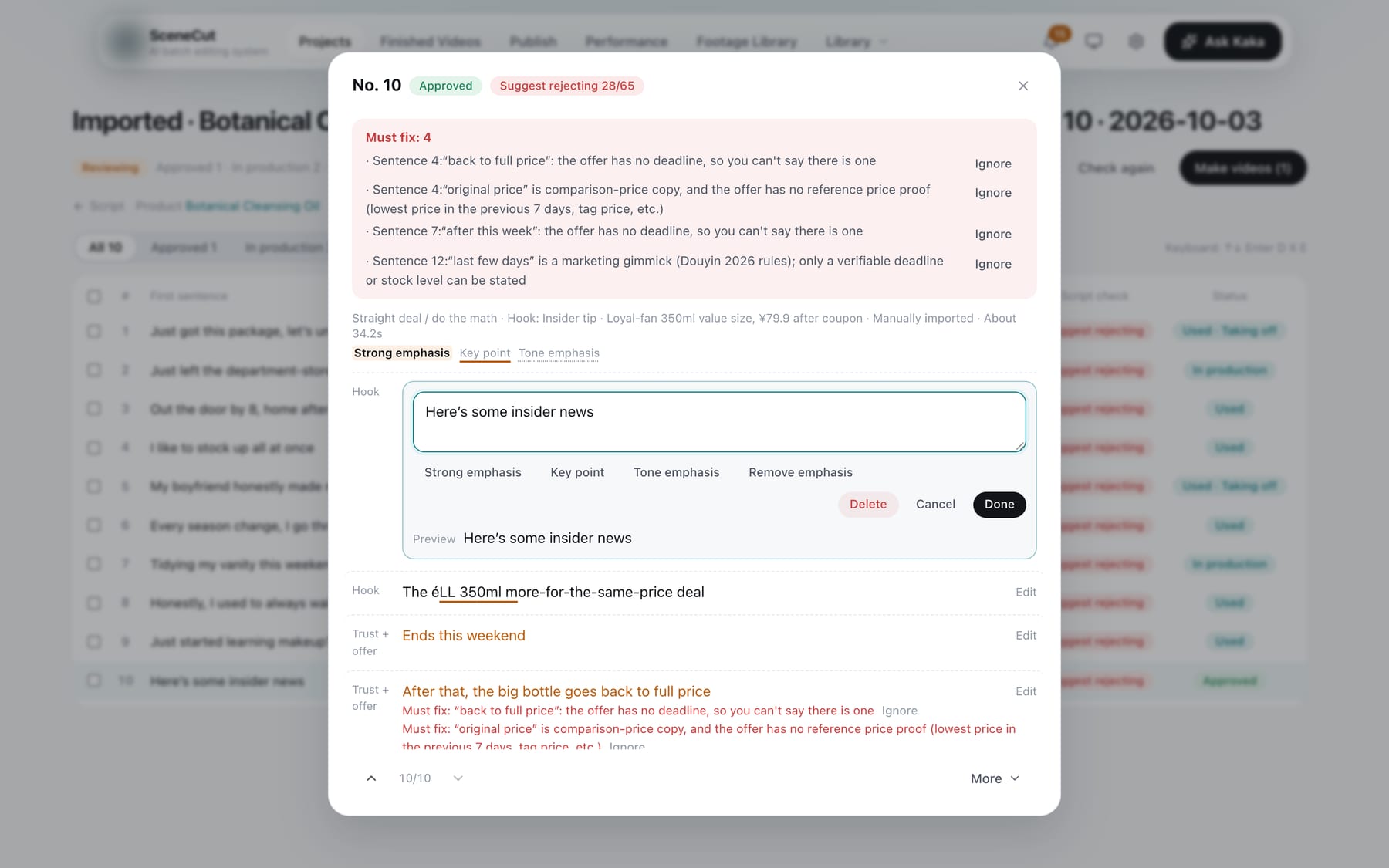
Emphasis carries into the final video: strong emphasis gets caption emphasis plus a sound effect, key points get caption emphasis, and the voiceover stresses the emphasized words.
Must fix
- Issues found by the script check are listed at the top.
- To fix one: click the line and edit it.
- To leave it: click “Ignore” after the issue. Once ignored, the script can be confirmed and made into a video; the video check only flags that spot as a note and doesn't block delivery or publishing.
- Ignored issues are collapsed under “Ignored N”, where you can click “Unignore”.
Bottom buttons
The main button is “Confirm” (approves this script; if must-fix issues remain, a dialog asks you, and you can choose “Confirm without changes”). Next to it is “AI polish”: write one line of feedback for AI to revise. While a line is being edited, only that line is revised; otherwise the whole script is. Approved scripts can only be edited by hand. ↑ ↓ at the bottom left switch to the previous or next script. Everything else is under “More”:
| Button | What it does |
|---|---|
| Withdraw approval | Moves an approved script back to To review |
| Replicate | Writes 1 script with the same structure but different wording |
| Spin off | Writes several scripts based on this one (3 by default); choose “Change hook” or “Change audience scenario” |
| Open video | For scripts sent to production, opens the matching video |
| Mark as taking off / Unmark taking off | Mark scripts that performed well as Taking off, so future scripts follow them first |
| Reject | Stops using this script; scripts already sent to production need a one-line reason |
| Restore | Brings back a script that was rejected after being sent to production |
| Delete | Only scripts not yet sent to production can be deleted |
Each script becomes only one video and isn't reused. For more, use “Replicate” or “Spin off”. Once published, scripts show views, likes and other data, and the ones that do well are automatically marked “Taking off · by data”.