
Footage: import and to-dos
Import footage
In a project's “Footage” tab, click “Import footage”. There are two ways:
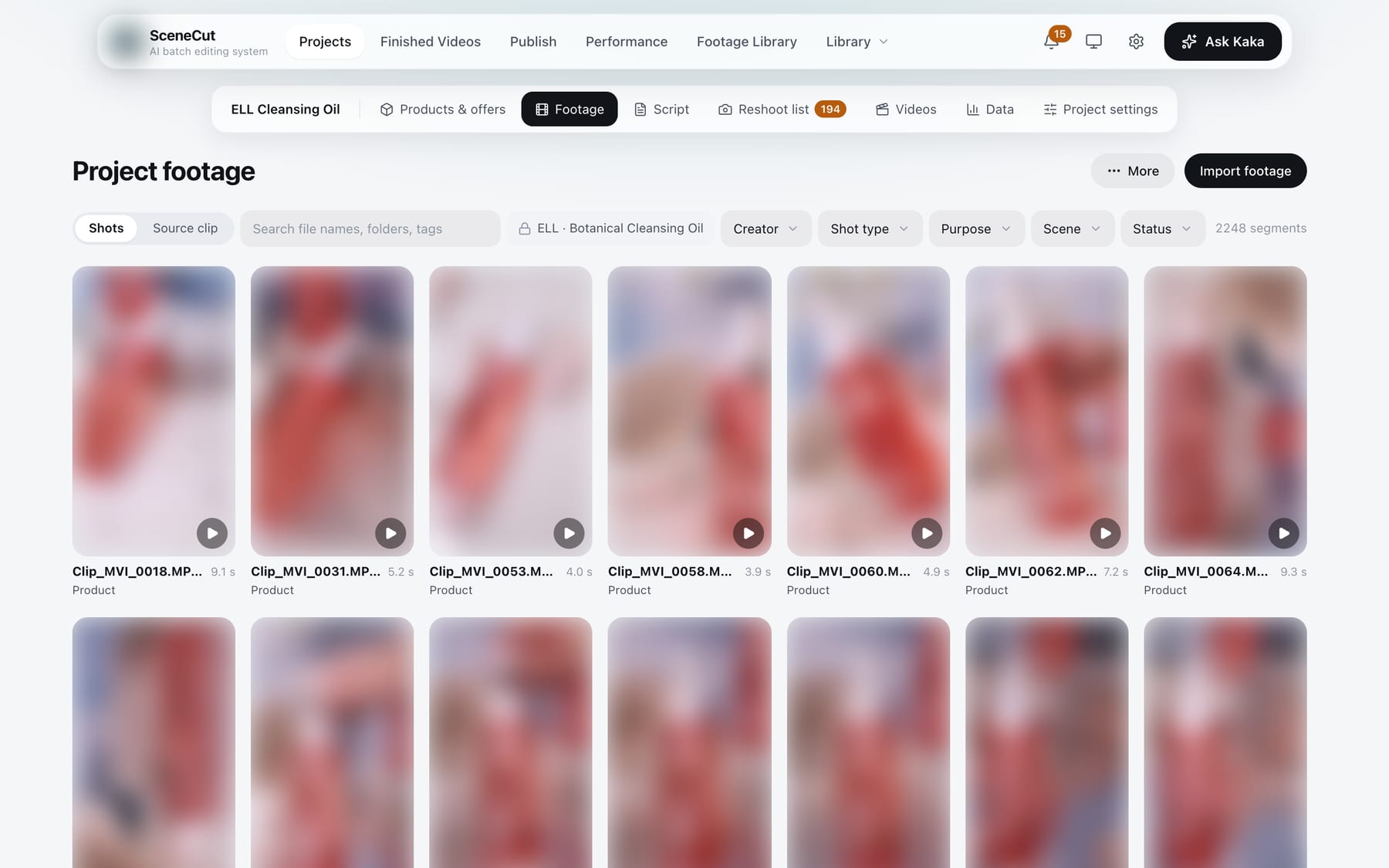
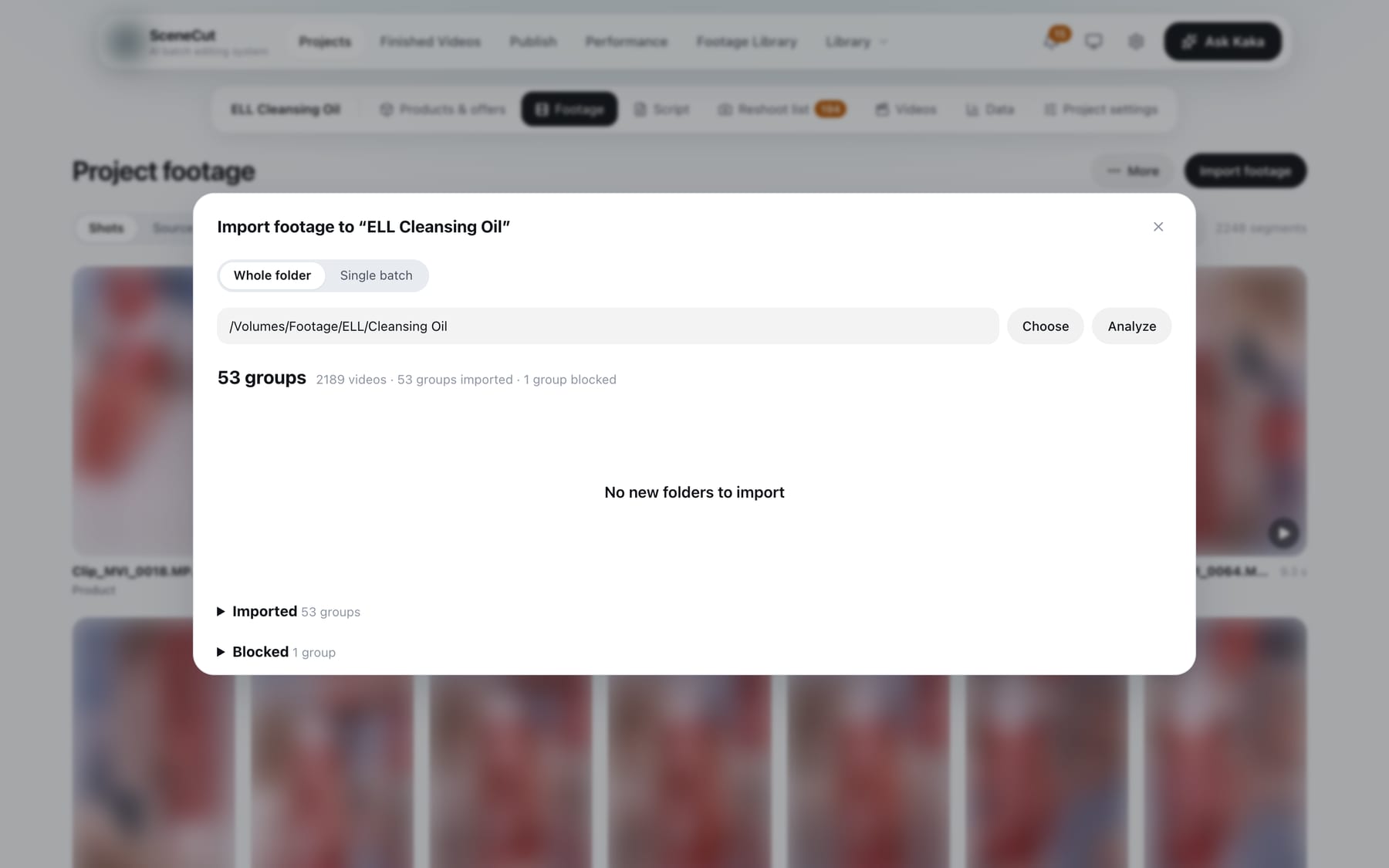
Whole folder (recommended)
- Click “Choose” to pick a main folder (or paste its path), then click “Analyze”.
- Each subfolder is listed as a group with its video count. SceneCut suggests the product, shot type and on-camera person, with its reasons. Folders analyzed before are loaded straight back without re-analyzing.
- Check each group and correct anything that's wrong; every group needs at least one product. The on-camera person is only filled in when the shot type is on-camera talent; leave it blank for an amateur model. Untick groups you don't want, or tick “Stop syncing from now on”.
- For groups that look like final videos, choose “Use as reference preview” (registered in Benchmarks), “Import as footage” or “Don't import”.
- Click “Import selected groups”.
- Folder names that aren't in the brand vocabulary are listed under “Not recognized”; after importing, confirm them under “New names” in To do.
- Words in folder names also help, matched as whole words: sample(s), ref, reference(s), benchmark(s) or viral → reference samples; creator, talking, host, model, UGC or interview → on-camera talent; product, tabletop, close-up, texture or macro → product tabletop shots; final, edited, finished or published → final videos. The Chinese words 样片, 参考, 对标 and 爆款 work too.
- Groups already imported are collapsed under “Imported”.
- Groups marked “Stop syncing from now on” are under “Blocked”; click “Restore” to import them again.
A single batch
- Click “Choose folder…”, tick the products (enter any not in the list in the field next to it, separated by commas), and choose the shot type.
- When the shot type is on-camera talent, you can click “+ Add on-camera person”; leave it blank for an amateur model.
- Click “Start sync”.
After importing, SceneCut processes the footage in the background: it organizes the frames, recognizes what's in each shot and picks out usable segments. Progress shows in the status bar at the bottom. If analysis is paused, or some footage hasn't been analyzed yet, “Continue analyzing” appears at the top right of the footage page; click it to resume. If more than 200 clips would be analyzed at once, you're asked to confirm first.
“More” at the top right of the footage page contains “Brand vocabulary” and “Rescan files in “brand name”” (rescans files only, without analyzing again).
To do
Everything that needs a human decision is in “To do” on the footage page. When the project's “Footage” tab shows a number, clicking it takes you to To do; you can also click “To do” at the top right of the footage page. Click “View all footage” at the top right to go back to the footage list. Along the top, items are grouped by question type, one type per page; types with many groups are further split into tabs by batch. Kaka can also ask you about each group in the chat; clicking a button there works the same as clicking in To do.
- Clicking a card selects it; clicking the bottom-right corner of a card plays it. You can also drag to select, hold ⇧ and click to select a range, or hold ⌘ (Ctrl on Windows) and click to add or remove.
- The question mark under each question explains what each option means.
- Bottom buttons: with nothing selected they apply to the whole group or type; with a selection they apply only to the selected items.
- In every type except “New names”, the first button is “Not usable”.
| To do | What you do |
|---|---|
| Which offer | Choose which offer this footage belongs to; you can also choose “All of these are usable”, “None of these” or “Only for videos without an offer” |
| Other products in frame | Each clip shows the product AI recognized: “Usable” or “Not usable”. If the whole clip is another product and that product has a project, you can choose “Move to “project name””. You can also change the group with “Change whole batch to X” |
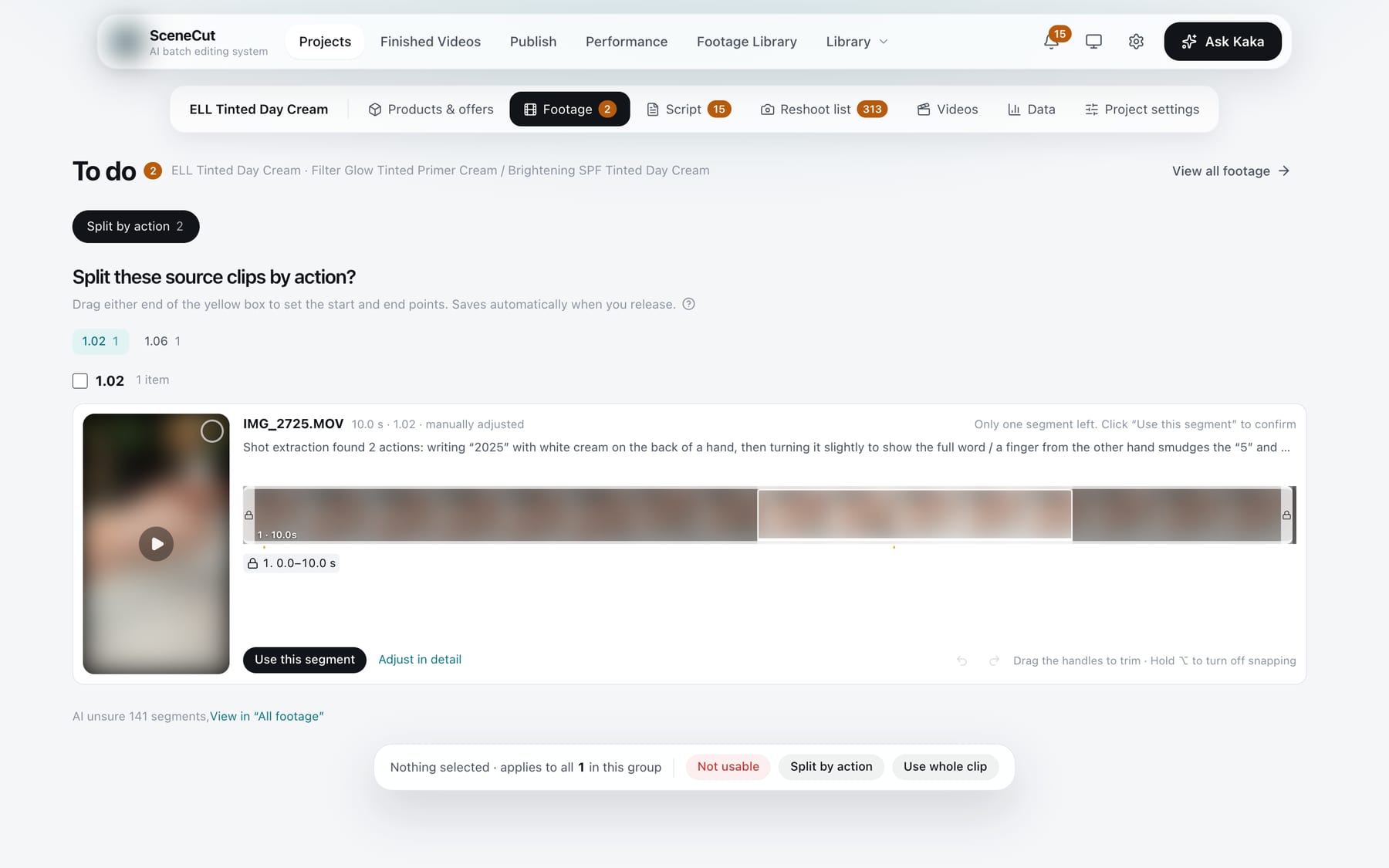
| Split by action | When a clip contains several actions, check the cut points: drag both ends of the yellow box to adjust the start and end, and it saves when you release. Each row has “Split into N segments like this” (“Use this segment” when only one is left), “Don't split” and “Adjust in detail”; the bottom bar has “Not usable”, “Split by action” and “Use whole clip” |
| These may not be usable | Clips AI flagged, clips with picture problems and duplicate files are grouped together, each with a reason: “Not usable” or “Usable”. Duplicates can also be marked “Same footage” or “No”. Nothing is disabled automatically |
| Beauty & color | Handled by shooting batch: click “Adjust” to open the panel, click “Use this setup” when you're done, then click “Beauty & color” at the bottom to start processing. Batches you didn't adjust use the default settings; click “Skip” if none is needed. The three bottom buttons are “Not usable”, “Beauty & color” and “Skip” |
| Use the audio from this batch | Footage of real people talking: “Use original audio” (it will be transcribed) or “Picture only”; you can also choose “Follow AI suggestions”. Batches AI judges as “Use original audio” are decided automatically and transcribed as usual; the notification says how many batches were decided, and you can change this in the source clip details. Only batches AI suggests as “Picture only”, or isn't sure about, remain here |
| Transcription failed | “Retry” or “Picture only” |
| How to use final videos | Final videos mixed into the footage and only recognized after analysis: “Not a final video, use as footage”, “Reference sample” or “Keep original audio only”. Groups you already decided on during import aren't asked again |
| On-screen price | A price sign in the frame that doesn't match the current active offer price: “This price is still valid” or “Not usable”. Matching prices are cleared automatically and not asked about |
| New names | New names found in the footage: “Product”, “Creator” or “None of these” |
Beauty & color panel
- Adjustable: beauty on/off, skin smoothing, whitening, face slimming, eye enlarging (these two can't be adjusted when this computer doesn't support them), brightness, color temperature, auto exposure, auto white balance.
- Color LUT: “Upload” a .cube file and adjust the LUT strength.
- Frame rate: “Everyday (30 fps)” or “Keep original frame rate”.
- Drag a slider to preview instantly; drag the divider on the preview left and right to compare before and after. The row of thumbnails under the preview lets you switch to another frame; click “Preview 3 s” to see the real processed result.
- “Restore defaults” goes back to the default settings.