Help / Final videos & publishing
Finished Videos
- Open “Finished Videos” in the top navigation. Filter by “All brands / All batches”.
- Final videos are named automatically as “Date_Brand_Product_Offer_Type_Number_Version”.
- With the English interface, new folders get English names: “Finished Videos”, the type folders “Mashup”, “Talking-head” and “Motion-graphic” (the same words are used as the type in file names), and “Published” for published videos. Folders created earlier keep their Chinese names and aren't moved; both names are recognized.
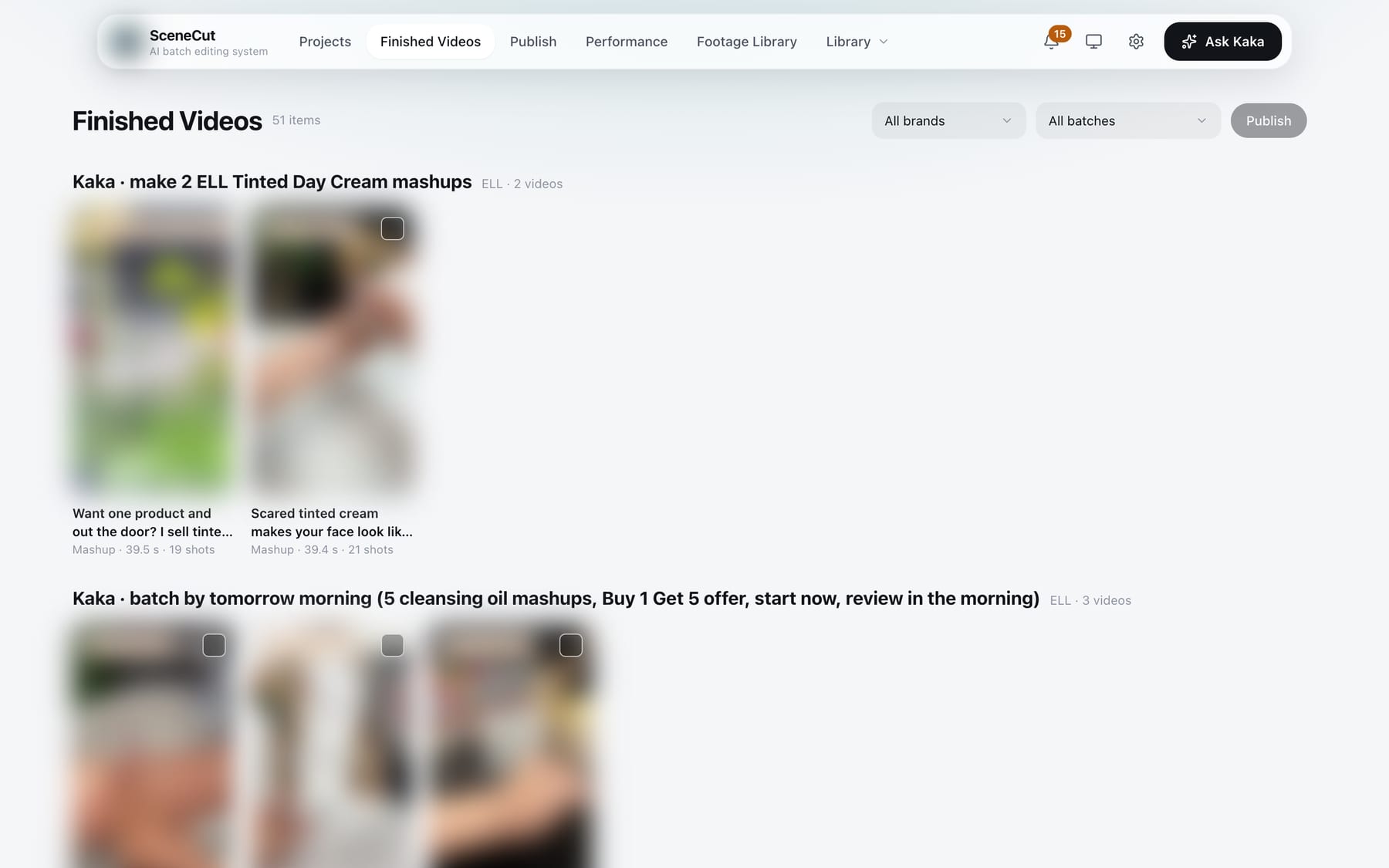
- The status shows in the top-left corner of each poster: Not published, In platform review, Published, Held in review, or Sent back for changes. After you click “Publish”, it shows “Added to publish queue”, “Publishing”, “Publish failed”, “Publish status unconfirmed” or “Not published on time”.
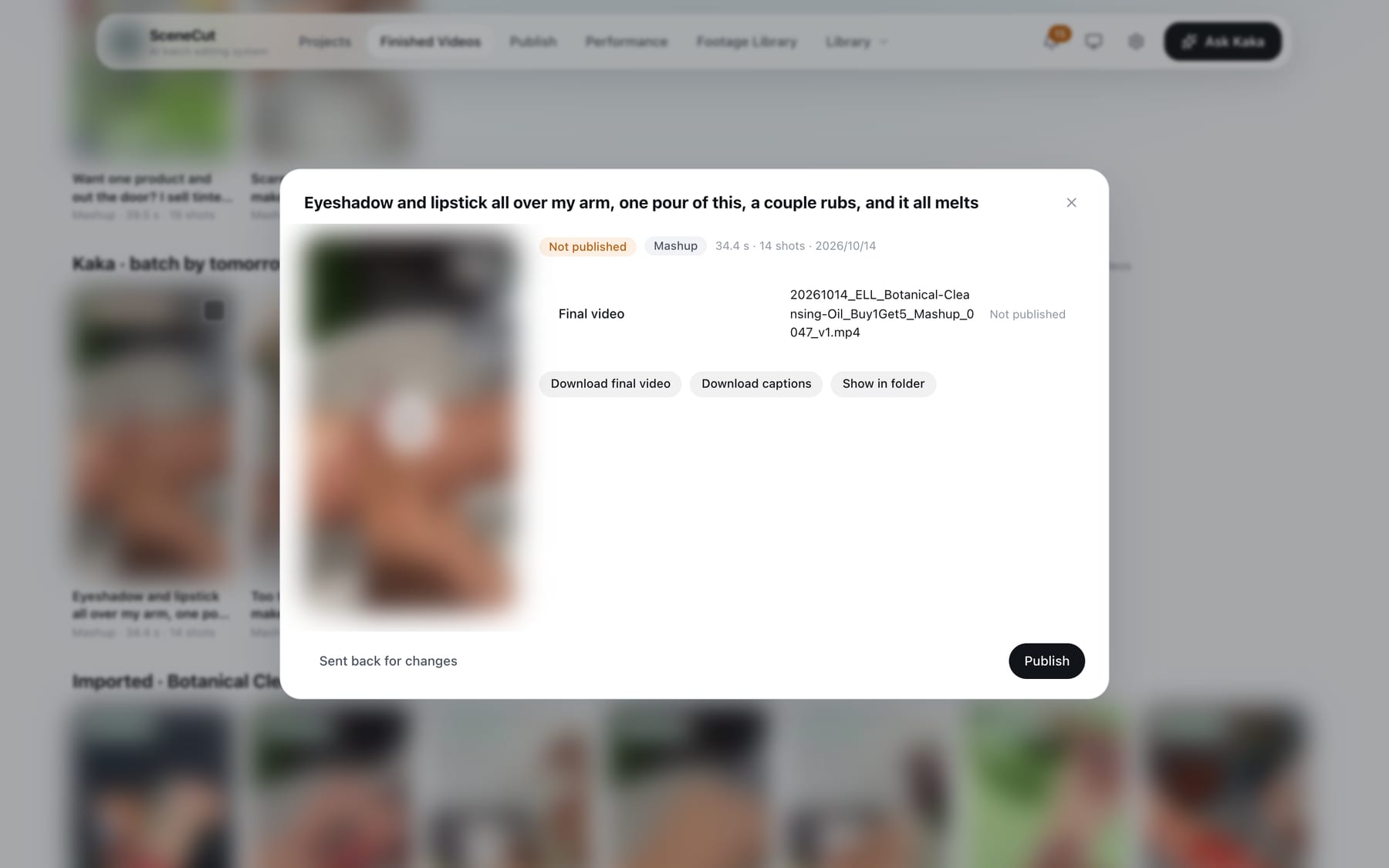
- Click a poster to open the details: click the cover to play, “Download final video”, “Download captions”, “Show in folder”. After publishing, platform data also appears here (the latest day and the last 7 days).
Status and actions
The buttons at the bottom of the final video details change with the status:
- Not published:
- Primary button “Publish”: opens the publish form. Choose a platform and account (Douyin, Xiaohongshu, WeChat Channels, Kuaishou), and edit the title, description, hashtags and cover. See Publish. If the last attempt failed, the button reads “Republish”.
- If the video has already been published outside SceneCut, click “Mark as published” in the bottom-left corner of the publish form and record the platform and account.
- “Sent back for changes”: fill in the issue type and the reason it did not pass. The video goes back to In production.
- If the video is already in the publish queue, the button reads “View publish queue”. If it is unclear whether it went out, the button reads “Check”: verify it in Performance first, then decide whether to publish again.
- In platform review: “Held in review”, “Passed platform review” (optionally enter the video link or the Qianchuan video ID).
- Held in review:
- “Upload screenshot”. You can also paste it directly.
- The system reads where it is held, the reason the platform gave, the specific issues and suggested fixes. Check them and click “Confirm held in review, send back for changes”.
- The video goes back to In production, and the reason is recorded as a revision note.
- Batch publishing: tick the box in the top-right corner of the posters (only videos that are not published and not already in the publish queue can be ticked), click “Publish N” in the page header, and choose a platform and account. The whole batch goes to the same account. Titles, descriptions, hashtags and covers are generated automatically and published after 10 minutes. During that time you can edit the copy or pause on the “Publish” page.
- After ticking, the page header also shows “Mark as published”: record several videos that have already been published elsewhere in one go.
- Published final videos are moved to the “Published” folder automatically, and a record is kept.
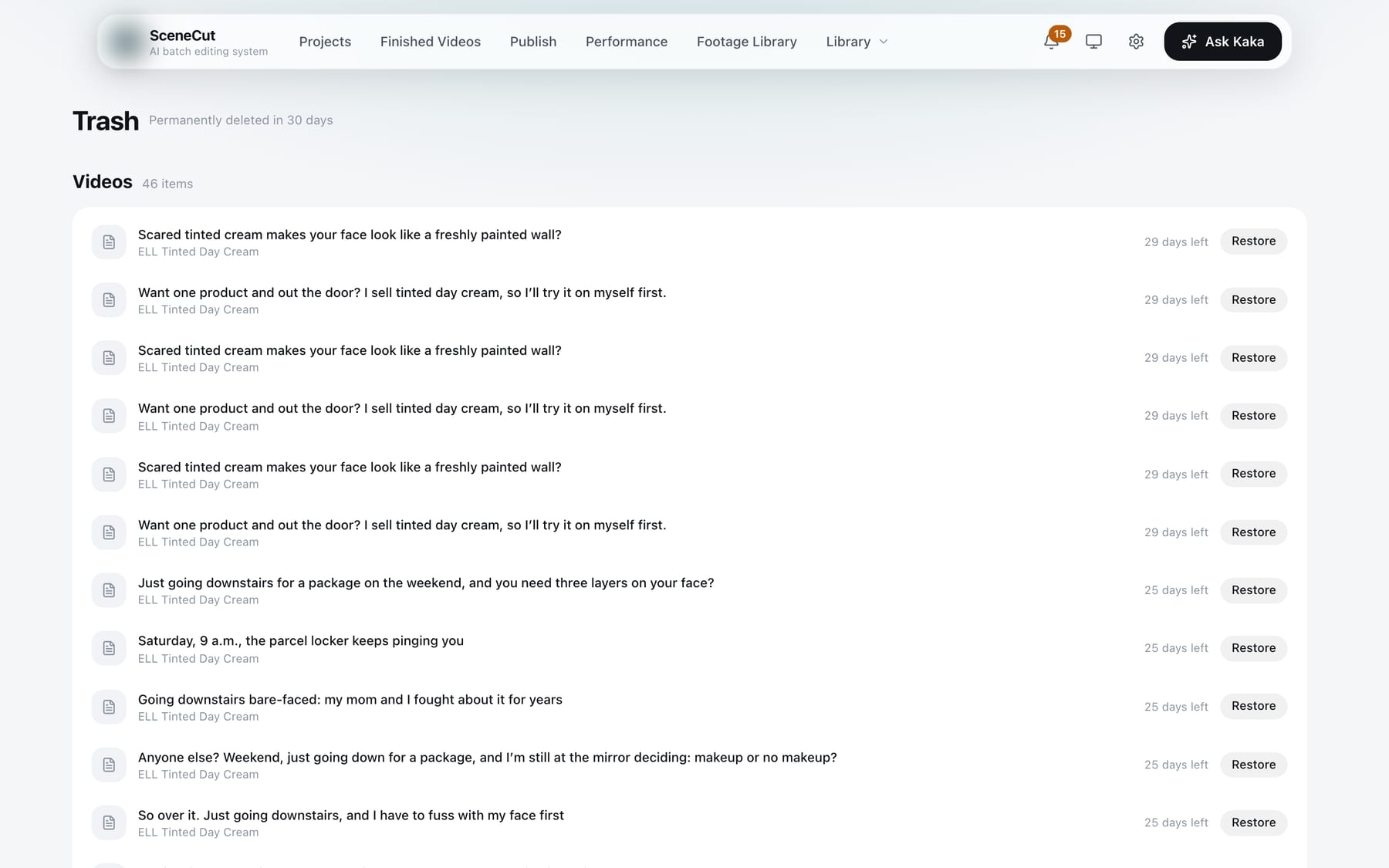
Trash: the trash icon in the top-right corner of the home page (Projects). Deleted projects and videos are kept here and can be restored with “Restore” within 30 days. Delivered videos are only archived and never go to the trash.