
Help / Making videos
Multilingual projects: foreign-language videos
SceneCut comes in a Chinese edition and a Multilingual edition. The Multilingual edition has everything in the Chinese edition, plus 11 video languages and publishing to TikTok, YouTube and Instagram. The interface language (中文 / English) can be switched in every edition at no cost.
Create a foreign-language project
- On the home page, click “New project” and fill in brand, product and offer as usual.
- Choose a video language: Chinese, English (US), Japanese (Japan), Korean (Korea), Indonesian (Indonesia), Thai (Thailand), Vietnamese (Vietnam), Malay (Malaysia), Arabic (Saudi Arabia), Spanish (Mexico) or Portuguese (Brazil). The country in brackets is the market.
- Click “Create and import footage”.
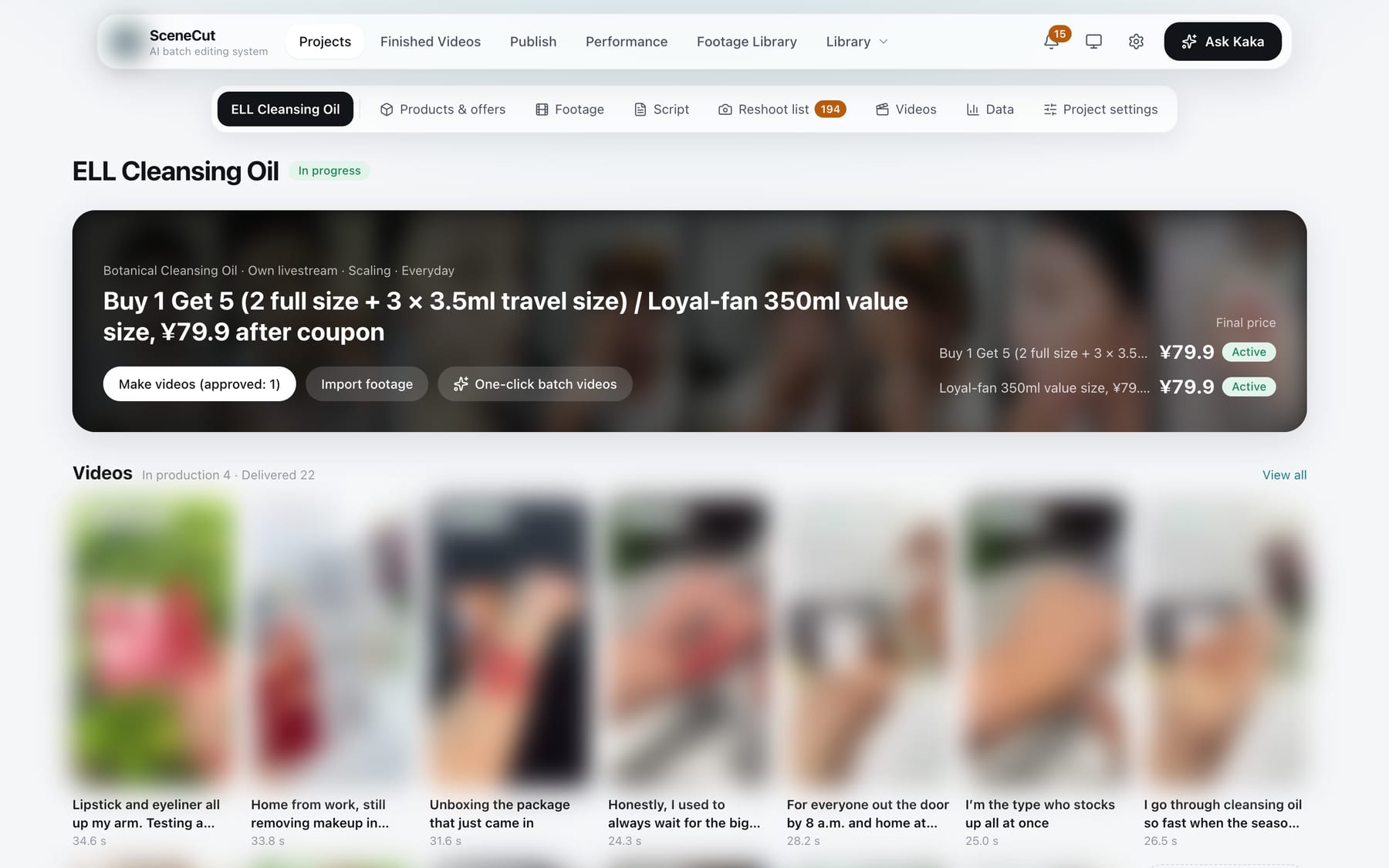
Once a project has videos, its video language can't be changed. For another language, create another project; footage can be shared.
What follows the language
- Scripts: written the way the local market talks and checked against local compliance rules; prices in the local currency; sales events are local holidays.
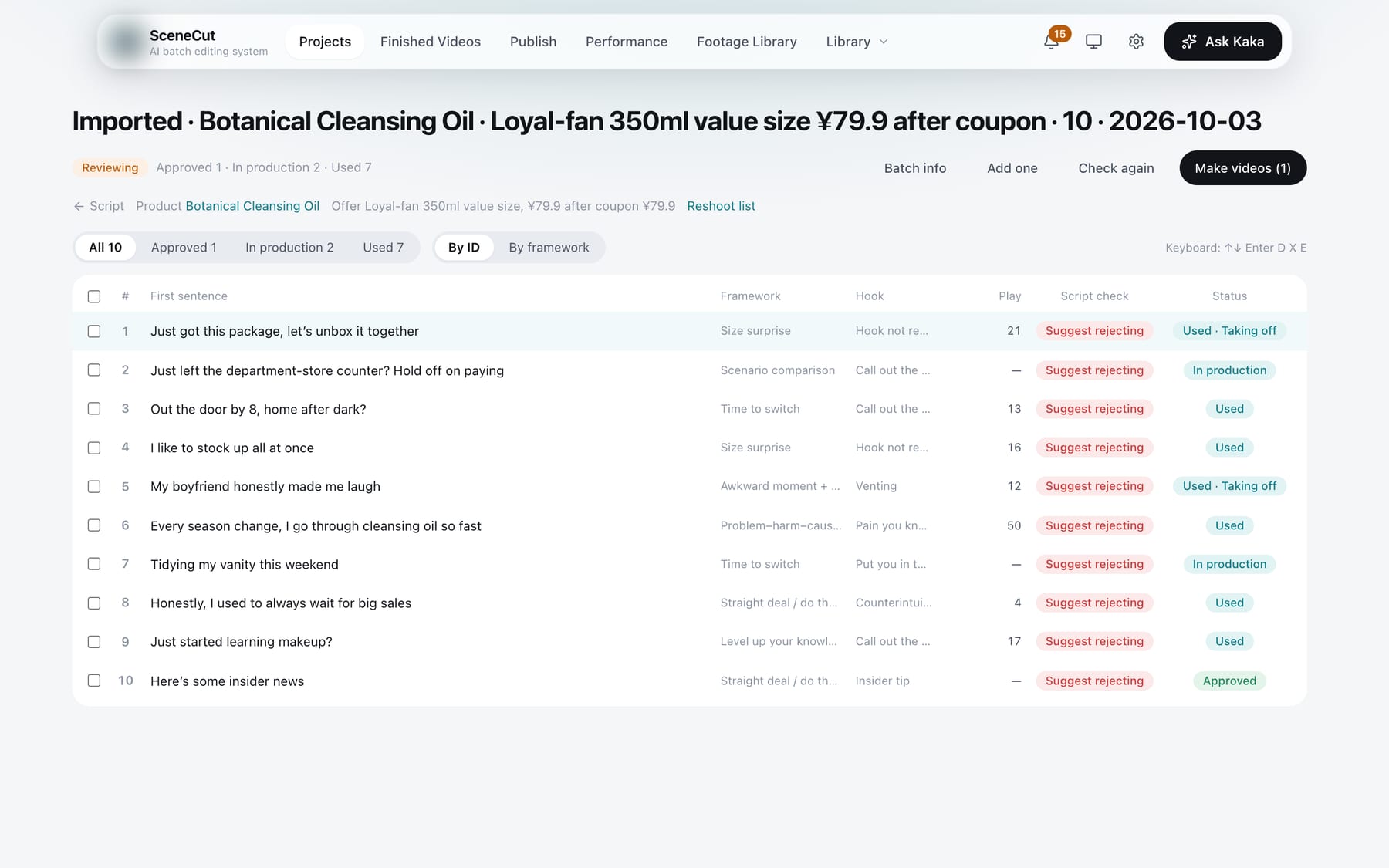
- Voiceover and captions: voiced and captioned in that language; Arabic captions run right to left.
- Fonts and presets: style packs, caption styles and motion templates have a language menu that lists the presets available for that language. Latin-script languages share the English style packs and caption styles; Japanese, Korean, Thai and Arabic each have their own style packs; motion templates without hard-coded Chinese work in any language.
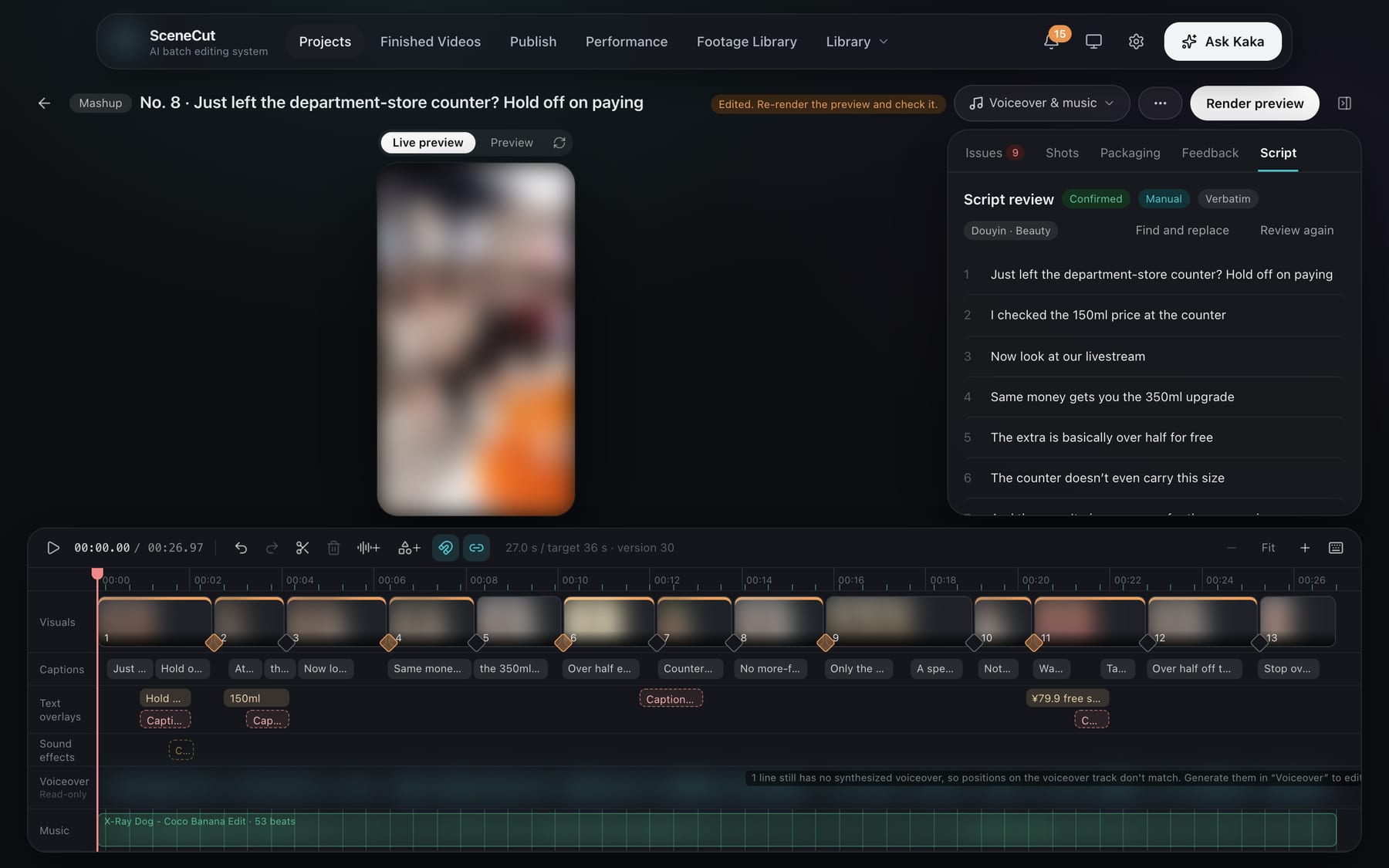
- Post copy: titles, descriptions and hashtags are written in that language. For TikTok, YouTube and Instagram, see Overseas platforms.
What the Chinese edition includes
- 3 trial foreign-language videos per organization in total; deleted videos still count.
- After that, creating foreign-language projects, making foreign-language videos and publishing to overseas platforms all ask you to upgrade to the Multilingual edition.
- Foreign-language presets in the Library are marked “Not activated”; you can still preview their samples.
Upgrade to the Multilingual edition
- In the customer console, under “Plans & renewal”, click “Upgrade to Multilingual” on the Multilingual plan with the same number of seats. It shows the exact amount to pay.
- The upgrade takes effect immediately. Seats and expiry date stay the same; you pay the difference for the days left in this period and renew at the Multilingual price from the next period.
- Switching back to the Chinese edition takes effect when the period ends, with no refund. Foreign-language projects and final videos stay and can be viewed and exported, but you can't make new foreign-language videos or publish to overseas platforms.