Publish
Log in to publishing accounts first
In “Settings → Accounts”, accounts are grouped into tabs by platform:
- “Add account”: choose a platform, enter the phone number and brand (account name and creator are optional).
- On the account card, click “Log in” (or “More → Log in”) and scan the QR code with the phone app.
- When a verification code is required, enter it in SceneCut with “Submit code”.
The account card’s “More” menu also has: Edit details, Check login, Sync info, Sync products, Product list (Douyin accounts), Delete.
Login status
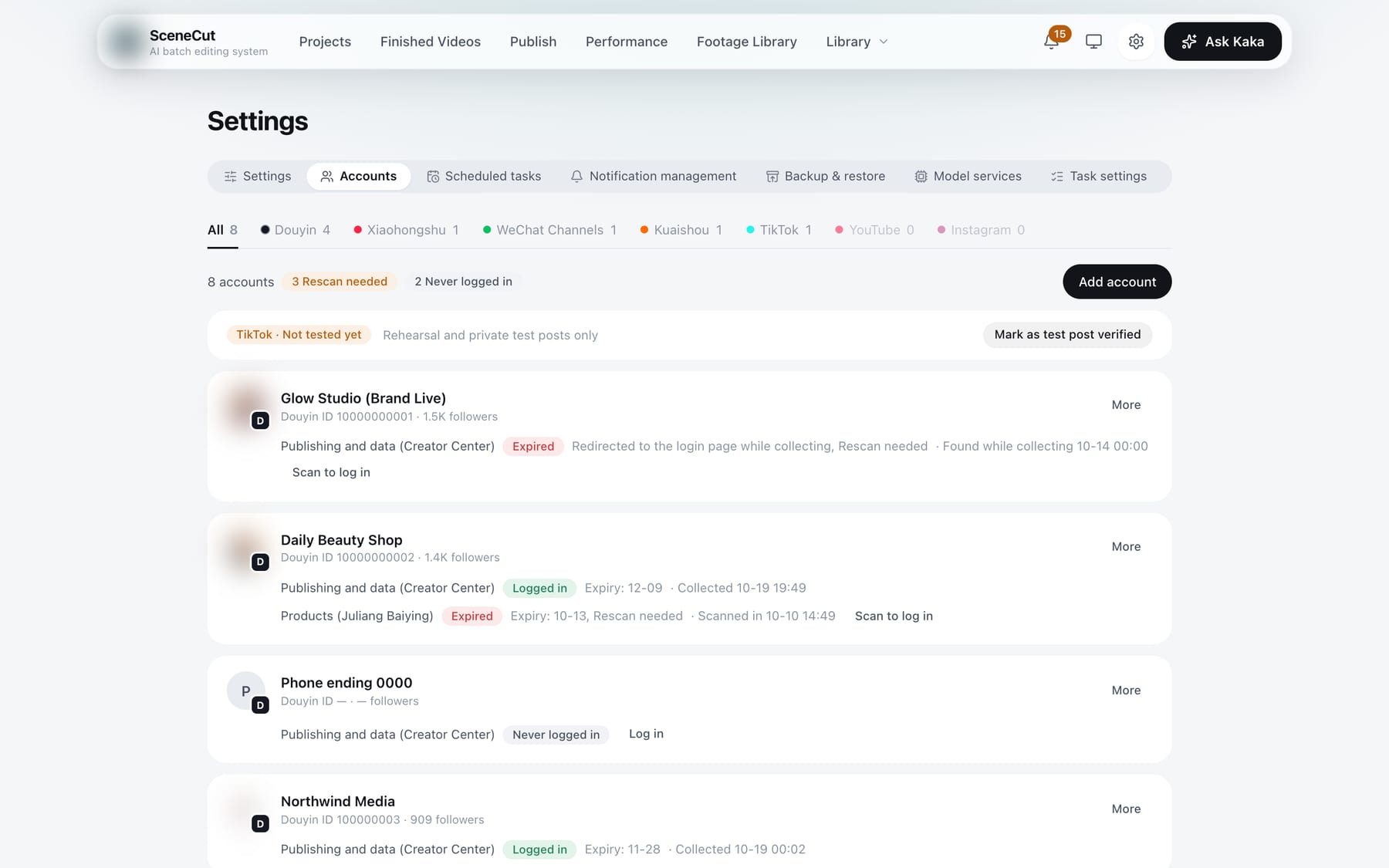
Each login the account needs takes one row on its card, including healthy ones. For example:
| Login | Status |
|---|---|
| Publishing and data (Creator Center) | Logged in · expires 11-28 · checked on the platform today 10:00 |
| Products (Juliang Baiying) | Logged in · expires 10-13, 3 days left · scanned to log in today 14:49 |
- There are only five statuses: Logged in, Expiring soon, Expired, Never logged in, Couldn't check. If the login state file on this computer is missing, it shows “Login state lost”.
- Expired: the reason follows (expired on a given date / redirected to the login page when opening the platform / when publishing / when collecting data). Click “Scan to log in” to scan again.
- Couldn't check: click “Check again”.
- Douyin shows the expiry date (the days left are shown only when 3 or fewer remain). For Xiaohongshu, WeChat Channels and Kuaishou the platform decides how long a login lasts, so only “Logged in on <date>” is shown.
- The last part is how the login was last confirmed: scanned to log in, checked on the platform, published successfully, or data collected successfully.
- Products (Juliang Baiying) only shows when it is needed: the publish rules have Product link turned on, Product link products have been synced, or product link collection borrows this account. When it is hidden, you can still log in from “More”.
- Above the account list, counts are shown for three cases: “N need to scan again”, “N couldn't be checked”, “N never logged in”.
Logins are checked automatically every day at 10:00, mostly based on publishing and data collection results: accounts that published or collected successfully in the last 48 hours are not opened on the platform again, and Douyin is judged by its expiry date. A manual “More → Check login” really checks the same account only once every 30 minutes; clicking again shows the last result.
Every morning at 8:30, if an account needed by today’s publish queue has an expired login or couldn't be checked, the bell reminds you to scan first. If a post is still within its data collection period and the login has expired so yesterday’s data wasn't collected, you are also reminded. After you scan again the same day, yesterday’s data is collected automatically.
Publish from Finished Videos or the video page
Finished Videos, the videos in Projects, the final video details and the editing page all use the same “Publish”:
- To publish one video: the publish form opens directly. Choose the platform and account at the top first, then edit the title, description, hashtags and cover.
- Tick several videos and click “Publish”: choose a platform and one account, then click “Publish N”. The title, description, hashtags and cover of each video are generated automatically and published after 10 minutes. During that time you can edit the copy or pause in “Publish queue”.
- If the video has already been published outside SceneCut: click “Mark as published” to record it (available in the bottom-left corner of the publish form, the action bar after ticking, and the Finished Videos page header).
After you click “Publish”, the video shows how far it has got: Added to publish queue, Publishing, Publish failed, Publish status unconfirmed, Not published on time. Videos that are queued or being published can't be published again; handle them in “Publish queue”.
Publish queue
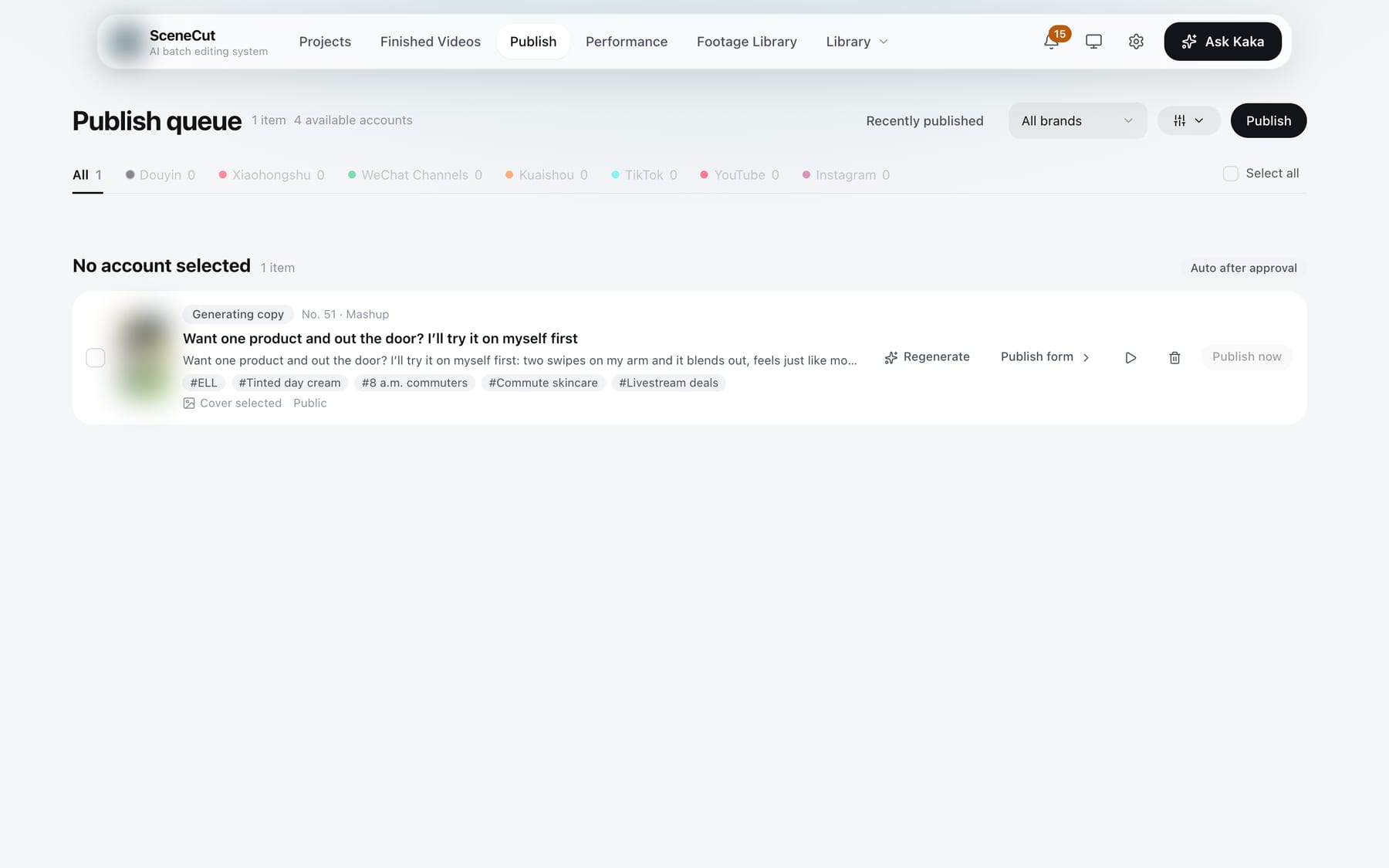
- Click “Publish” in the top navigation to go straight to the “Publish queue” page, with tabs by platform and groups by account. You can filter by brand.
- For each video you can:
- “Regenerate”: all, title only, description only, or hashtags only (items you edited by hand are not overwritten when you choose “All”);
- “Publish form” (“Copy” for external videos), pause / resume, remove from the publish queue;
- “Publish now”: skip the countdown.
- After ticking, the platform tab row turns into batch actions: “Publish now N”, “Scheduled publishing”, “Pause N”, “Resume N”. “More” has “Regenerate copy” and “Remove from publish queue”. Click “Cancel” to exit. When nothing is ticked, this row shows “Select all”.
- Removing from the publish queue: videos made by SceneCut go back to Finished Videos (still Not published, and can be added again later). External videos are simply no longer published; the local files are untouched.
- For external videos, click “Copy” to edit the title, description and hashtags. The cover can use “Change style”. Click “Save” when done.
- While a video is being published, all its buttons are locked until it finishes.
Publish rules
The “Publish rules” button in the publish queue header expands the rules. First choose “General (all accounts)” or a specific account in “Choose account”. Each account can have its own settings; “Restore general rules” returns it to the general ones.
- Publish settings: default visibility, default declaration, allow others to save the video.
- Extended tags (Product link or Location, one or the other): turn on “Product link” and enter the product link; turn on “Location” and enter the location name. Kuaishou also requires the city.
- Platform scheduled publishing: enable, first publish time, publish interval. Use either this or planned publishing, not both.
- Planned publishing: set in “Settings → Scheduled tasks”. Click “Go to Scheduled tasks” to open it.
Publish form
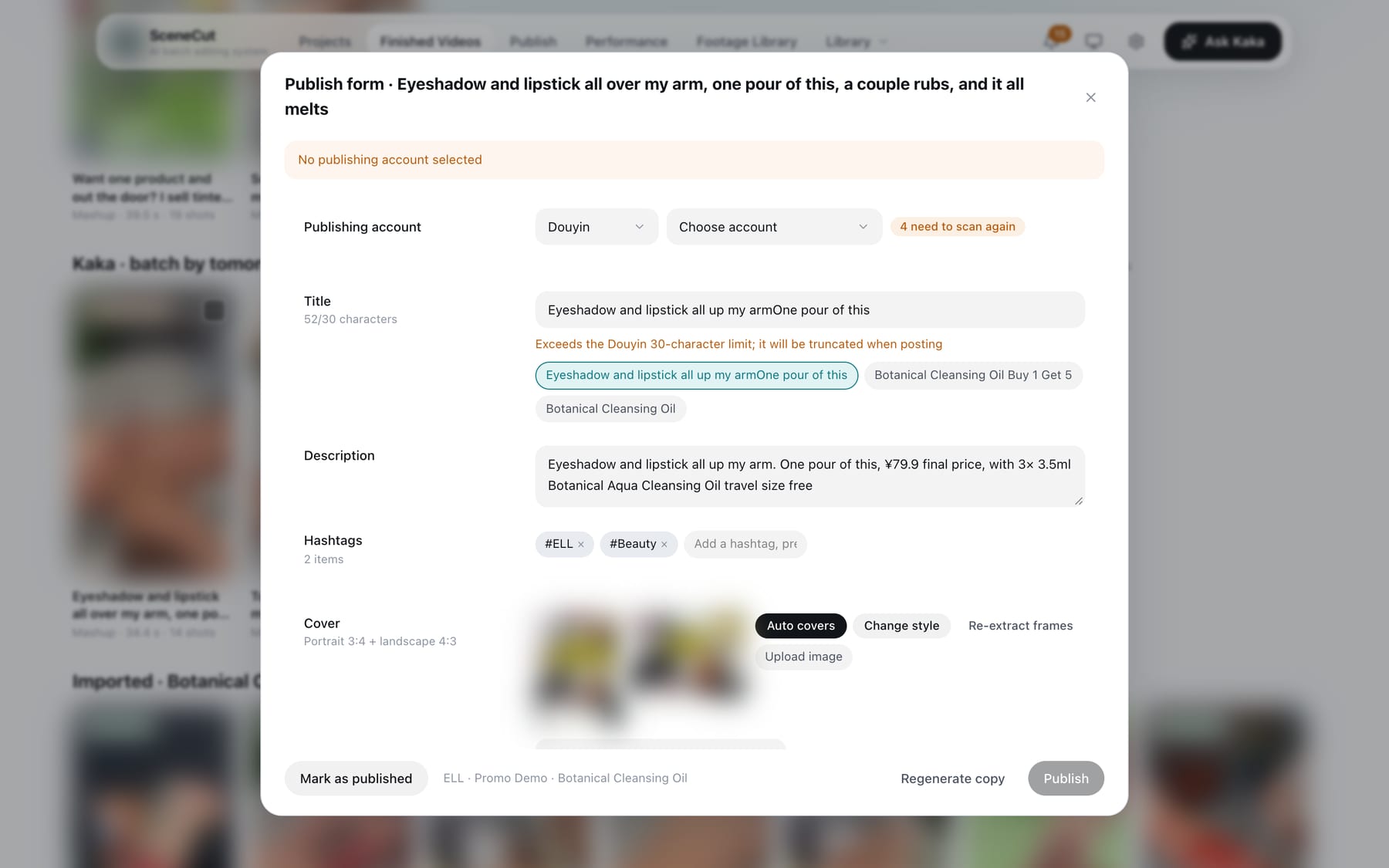
- Publishing account: choose the platform first, then the account. Accounts that need to be scanned again are marked.
- Title (click a suggestion below it), description, hashtags (press Enter to add, or click a suggestion below). The title length limit depends on the platform; anything over is cut automatically when publishing. For WeChat Channels and Kuaishou, the title is written as the first line of the description.
- Cover: one vertical 3:4 and one horizontal 4:3.
- “Auto covers”, “Re-extract frames”, “Upload image”, or click one of the extracted frames below to switch frames;
- Cover headline: after editing, click “Update cover” (or press Enter); “Revert” discards the change;
- “Change style”: SceneCut comes with 24 cover styles. The dialog shows a thumbnail of this video in each style; click one to regenerate the cover in that style, or “No style” to go back to a plain cover. Styles missing required material are grayed out; hover to see what is missing. How auto cover picks a style is set in “Library → Presets → Cover”.
- Visibility.
- Platform scheduled publishing: from 2 hours to 14 days ahead, in Beijing time. You can also choose “Publish now instead”.
- Content declaration: when AI footage is used, it is locked to “Content is AI-generated” and can't be changed.
- Save permission (allow / don't allow) and extended tags (Product link / Location / None): follow the publish rules by default and can be changed for this video only.
- Product link: paste the product link (accounts that have synced products can pick from the dropdown), then enter a short product title (up to 10 characters, required);
- Location: enter the place name. Leave it empty to add no location.
- Xiaohongshu, WeChat Channels and Kuaishou accounts show “Product link not supported yet”.
- Changes are saved automatically and are still there next time you open it.
- Bottom: “Mark as published”, “Regenerate copy”, “Publish / Schedule”. After publishing it shows “Submitted, in platform review”, and the result updates within 5 minutes.
Publish a batch
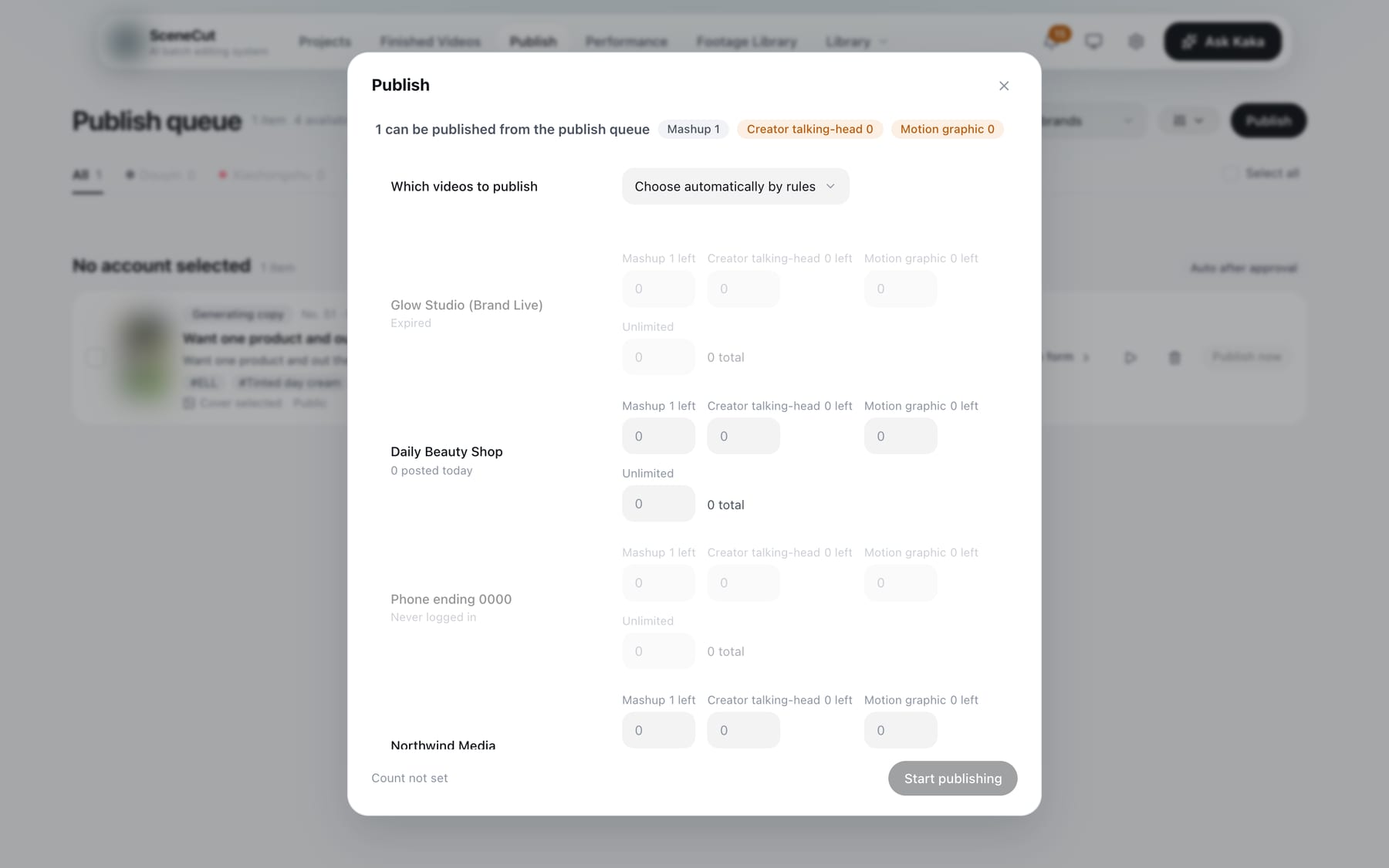
“Publish” in the publish queue header:
- Choose which videos to publish: auto-select by rules / only the N ticked videos / external videos (local files or a folder).
- With auto-select by rules, enter the number of videos per account and type. For external videos, use “Choose file…” or “Choose folder…” (or paste a path), then choose the publishing account. Copy is generated automatically after they are added.
- Choose how to publish: publish after copy is confirmed / platform scheduled publishing / planned publishing. Planned publishing requires SceneCut to keep running.
- Click “Start publishing” (“Add to Publish queue” for external videos). You can “Stop” while it is running.
Publish history
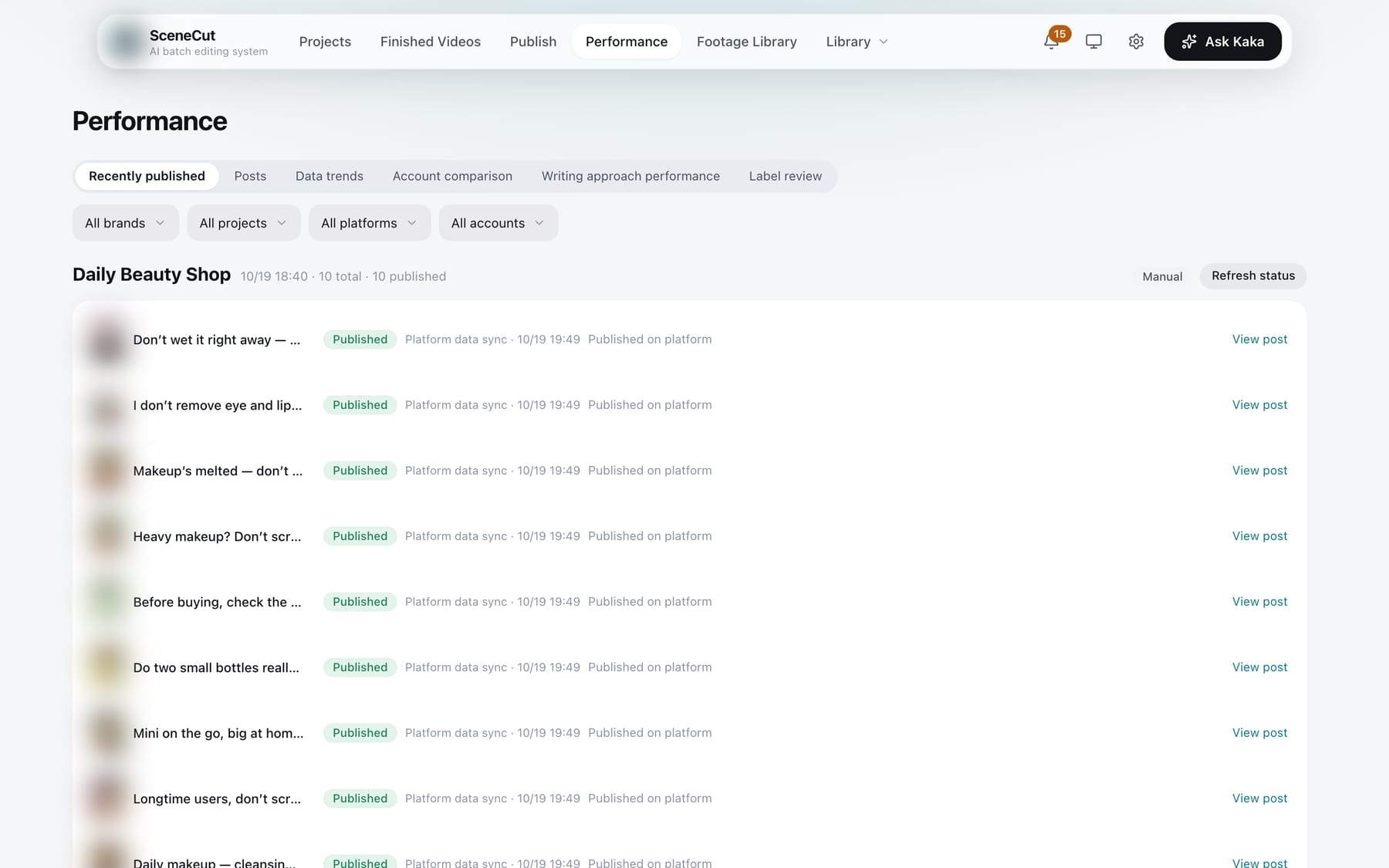
In “Performance → Recently published”, showing the last 3 days (“Recently published” in the top-right corner of the publish queue page jumps straight there).
- Grouped by account and publish time, each group with “Refresh status”. When the login has expired, this becomes “Scan to log in”.
- “Not sent”: click “Repost”.
- If “This may already be published” appears:
- First check in the post management of the platform’s creator center;
- If it is on the platform: no need to publish again; it will be filled in the next time posts are collected;
- If it is not on the platform: click “Checked, repost”.
- “Status not found”: this video wasn't found in the post list. Click “Check on platform” to take a look on the platform.
- Possibly held in review: “Handle review hold” jumps to Finished Videos to handle it.