Projects
Home page
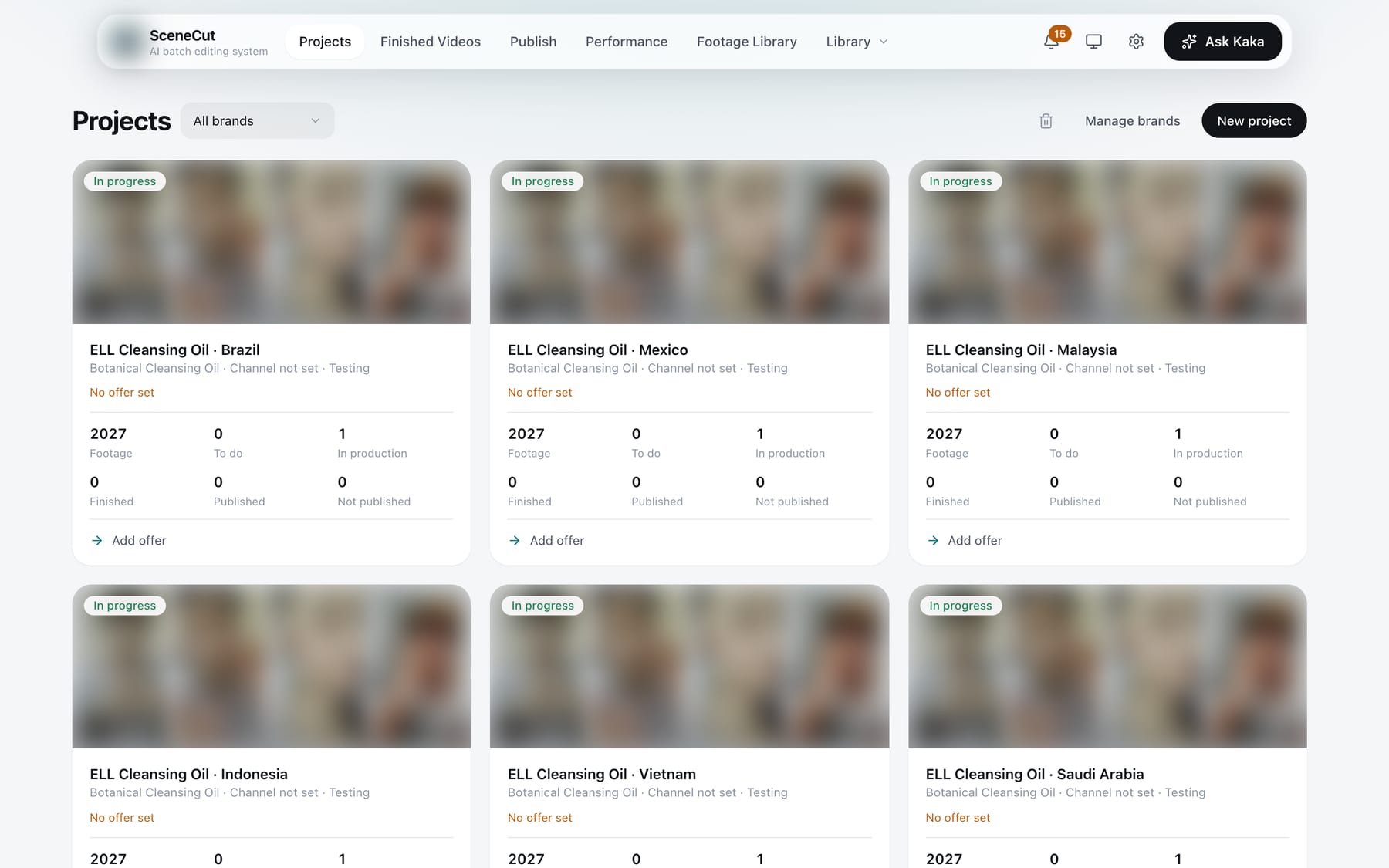
- Filters: an “All brands” filter appears when you have 2 or more brands; an “In progress / Archived” switch appears when you have archived projects.
- Top-right corner: the Trash icon, “Manage brands”, and the main button “New project”.
- Each project card shows:
- a row of footage thumbnails at the top, with the status in the top-left corner;
- the project name;
- product · channel · stage · sales event;
- the final price and the number of offers, or “No offer set” if none is attached;
- six numbers: footage, to do, in production, finished, published, not published;
- a last line saying what to do next.
- Click a card to open the project. The last card is a dashed “New project” box.
New project
Fill in, in order:
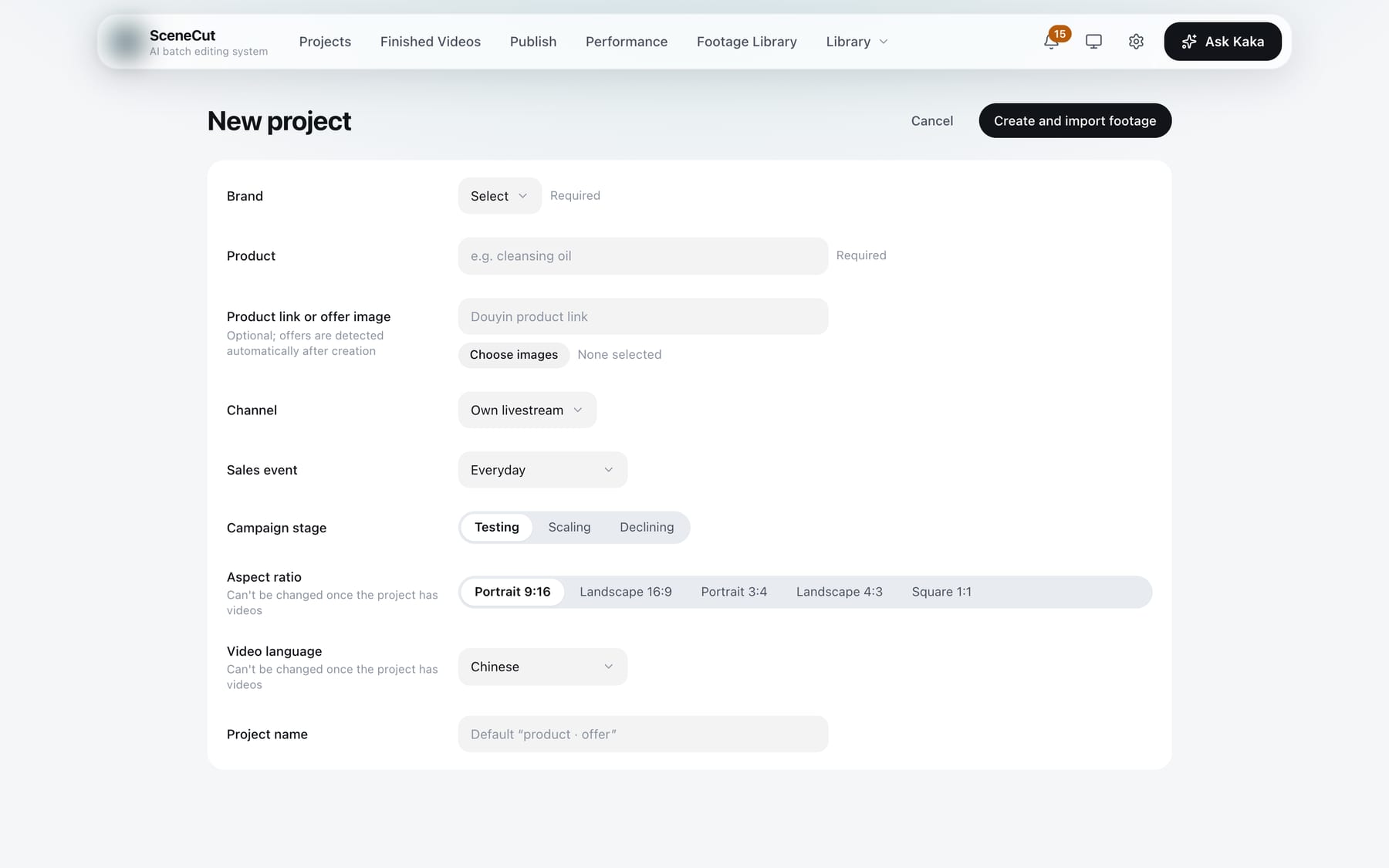
- Brand: choose from the dropdown. The last option is “New brand”.
- Product: choose from the dropdown. The last option is “New product”. If you choose a new one, the form notes that it is a new brand or new product, created together with the project.
- More products (optional): appears when the brand has other products. Check them to add them to this project too.
- Offers (multiple choice): appears only if the selected product already has offers. Check the ones you want.
- Product link or offer image (optional; the offer is recognized after the project is created): enter a Douyin product link, or upload an offer image.
- Channel, sales event, campaign stage.
- Aspect ratio: 9:16 by default. Once the project has a video, the aspect ratio can't be changed. If the chosen aspect ratio doesn't match the orientation of most of your footage, you get a one-line note.
- Project name: if left blank, it is named “product · offer”.
When you're done, click “Create and import footage” to open the project with the import footage window. If you entered a product link or offer image, the offer is recognized first and “Review offer” opens. Check each item, then click “Looks right, save and activate” (or “Save as draft first”); you enter the project after the review. If you selected no offer and gave no link or offer image, you see “No offer selected”. Click “Skip and continue” and add offers on the product page later.
Project overview
Click the project name at the top to see the overview. A project also opens here by default.
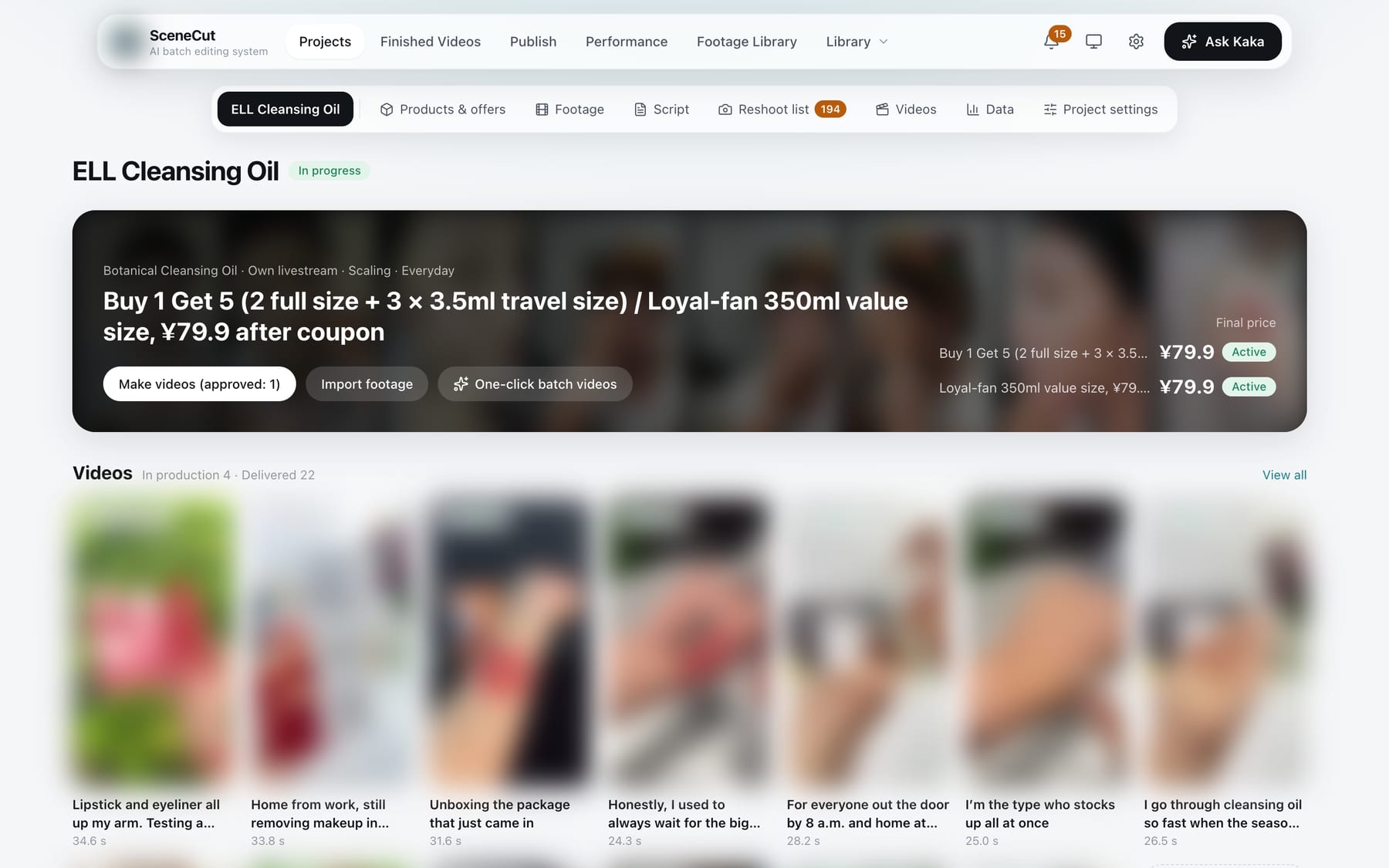
- Header: product · channel · stage · sales event, offer name, final price, and offer status. The buttons are, in order, what to do next (the main button), “Import footage”, and “One-click batch videos”.
- Below the header are reminders that need attention, such as which script needs changes, reshoots to confirm, or an offer missing shots. Click “View” or “Go to confirm” to go straight there.
- Videos: the latest few; click one to open it. “View all” goes to the “Videos” tab.
- Footage: cards grouped by shot type; click one to see that type's footage. When there are items to do, the top-right corner shows “To do N”. The line below, “Still missing: …”, lists shots the scripts need that the footage doesn't have yet.
- Products: product images; click an image to open the product page. “Add or remove” changes which products are in this project.
- Offers: each offer's breakdown, final price, and end date. “Add or remove” goes to Project settings.
- Scripts: the latest few batches, each with counts for to review, approved, and sent to production.
One-click batch videos
In the project overview header, click “One-click batch videos” to open the window:
- Prompt (required, up to 300 characters): what this batch of videos is about and who it is for.
- Basics:
- Count: 3, 5, 8, or 10; 5 by default.
- Offer: appears when the project has two or more offers. Choose one or “Random”.
- Edit style: mashup by default. If the prompt mentions motion graphic or creator talking-head and you haven't picked one manually, it switches to match.
- Writing approach: choose multiple frameworks and hooks from the dropdowns (searchable); click to choose audiences, more than one if you like.
- Packaging and voiceover: choose multiple style packs and voices from the dropdowns; if you choose several, videos take turns using them. Click to choose one delivery style.
- Anything you leave unselected is “Random”, picked at random from suitable options. Up to 8 choices per item.
- The bottom of the window shows “Write N, pick M, take to preview”. Click “Start”.
Once it starts, a progress card appears below the overview header:
- Six stages: project ready, footage ready, write scripts, rough cut previews, self-check and revise, hand over for your review. The line below shows the latest progress.
- While it runs you can click “Stop”, and after it stops, “Continue”.
- When a decision is needed (for example, the offer isn't activated yet or there is no footage), the card shows the question and a few buttons. Click one to answer.
- When it finishes, click “Review previews” to go to the “Videos” tab, pick and edit, and export the ones you're happy with as final videos. One-click batch videos stops at the preview stage; it never exports or delivers automatically.
Only one batch can run in a project at a time. Progress cards for finished or stopped batches stay for one day.
Tabs inside a project
Inside a project, a row of tabs runs across the top:
| Tab | What it's for |
|---|---|
| Project name (overview) | What to do next, reminders, one-click batch videos, progress of each part |
| Products & offers | Product information, links, offers, selling points, audiences, buyer benefits, red lines |
| Footage | Import footage, clear To do |
| Script | Write scripts, import scripts, pick scripts and make videos |
| Reshoot list | Shots the scripts need, and which are still missing from the footage |
| Videos | Make videos, export final videos, publish |
| Data | Jumps to “Performance” in the top bar, filtered to this project |
| Project settings | Basic info, aspect ratio, style pack, products and offers, follow-up, end / archive / delete |
The numbers on Footage, Script, and Reshoot list are the counts of items to do, to review, and to confirm.
Project settings
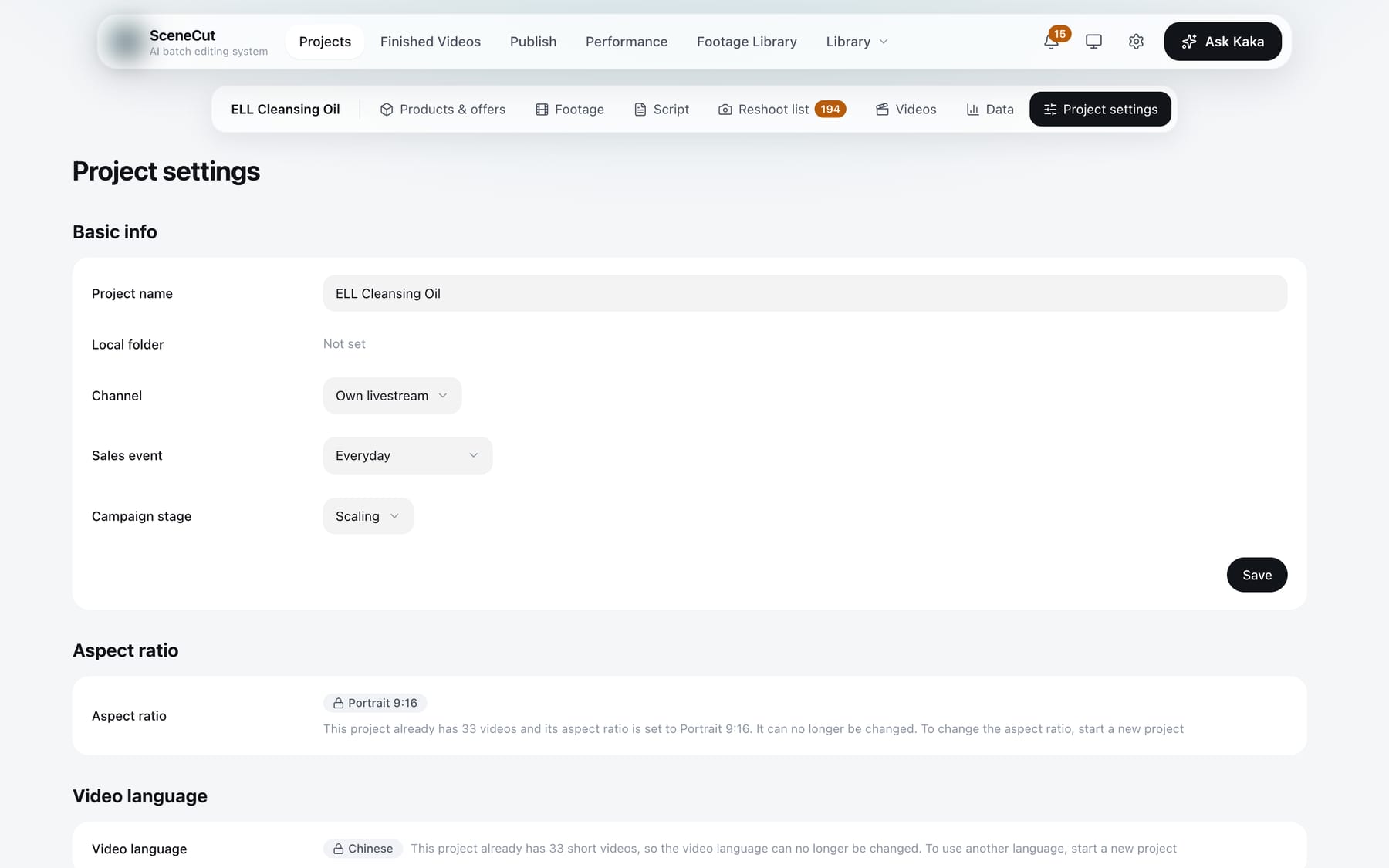
- Basic info: project name, local folder, channel, sales event, campaign stage. Click “Save” after changing them.
- After changing the aspect ratio or style pack, click “Save aspect ratio” or “Save style pack” respectively. Once the project has a video, the aspect ratio is locked; to use a different one, start a new project.
- Below the style pack is “Brand guidelines”; click “Edit brand guidelines”.
- Products and offers: in the top-right corner, choose a product and click “Add to project”, or choose “New product…” and enter a name. Each product row has “Add offers on the product page” and “Remove from project”. Each offer has only “Add to project” and “Remove from project”; offers used by existing scripts can't be removed. Click an offer name to jump to it on the product page. Creating, recognizing, editing, and activating offers all happen on the product page. See Products and offers.
- Follow-up: choose an offer that isn't in this project yet and click “Duplicate project” to start a new project.
- Danger zone: “End”, “Archive”, “Delete”. A project you ended manually can be restarted with “Restart”; an archived project can be restored with “Unarchive”. Archiving clears previews and working files; final videos in Finished Videos are not affected. “Delete” appears only when the project has no delivered videos. Deleted projects go to Trash and can be restored within 30 days.