
Help / Settings & FAQ
Settings
Click the gear icon in the top-right corner. Tabs run across the top, and every change is saved right away.
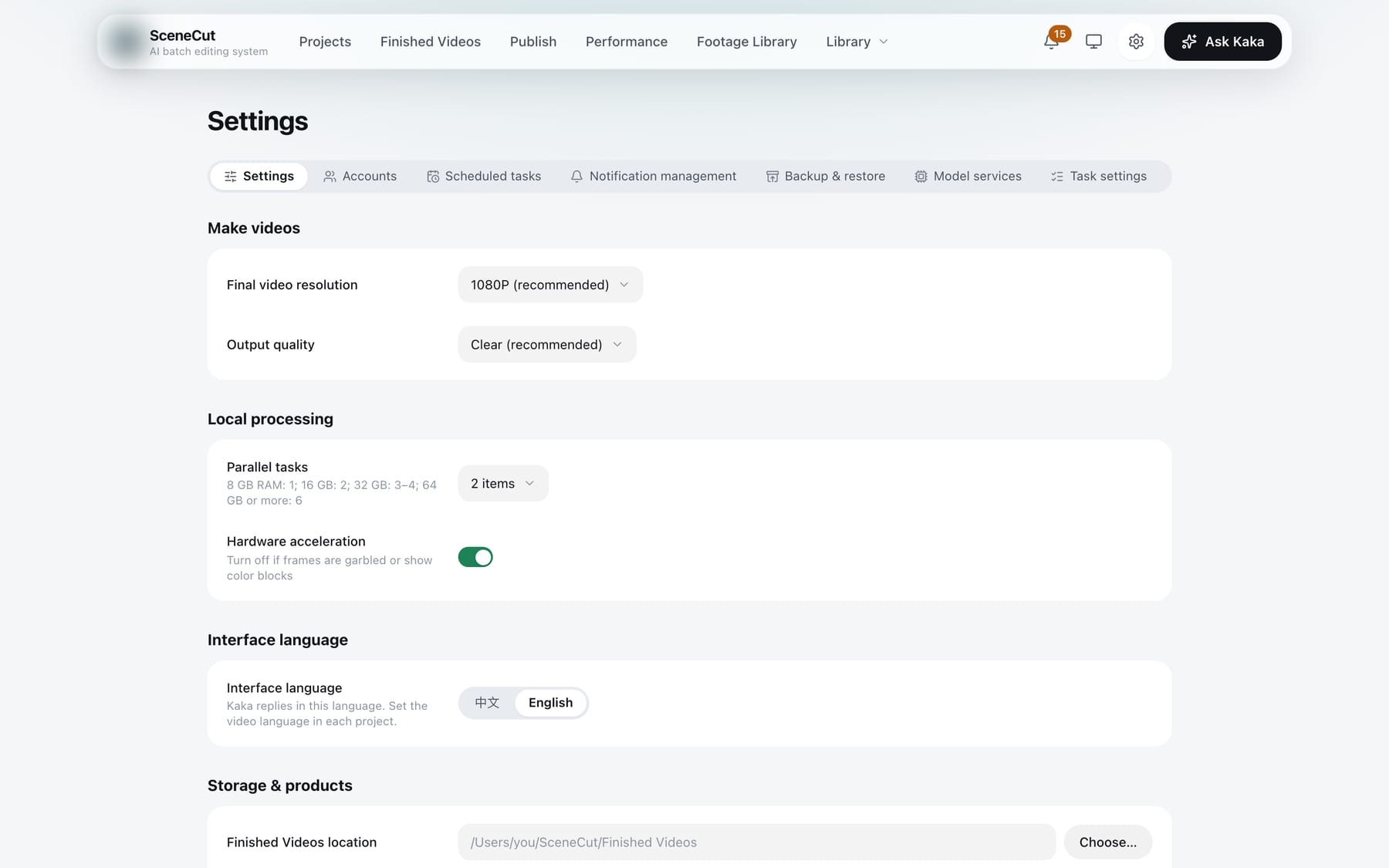
| Tab | What you can do |
|---|---|
| Settings | Make videos: final video resolution (1080P / 2K / 4K; the 3:4 and 4:3 aspect ratios only export at 1080P) and output quality. Local processing: parallel tasks, and hardware acceleration (turn it off if frames are garbled or show color blocks). Storage & products: Finished Videos location, and searching the web to fill in product info. Disk usage: how much space each item takes; click “Clean up” on anything that can be cleaned, or “Open in folder”. Interface language: 中文 / English; the interface reloads after you switch |
| Accounts | Accounts are grouped into tabs by platform; use “Add account” and scan to log in. Each card shows one row per login it needs (status, expiry or login date, last confirmed), and a row that needs action has “Scan to log in”, “Log in” or “Check again”. “More” contains Edit profile, Check login, log in to each platform, Sync info, Sync products and the product list (Douyin), Experiment: pause scheduled health checks, and Delete. For a platform you have not tested yet, post one private test post, then click “Mark as test post verified” |
| Scheduled tasks | “My plan” (Beijing time): scheduled editing (daily run time, which brand to edit, “Run now”), scheduled publishing (“Go to Settings” takes you to the Publish page to schedule posts), and data collection (time of day, “Run now”). “Scheduled by Kaka” (shown only when there is something): plans you set up by telling Kaka “every day at 9:00…”; you can disable, restore or delete them. Plans run on this computer and do not run while the app is closed |
| Notification management | The top section lists all notifications; filter by all / unread / read / handled, select some, then “Mark as read”, “Mark as handled” or “Delete”. The bottom section holds the cleanup rules: mark as handled automatically once resolved, how many days to keep handled notifications, how many days to keep read ones, and the longest they are kept. Click “Clean up” on the “Clean up now” row |
| Backup & restore | Daily auto backup (keep 3 / 7 / 14 / 30), where backups are stored (“Change folder…”; by default ~/SceneCut Backups, each backup in a “SceneCut Backup-date” folder), and whether to also back up previews rendered in projects or final videos in Finished Videos. “Back up now” (shows “Backing up…” and progress after you click it). “Restore from backup…”: choose a backup folder; footage folders are grouped by location, so click “Choose location” once per location, or click “Set folder by folder”. Click “Restore” and confirm, and the app restarts; the window shows “Restoring from backup” with progress, then opens automatically and shows “Restore complete” |
| Model services | Connect a large language model in one of two ways. “Account login (local agent)”: WorkBuddy with a WeChat QR scan, or Claude Code or Codex (you need access to their services). “Connect with API Key”: on a platform card, click “Enter API Key” → “Save and test”. See Connect a model |
| Task settings | The 8 categories of model tasks (footage, products & offers, benchmark breakdown, scripts, editing, video check, publishing, Kaka); pick one model per category (categories that need to see images can only use multimodal models). These are set up automatically when you connect your first model service |
Voiceover, transcription, AI video and benchmark collection come with your subscription and need no setup: each seat gets an allowance every month. When it runs out, buy a top-up pack in the online console. See usage under “Subscription”.
Kaka's “Ask me before changing anything” is in the settings menu on Kaka's title bar. See The interface.
“Parallel tasks”: choose based on your computer's memory. The page shows a recommendation (8 GB: 1, 16 GB: 2, 32 GB: 3–4, 64 GB or more: 6).