Help / Library & footage
Footage Library
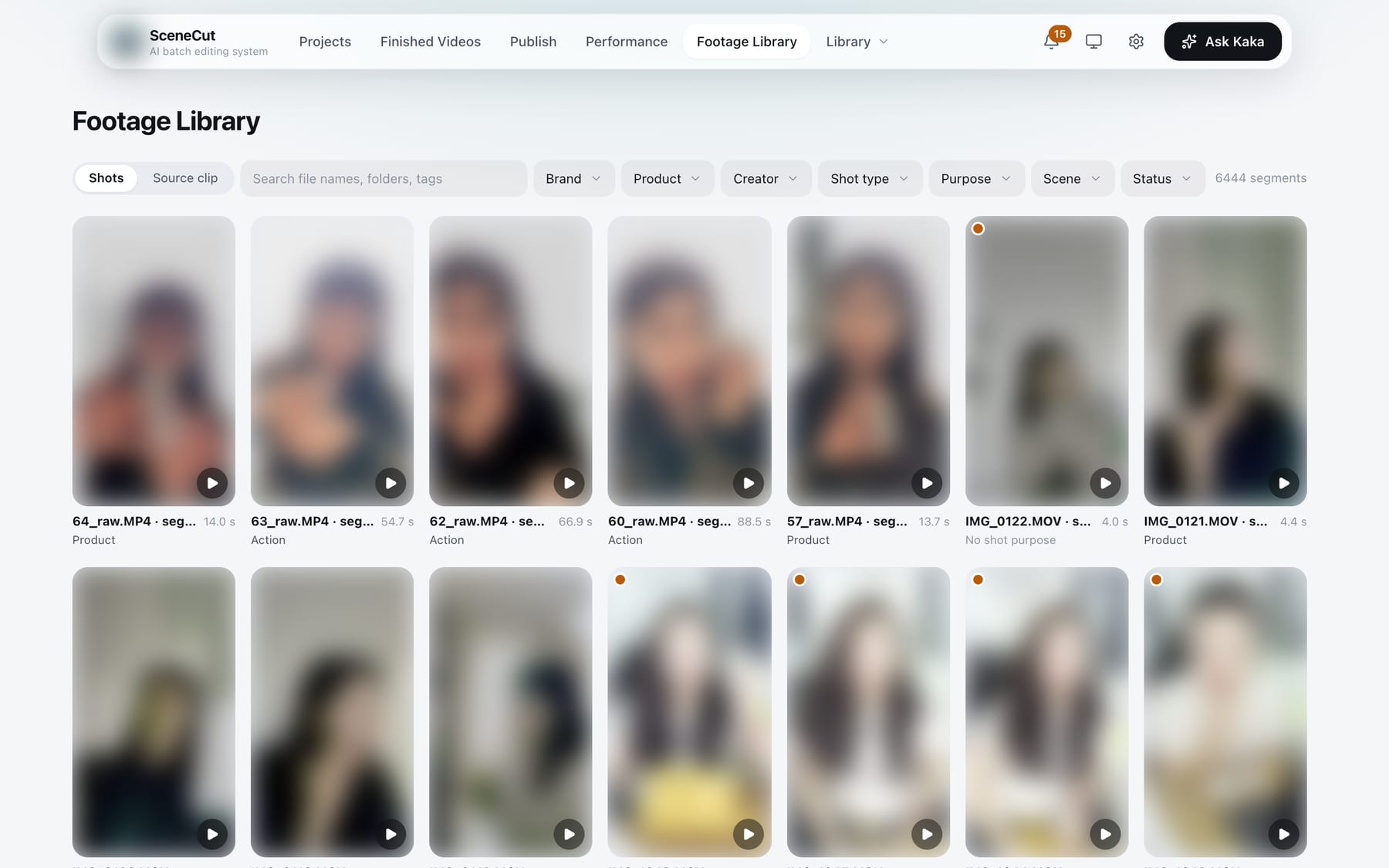
Open “Footage Library” in the top navigation to see footage from all brands.
- Two views: “Shots” and “Source clip”. Search by file name, folder or tag.
- Filters: brand, product, creator, shot type, shot use, scene, status (usable, not yet used in this batch, pending confirmation, used, with issues, disabled).
- After selecting several:
- Shots: set shot use, add tags / confirm tags, “Disable N shots”, “Restore N”, “Trim shots” (one shot only), “Beauty & color”, “Transcribe original audio”, “Delete source clip”.
- Source clips: change rights to “Usable / Not usable” in bulk, “Beauty & color”, “Revert to source clip”, “Delete source clip”. “Select whole batch (N)” selects the same batch at once. “More” has “Classify this batch”.
- Source clip details:
- “Adjust again”: redo beauty & color.
- “Revert to source clip”: use the unprocessed source clip in future edits.
- Rights “Not usable” (can be undone), “Disable whole source clip / Make usable again”.
- Original audio: “Use original audio” or “Picture only”. Click “Transcribe” if it hasn't been transcribed yet; if it has, you can “Transcribe again”.
- The “This is a finished video” switch.
- “Trim shots (N)”: adjust the shots cut from this source clip.
- In the “Shots” section, each shot has its own row and can be disabled or restored individually.
- After changing the product or creator, click “Save and confirm”.
- “Delete source clip files”: deletes the file from the hard drive; it can't be recovered. Source clips used by videos that haven't been delivered yet, or that are being processed, can't be deleted.