
Help / Making videos
Products and offers
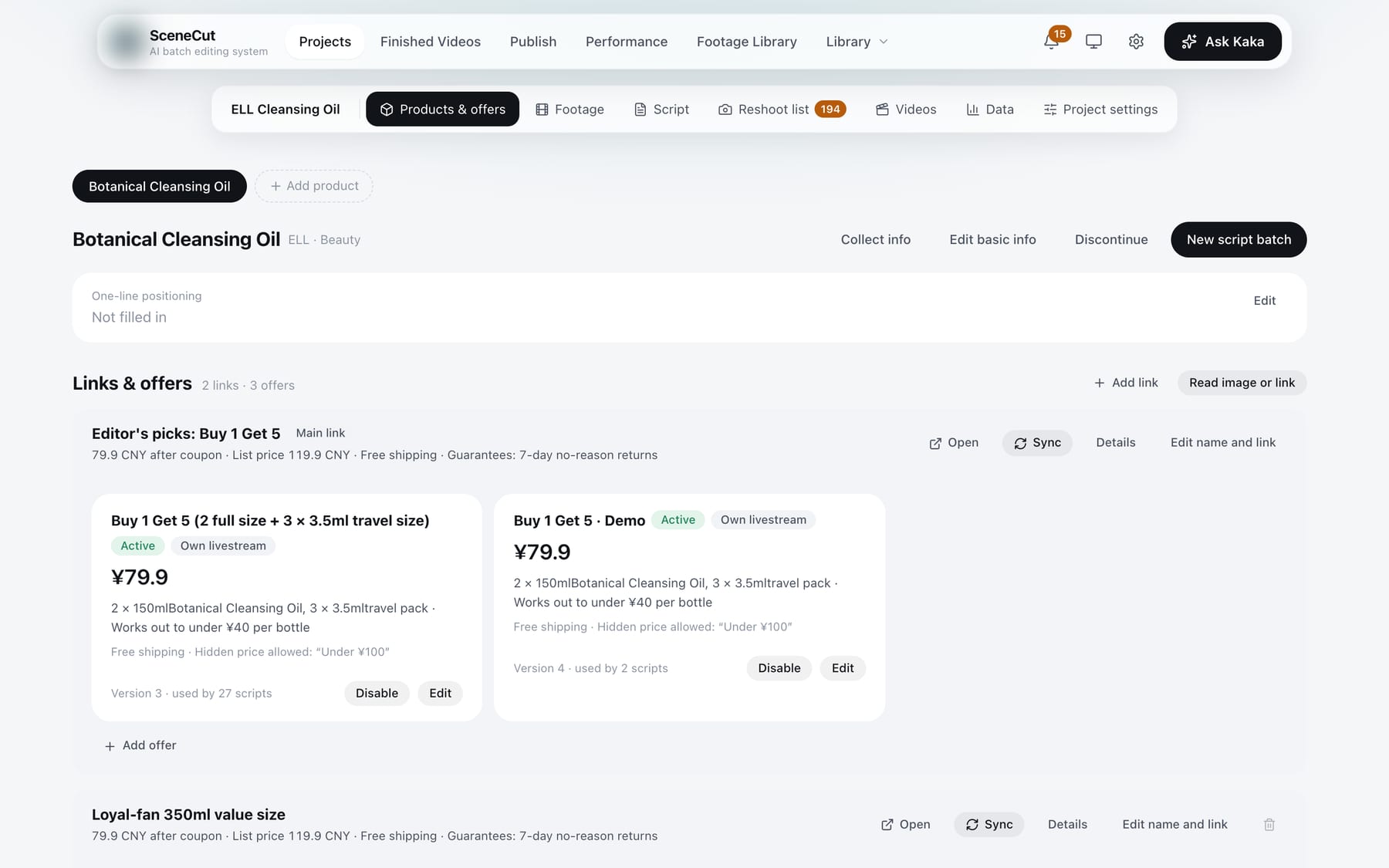
Product info is what scripts and edits are based on. You can view it in a project's “Products & offers” tab, or under “Library → Products”. When opened inside a project, the row along the top lists the project's products; click one to view it, or click “Add product” at the end.
Product list
Under “Library → Products”, each product has a card: product image, product name, brand · category · one-line positioning, the first two offers and their status, and a bottom row showing how many selling points, audiences, pain points and concerns it has. When items are waiting for confirmation, the card shows “N to confirm”. Discontinued products are listed last and marked “Discontinued”. Click a card to open the product page.
- Top right: brand filter (shown when there are 2 or more brands), “Brand guidelines”, “Import spreadsheet”, and the main button “New product”.
- “New product”: choose a brand, enter the product name (category and link are optional), then click “Create”.
Product page
- Top right: “Collect info”, “Edit basic info”, “Discontinue”, and the main button “New script batch”: first choose the project this product belongs to, then write a batch in that project's “Script” tab.
- At the top is the “One-line positioning” card; click “Edit” to change it.
- “Product images, certifications, how to identify” is collapsed by default. Expand it to see:
- Product images: main image and white-background image; use “Add main image” and “Add white-background image”;
- Certifications and documents: click “Upload” to add test reports, certificates and similar files;
- How to identify: describe how to tell this product apart from similar-looking products in the same project; click “Edit” to change it.
- When some scripts have taken off, they get their own section, “Scripts that took off”.
- The bottom line of the page shows “Frameworks available for scripts: N / M”, along with the type of info that is most lacking.
Collect product info
- “Collect info”: choose “Paste text”, “Screenshot” (up to 6) or “Product link”, then click “Start collecting”. Before using a product link, click “Log in to Douyin” in the dialog.
- “Edit basic info”: change the category, product link and one-line positioning. The product name can't be changed.
- “Discontinue”: a discontinued product can't be used to create new projects or new script batches; existing content is kept. Click “Put back on sale” to undo.
Links and offers
- “Add link”: paste a Douyin product link (the name is optional), then click “Add and sync”. A product can have several links.
- Each link is a group. Its header row shows the price after coupons, list price, shipping and guarantees. When the product page changes, the link is marked “Product page changed”, with what changed.
- Every link has these buttons:
- “Open”: opens the product page;
- “Sync”: re-reads the link's price, variants, guarantees, main images and positive reviews;
- “Details”: shows the product page title, last sync time, variant specs and guarantee terms;
- “Edit name and link”;
- Delete icon: only links other than the main link, with no offers under them, can be deleted.
- Guarantee terms are under the link's “Details”. Click “Edit” to update them to match the “Guarantee” section of the product page, separated by commas.
- Adding offers:
- “Read image or link”: opens the “Read offer” window. You can tick “Use these N main images”, then add offer images (up to 6), a product link and extra text, and click “Start recognition”. When it finishes, the “Review offer” window opens. Follow “Check this” at the top to check the price, free gifts and end time item by item.
- “Add offer”: under each link group; the offer is attached to that link.
- “Add offer manually”: only shown when there are no links and no offers yet.
- The main button in the review window is “Looks right, save and activate”. If you haven't finished checking, click “Save as draft first”.
- For an offer saved as a draft, click “Looks right, activate” on the offer card. An active offer has “Disable” and “Edit”; “Delete” is only available when no script uses it.
Prices follow the offer; guarantees (such as 7-day no-reason returns or shipping insurance) follow the product page. If a script mentions a guarantee that isn't on the product page, it is marked “Must fix”.
Selling points, audiences, buyer benefits, red lines
| Section | What goes in it |
|---|---|
| Selling points | Selling points, proof and endorsements, concerns, competitor weaknesses |
| Audiences | Audiences, pain points, use cases, everyday scenarios, emotional value |
| Buyer benefits | Buyer benefits and buyers' own words: why buyers pay, in their own voice |
| Red lines | Banned claims, brand wording |
- Each subcategory has its own group; click “Add” to add an item. When items are waiting for confirmation, “Confirm all” appears. Each item has “Confirm”, and “More” contains “Edit”, “Prohibited” and “Delete”.
- Collected and AI-organized items are “Pending confirmation”. Only confirmed items are used in scripts.
- Audiences: grouped by the eight core audiences. Once you have audience items, click “AI categorize and match content”: AI assigns each audience to one of the eight core audiences and matches the selling points, pain points and scenarios that audience cares about most. Audiences it can't place go into the “Uncategorized” group; click “Edit” to choose one yourself.
- Buyer benefits: the top shows the number of reviews on the product page and its positive review tags. Click “Extract buyer benefits from reviews”, optionally paste more reviews (one per line), then click “Start extracting”. AI rewrites positive reviews into one-line, first-person buyer statements and notes which review each one is based on.