Help / Getting started
The interface
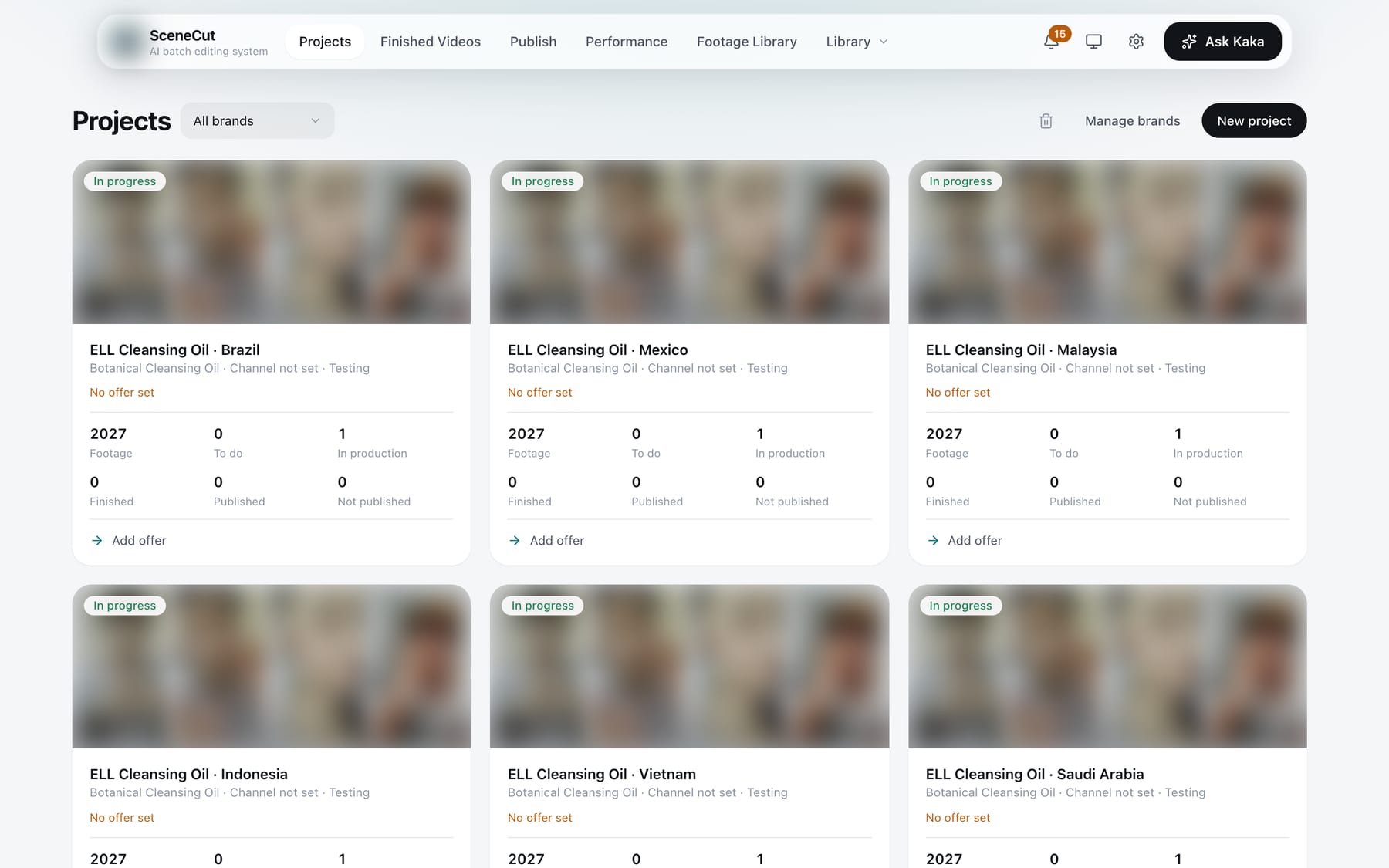
Top navigation
- Projects: the home page, where all your projects live.
- Finished Videos: completed final videos.
- Publish: the publish queue and publishing history.
- Performance: data and trends for your published posts.
- Footage Library: footage for every brand.
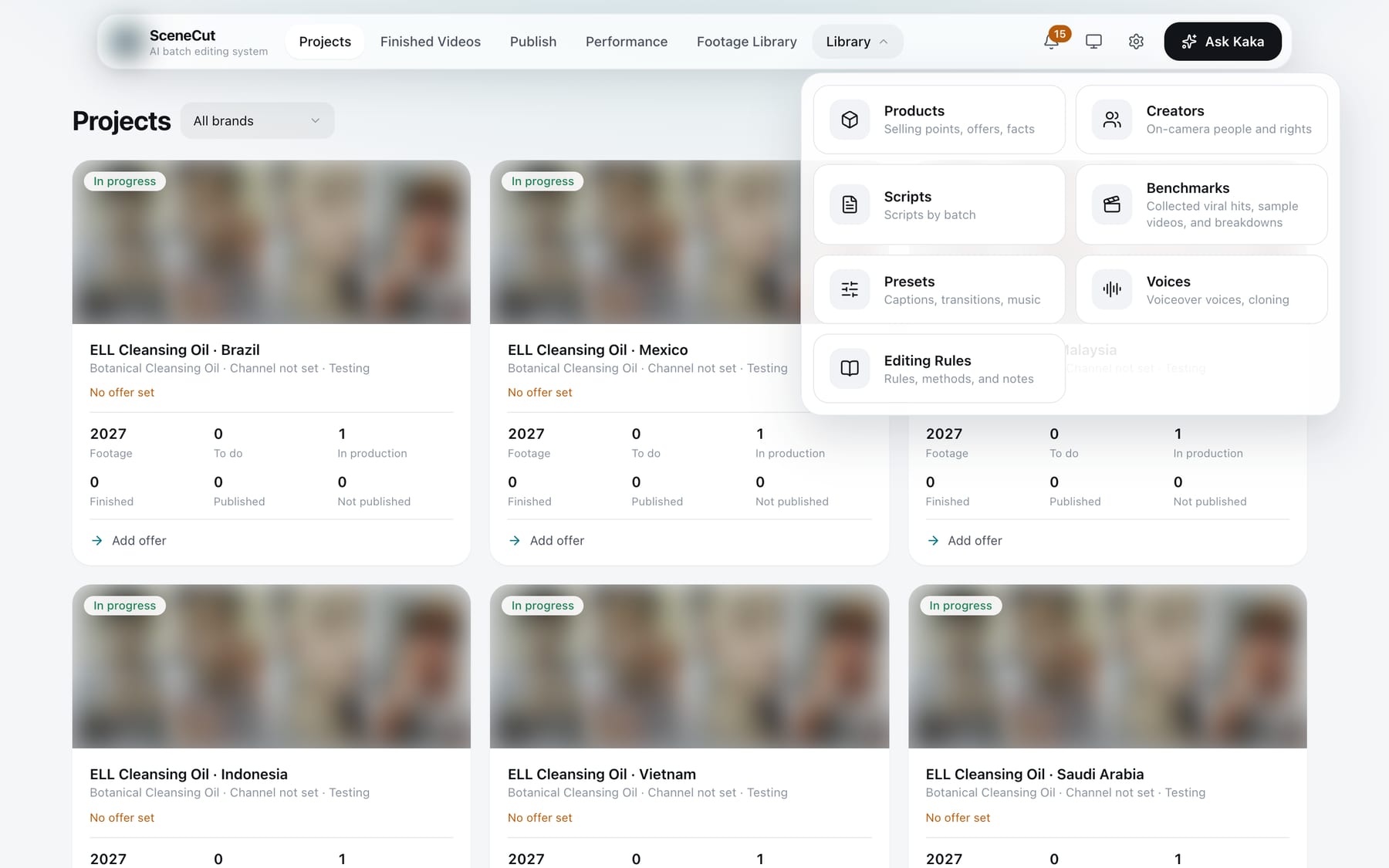
- Library (click to expand):
- Products, Creators, Scripts;
- Benchmarks, Presets, Voices, Editing Rules.
- Brand guidelines are under “Manage brands” on the home page, with a “Brand guidelines” entry on each brand's row. You can also open them from the top-right corner of Products and from Project settings.
Center of the top bar: task progress
- When tasks are running in the background, the center of the top bar shows the current one. Hover over it to see “Task status”, which lists every unfinished task.
- Click “Prioritize” on a queued task to move it to the front; click again to undo. A task already being processed is not interrupted.
- Tasks that can be stopped have “Stop”: the item in progress finishes and then the task stops, keeping what is already done. If a stopped task can resume, click “Continue”.
Top-right corner
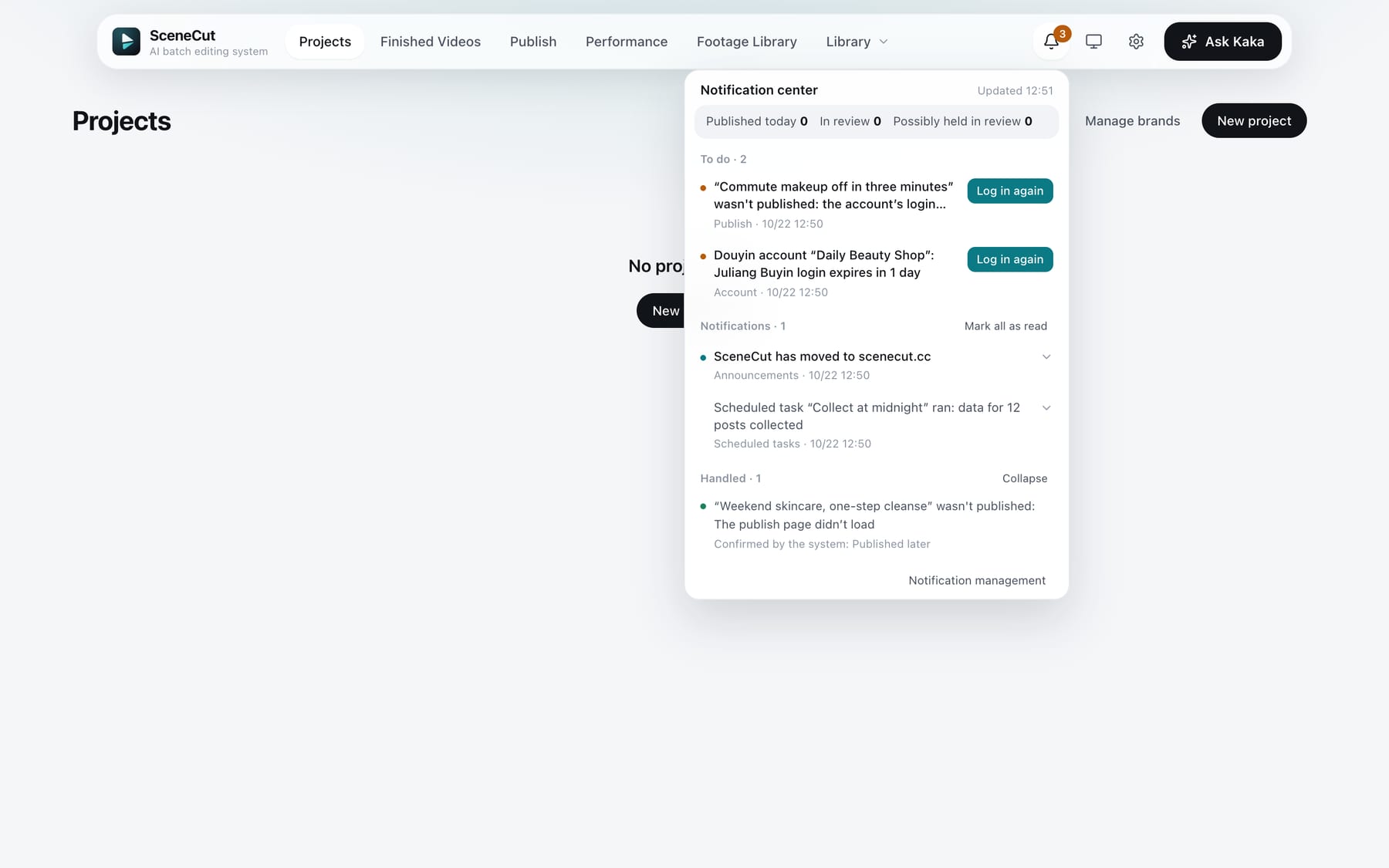
- Bell (Notification center): the number on the bell is how many items you haven't seen yet; it goes down as you open them.
- At the top: counts for published today, in review, and possibly held in review.
- “To do”: things that need you. Single items come first, such as a video that failed to publish or a new version; the button on the right says what to do, such as “Log in again” or “View”. When the matter is resolved the app tucks it away on its own (for example after you log in again, the video is published later, or the app is updated); you can also expand an item and click “Mark as handled”. Below them are live counts, such as how many items await review; only the first few are shown, and “N more” shows the rest.
- “Notifications”: things you only need to know about, such as announcements and finished jobs. Opening one marks it as read; ones with a link have a button that opens it in your browser. You can “Mark all as read”.
- “Handled”: collapsed; expand it to see how each item was resolved.
- Reminder cards (bottom right): failed publishing and important announcements pop up as a card in the bottom-right corner without blocking what you're doing; if SceneCut isn't in front, your computer also shows a system notification. Click the card's button or “Got it” and it won't pop up again; it stays in the notification center.
- Appearance: click to cycle through “Follow system → Light → Dark”.
- New version: appears only when a new version is available. See Install and activate.
- Subscription (card icon): plan, expiry date, usage. Situations such as an expiring plan or being offline are shown here in one line.
- Gear: Settings.
- Ask Kaka: the AI assistant. Toggle it with ⌘J (Ctrl+J on Windows).
Interface language
- Open “Settings” and choose 中文 or English under “Interface language”.
- The whole interface reloads after you switch.
- Kaka answers in the interface language.
- A video's language is chosen separately in the project and does not follow the interface language.
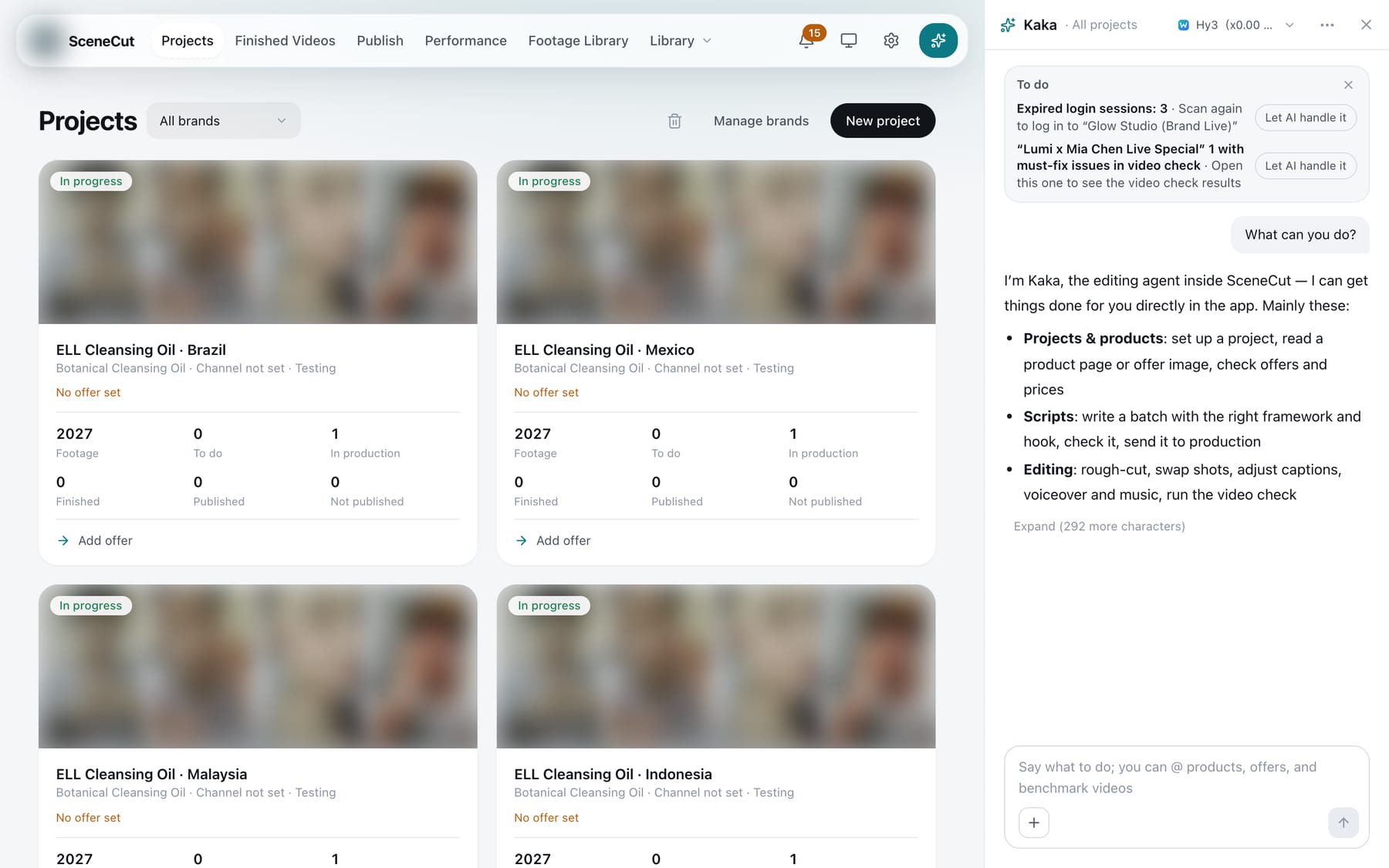
Ask Kaka
Kaka is the app's AI assistant. It stays docked on the right and does not close when you switch pages.
- Say what you want in one sentence, for example “What's on today?”, “Move the second caption in video 3 up a little”, or “Organize the selling points for this product”.
- It knows what you are looking at on the page where you open it. Open it inside a video and it follows that video.
- Before changing anything, it shows a confirmation card titled “Waiting for your OK” (“This costs money, waiting for your OK” when spending is involved), stating what will change: the first sentence for a video or script, the name for a product or offer, and the count for source clips or segments. Click “Allow” to go ahead or “No” to cancel.
- Typing “do it” or “no” in the chat also counts as answering the confirmation card. Cards marked in red need a button click.
- When one job takes several steps, they are combined into one confirmation card that says “This takes N steps”. Click “Allow” once and they all run in order.
- For actions with consequences, such as delete, send back for changes, move to Trash, archive, publish, or reject, the card border and the “Allow” button are red and the consequences are spelled out.
- When you say “that one” or “this” and it isn't sure which item you mean, it lists the candidates and asks first. If it can't do something, it says so directly.
- You can also hand it a whole job, for example “Make 5 mashups for this project”: it writes scripts, does a rough cut, checks, and revises, stopping to ask you only when a decision is needed.
- While it is working, “Stop” appears to the right of the input box: it stops after the current step and keeps the changes made so far. When there are many steps it pauses on its own with “Many steps, pausing here”. Click “Continue” to keep going, or “That's enough”.
- The steps it took are collapsed into one line, “N steps done”. Click it to see each step.
- Decisions waiting in To do can also be asked in the chat; just click a button to choose.
- “New chat” is in the “⋯” menu in the top-right corner and starts a new topic.
The “+” in the input box
- “Select to reference” (⌥S, Alt+S on Windows): click a shot, caption, or footage on the page, or draw a box on the frame, to bring it into this chat.
- “Mention sentences, shots, footage” (@).
- “Attachments”: images and files used only in this chat.
- “Video (breakdown, review)”: give it a video to break down, or ask it to review a video and give feedback.
- “Skills”, “Style”, “Voice”: this chat follows what you choose.
Kaka settings
Click the button in the title bar that shows the agent or model name:
- “Choose agent”: choose which agent Kaka uses. “Kaka” uses the model set for the “Kaka” category in Task settings. You can also choose a logged-in local agent (WorkBuddy, Claude Code, Codex), which also lets you choose “Model” and “Reasoning effort”, and for some, “Speed”. Agents that aren't logged in show “Not authorized”; go to “Model services” and click “Log in”.
- “Auto-allow generation”: Doubao transcription and benchmark collection default to “Ask every time”. Inside a project you can choose “Allow for this project” (single runs within the limit no longer ask). Voiceover synthesis doesn't ask; it reports the character count and cost when done.
- “Ask me before changing anything”: on by default. Turn it off and Kaka no longer shows confirmation cards before making changes.
- “Hands-off mode for this project” (only inside a project): scripts aren't shown to you first and ordinary changes are no longer confirmed one by one. Anything with consequences or that costs money still asks first.
- “Max steps”: 8, 16, or 30 steps (only when “Kaka” is selected).
Kaka's window
- By default it is docked on the right and the page makes room for it. You can also dock it on the left, and drag its inner edge to change the width.
- Drag the title bar to turn it into a floating window and place it anywhere. Drag it to the left or right edge and release when the edge lights up to dock it. Double-click the title bar to return it to the default position. Drag the bottom-right corner of the floating window to resize it.
- In the desktop app, drag it outside the app window to make it a separate window. It can stay on top, or click “Dock back in app”.
- The “⋯” menu in the top-right corner also has “Dock right”, “Dock left”, “Floating”, and “Pop out into a separate window”.