
Help / Making videos
Videos: editing and final videos
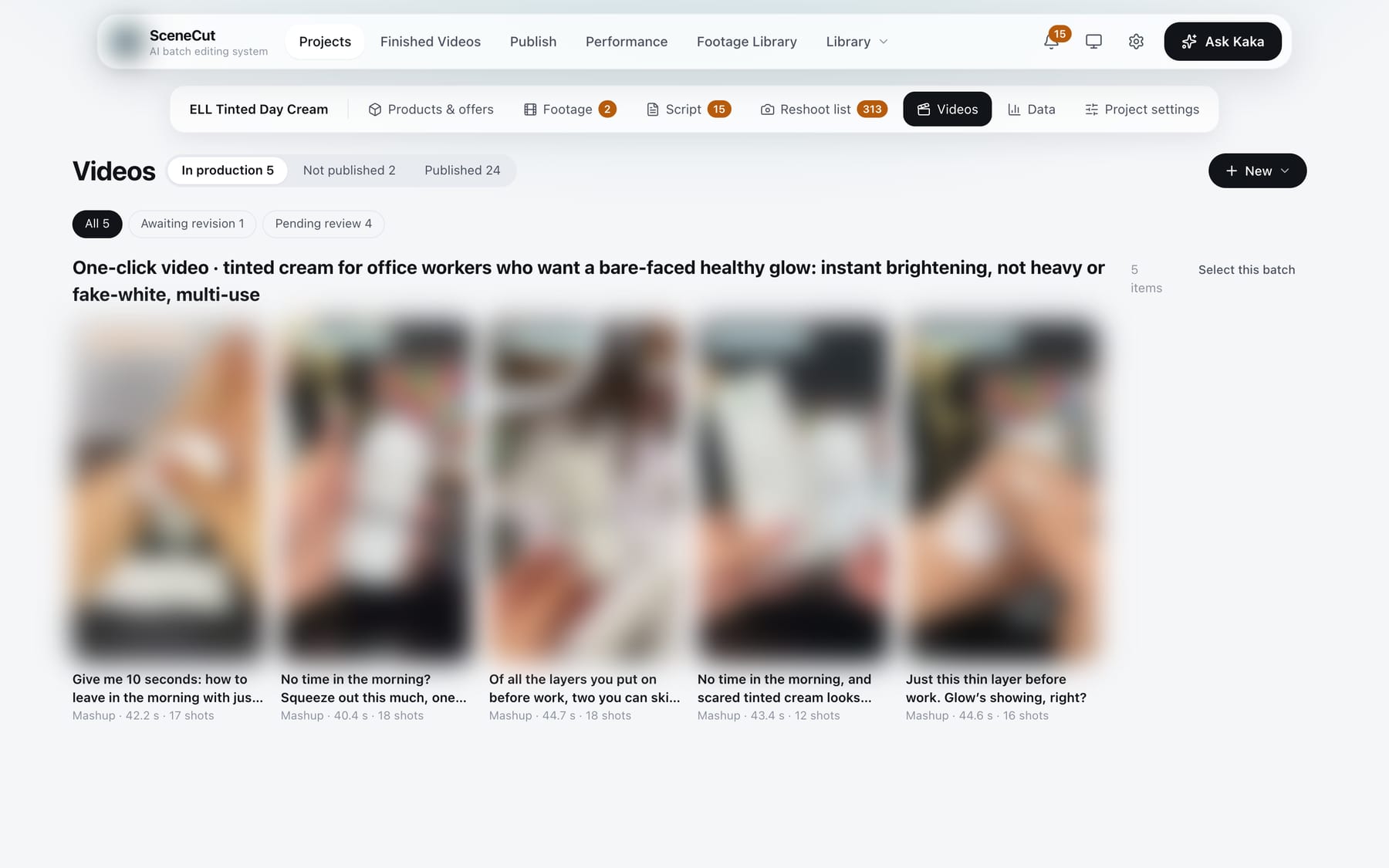
Videos tab
- Three columns: “In production”, “Not published” and “Published”. In production can be further filtered by stage: Scripts to confirm, Awaiting revision, Previews to review, Awaiting rough cut.
- “New” has two options:
- “AI writes a script batch”: takes you to the project's “Script” tab to write in the one-sentence box.
- “Import scripts”: the same window as on the Script tab, opened with “Make into videos directly” on; see Scripts.
- Click a video to open it: videos “In production” open in the editing workbench; videos “Not published” or “Published” are final videos and open a final video preview, the same as the final video details in Finished Videos; see Finished Videos.
- Cards under “Not published” and “Published” have buttons:
- Not published: “Publish” (“Republish” if the last attempt failed); “View publish queue” if it's already in the publish queue; “Check” if it's unclear whether it went out.
- In platform review: “Approve”, “Held in review”.
- Published: “View video”.
- Multi-select: click the circle at the top right of a card, ⌘ / Ctrl-click, ⇧-click for a range, drag to select, or use “Select this batch”. Published videos can't be selected.
- Bottom buttons after selecting:
- In production: “Confirm and export final videos” (exports final videos and delivers them; ones that fail the video check are skipped), “Re-render preview”, “Delete”.
- Not published: “Publish (N)”, “Mark as published” (for videos already posted outside SceneCut, to record it here); for ones in platform review: “Approve (N)”.
Editing workbench
Click a video to open it.
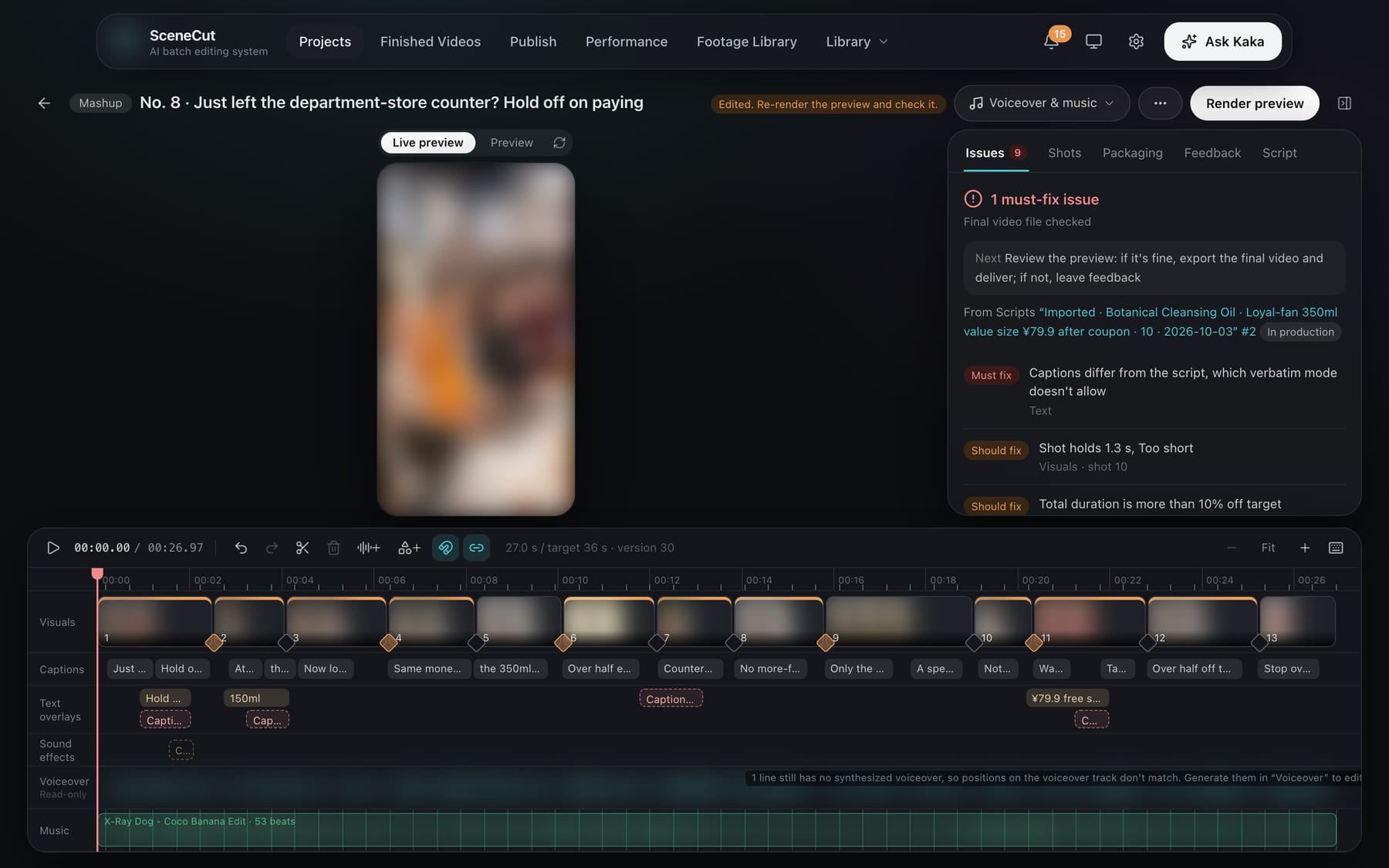
Top
- ← back to the video list; ‹ › previous / next video.
- The main button follows progress: Confirm script → Auto rough cut (“Rough cut from on-set audio” for creator talking-head, “Auto-arrange motion graphic” for motion graphics) → Handle N comments → Render preview → Export final video → Deliver. After delivery, it moves on to the next video automatically.
- Until the script is confirmed, the right side shows only the script; review and confirm it there first.
- “Voiceover & music”:
- “Voiceover…”: opens the voiceover panel to adjust tone, stress and pauses line by line;
- Upload or replace the voiceover file, upload or replace music, remove music.
- “…” menu: redo the auto rough cut (named “Redo rough cut from on-set audio” or “Redo auto-arrange motion graphic” depending on the edit style), “Check again”, “Re-review script”, “View changes”, “Voiceover alignment, benchmarks, video templates, CapCut drafts…”, “Delete (move to trash)”. After delivery, only “View changes” and “Voiceover alignment, benchmarks, video templates, CapCut drafts…” remain.
- CapCut drafts are in the dialog opened by “Voiceover alignment, benchmarks, video templates, CapCut drafts…”: click “Export to CapCut drafts folder” or “Export to workspace”.
Center preview
- Switch between “Live preview / Preview”.
- Drag captions up and down directly on the frame.
- When the camera motion is set to “Zoom in”, a crosshair appears on the frame; drag it to change the zoom target.
Right side
- Issues: a one-line verdict first; click an issue to jump to it. You can also use “Check again”, “Check captions line by line”, “Frame-by-frame at key moments” and “Three frames per shot”.
- Shots: each shot card has “Swap shot”, “Lock shot / Unlock shot”, “Lock duration / Unlock duration”; fill in “Use source clip from … to … ms” and click “Apply” (to trim the head and tail); “Speed”; “Comment on this shot”; “Disable”, “Delete”. Drag on the timeline to reorder.
- Below the shot card is “Camera motion”: auto, none, and the camera motions in Presets (slow push, slow pull, handheld shake, zoom in and so on). Once chosen, you can drag “Strength”; for zoom in, drag the target point on the frame.
- Properties: appears when something on the timeline is selected, for precise input.
- Packaging, Feedback, Script.
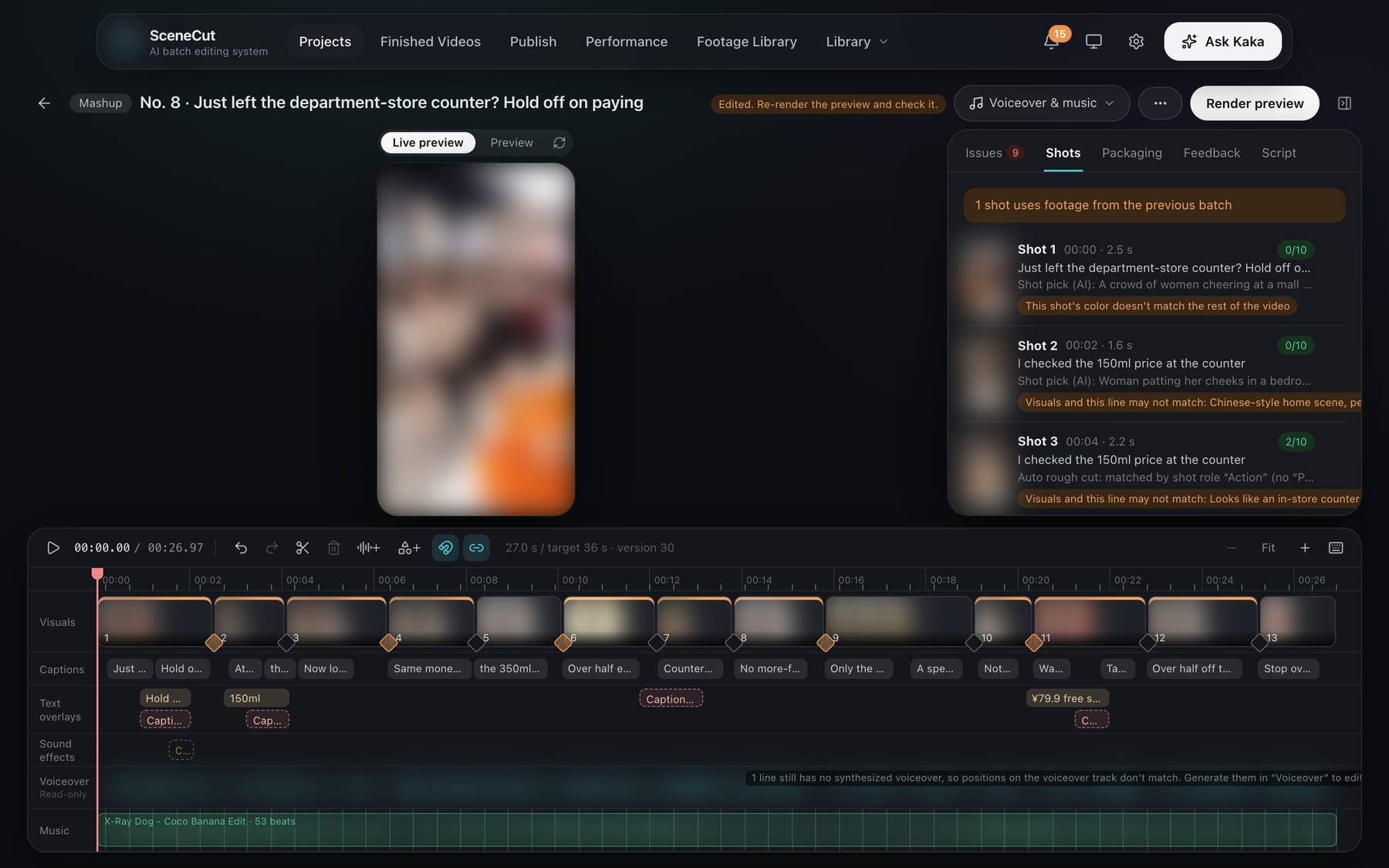
Bottom timeline
| Track | What you can do |
|---|---|
| Picture | Drag to reorder, drag the edges to change which part is used, click the small diamond between two shots to choose a transition |
| Captions | Change timing, height and style; caption text is edited in “Script” |
| Text overlay | “Add text overlay” in the toolbar: click a motion template to add it at the playhead, or drag it onto the text overlay track |
| Sound effects | Add with “Add sound effect” in the toolbar; dashed blocks were placed automatically and can only be changed after clicking “Convert to editable” on the right |
| Voiceover | One block per line; drag and trim the head and tail. This only changes how lines are joined, without re-synthesizing |
| Music | Drag the position and length, hold ⌥ (Alt) and drag to change which part of the track is used, and set fade-in and fade-out |
- With “Link” on, moving, deleting or trimming a shot moves the captions, sound effects and text overlays with it.
- Every step can be undone.
- Checkpoints: Kaka saves a checkpoint automatically before batch changes. If you don't like the result, tell Kaka “go back to the checkpoint”. Delivered videos aren't affected.
Word-level trimming for talking-head videos
When rough-cutting creator talking-head videos, filler words and repeated phrases are cut automatically, and jump cuts alternate with a one-step push-in. To skip this for a video, tell Kaka “don't trim filler words in this one”.
Shortcuts (on Windows, ⌘ becomes Ctrl and ⌥ becomes Alt)
| Action | Shortcut |
|---|---|
| Play / pause | Space |
| Back or forward one frame / one second | ← → / ⇧← ⇧→ |
| Previous / next edit point | ↑ ↓ |
| Start / end | Home / End |
| Split | S or ⌘B |
| Delete left / right of the playhead | Q / W |
| Delete | Delete |
| Undo / redo | ⌘Z / ⇧⌘Z (on Windows, Ctrl+Shift+Z or Ctrl+Y) |
| Select all on the current track | ⌘A |
| Add to selection / select range | ⌘-click / ⇧-click; drag on an empty area to box-select |
| Deselect | Esc |
| Copy / paste / duplicate | ⌘C / ⌘V / ⌘D or ⌥-drag (sound effects and motion templates only) |
| Snap / link | N / L |
| Zoom | = / −, or ⌘ + scroll wheel |
| Shortcut list | ? |
Shortcuts don't work while you're typing in an input box or while a dialog is open.
Voiceover
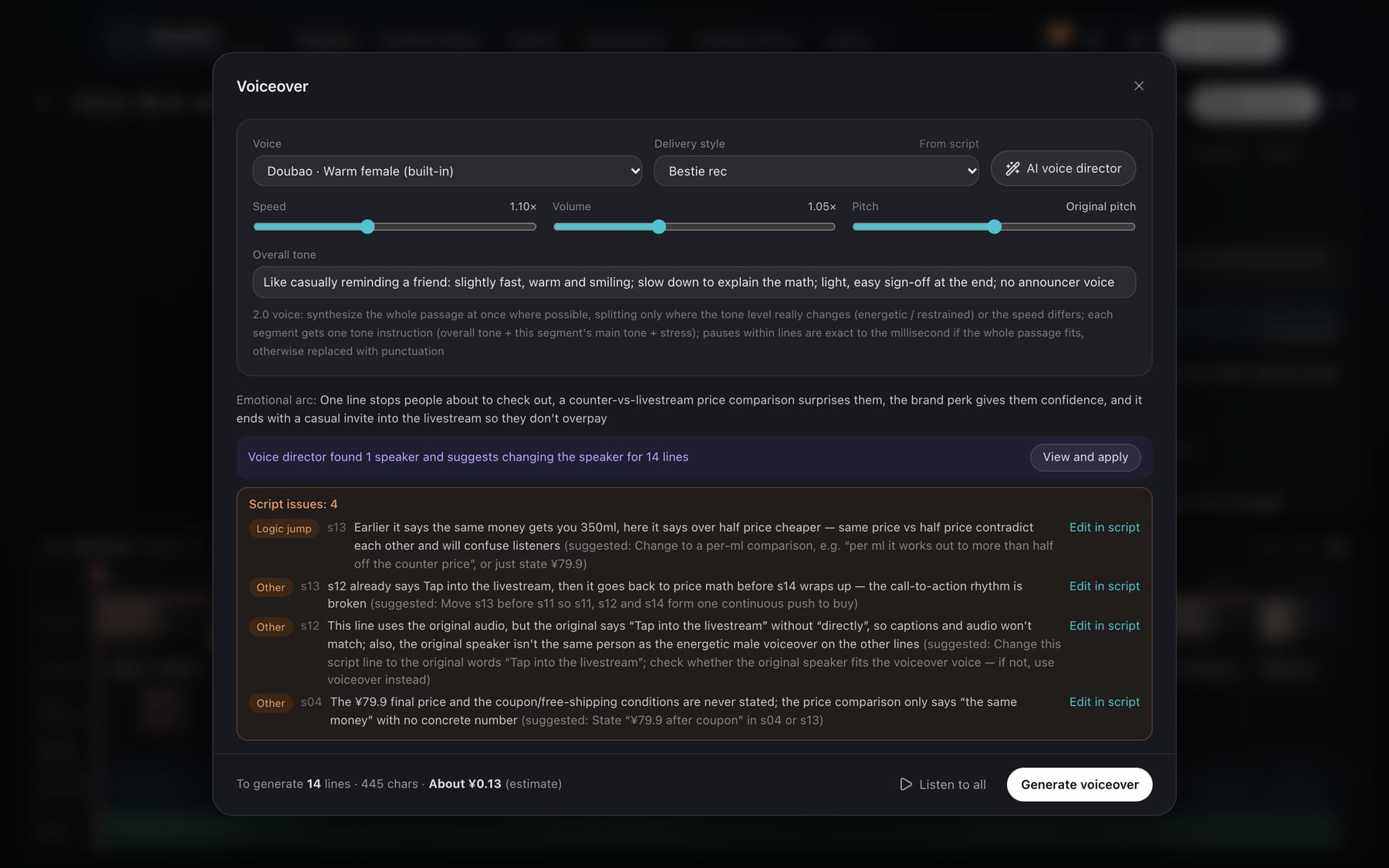
Click “Voiceover & music” → “Voiceover…” to open the voiceover panel.
- Top: choose a voice and delivery style, adjust speed, volume and pitch, and write overall tone notes. “AI voice director” sets how every line is read in one click.
- The delivery style is chosen automatically from this video's script and marked “From script”. If you change the style, this video keeps using your choice.
- “Role” section: when several people speak, each gets their own voice and tone notes. When there's original audio, you can turn on “Light noise reduction on original audio”.
- Each line can be adjusted for tone, speed and pause after the line. When several people speak, the voice director suggests who says which line; click “View and apply”, or tell Kaka.
- Select a few characters to add stress; click between two characters to add a pause.
- “Edit pronunciation”: affects only the voiceover, such as writing numbers out the way they're read; captions stay the same.
- “Another take / Redo this line”.
- Original audio lines (real people speaking in the footage):
- If there's a problem, click “Audio flawed, use voiceover instead” and choose a reason (slip of the tongue / noise / background music / wrong price / other);
- To switch back, click “Revert to original audio”; you can also click “Use this segment” in the alternatives.
- At the bottom, click in order:
- “Listen to all”;
- “Generate voiceover”: shows how many lines and characters will be generated and generates right away; check usage in “Subscription”;
- “Apply to video”.
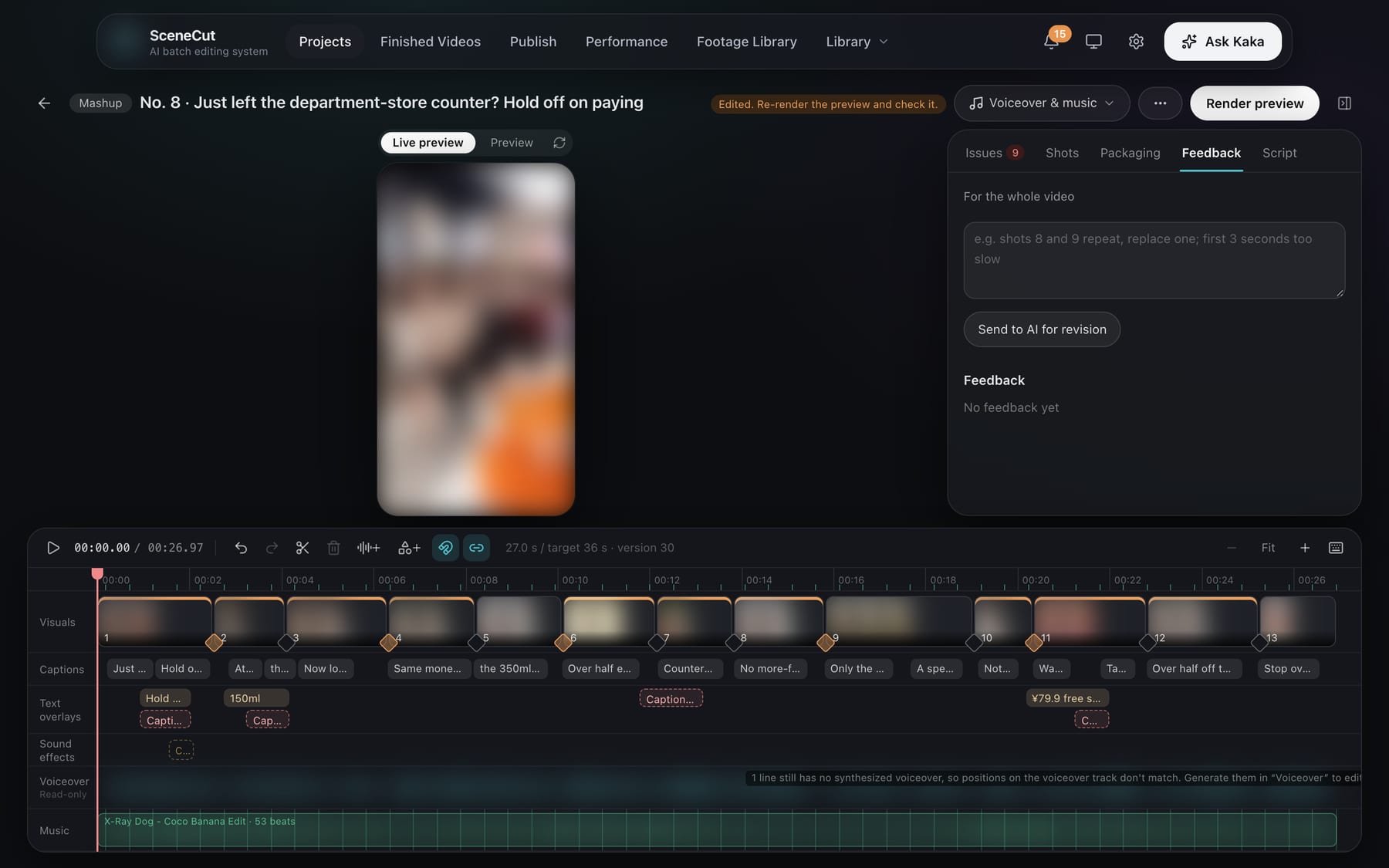
Feedback
Write one line in “Feedback” on the right, such as “the second shot is too short” or “make the caption on the price line bigger”, then click “Send to AI for revision”.
- Once AI proposes a fix, choose “Approve and run”, “Try another approach” or “Revert”.
- If you've already fixed it yourself on the timeline, “This one is fixed” appears on the feedback; just click it.
Export and deliver
- After “Export final video”, the video check runs automatically. Shots that are too choppy, music that can't be heard in voiceover gaps, lines read in one breath with no pauses, and unclear voiceover all count as “Must fix”.
- Clicking “Deliver” opens the “Confirm delivery” card:
- Videos with “Must fix” issues from the video check are blocked by default. To deliver anyway, fill in “Reason for delivery (required)” and click “Deliver anyway”; the reason is recorded.
- If AI-generated shots are used, confirm once on the card.
- Unclear rights only trigger a note and don't block delivery.
- Delivery isn't possible when the video uses a disabled shot, footage marked Not usable, or AI shots missing their label.
- After delivery, the final video goes into Finished Videos and this video becomes view-only.
- Top buttons after delivery: “Show in folder”, “Play”, “Download final video”, “Sent back for changes”, and the main button “Publish”:
- “Publish” opens the publish form. First choose the platform and account (Douyin, Xiaohongshu, WeChat Channels, Kuaishou), then edit the title, description, hashtags and cover; see Publish. If the last attempt failed, the button is “Republish”.
- If the video was already posted outside SceneCut, click “Mark as published” at the bottom left of the publish form to record it.
- If it's already in the publish queue, the button is “View publish queue”. If it's unclear whether it went out, the button is “Check”: verify it in Performance before deciding whether to republish.
- In platform review: “Held in review”, “Passed platform review”. Published videos have “View video”.