
Help / Library & footage
Library
The pages under “Library” in the top navigation. Brand guidelines are not in “Library”; see below for where to find them.
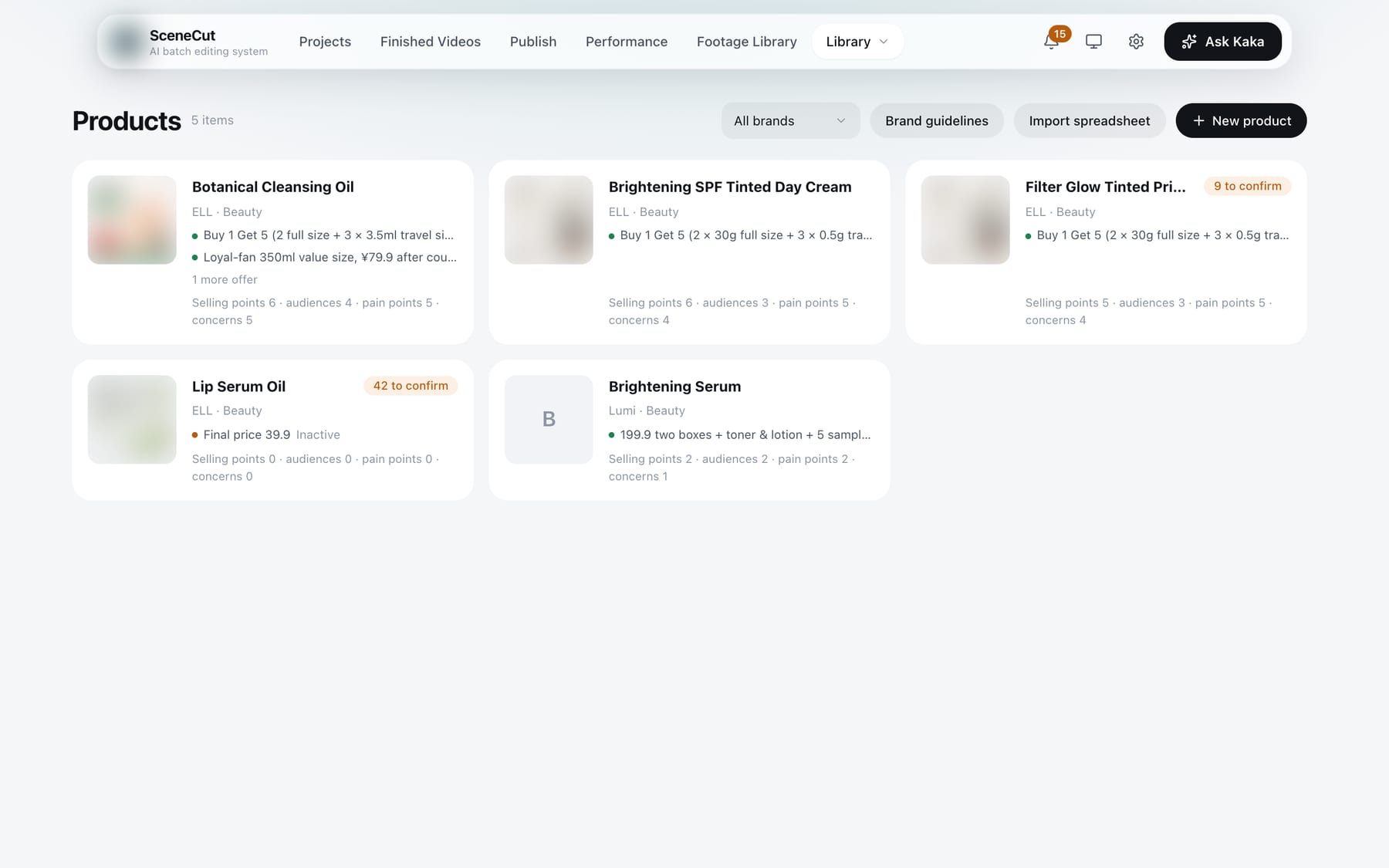
Products
- One card per product: main image, name, brand, category and one-line positioning, and offers (green dot = active, orange dot = inactive). The bottom row shows how many selling points, audiences, pain points and concerns it has. Items waiting for confirmation are flagged, and discontinued products are listed last.
- Top right: filter by brand, “Brand guidelines”, “Import spreadsheet”, “New product” (fill it in and click “Create”).
- For what you can do inside a product, see section 5.
Creators
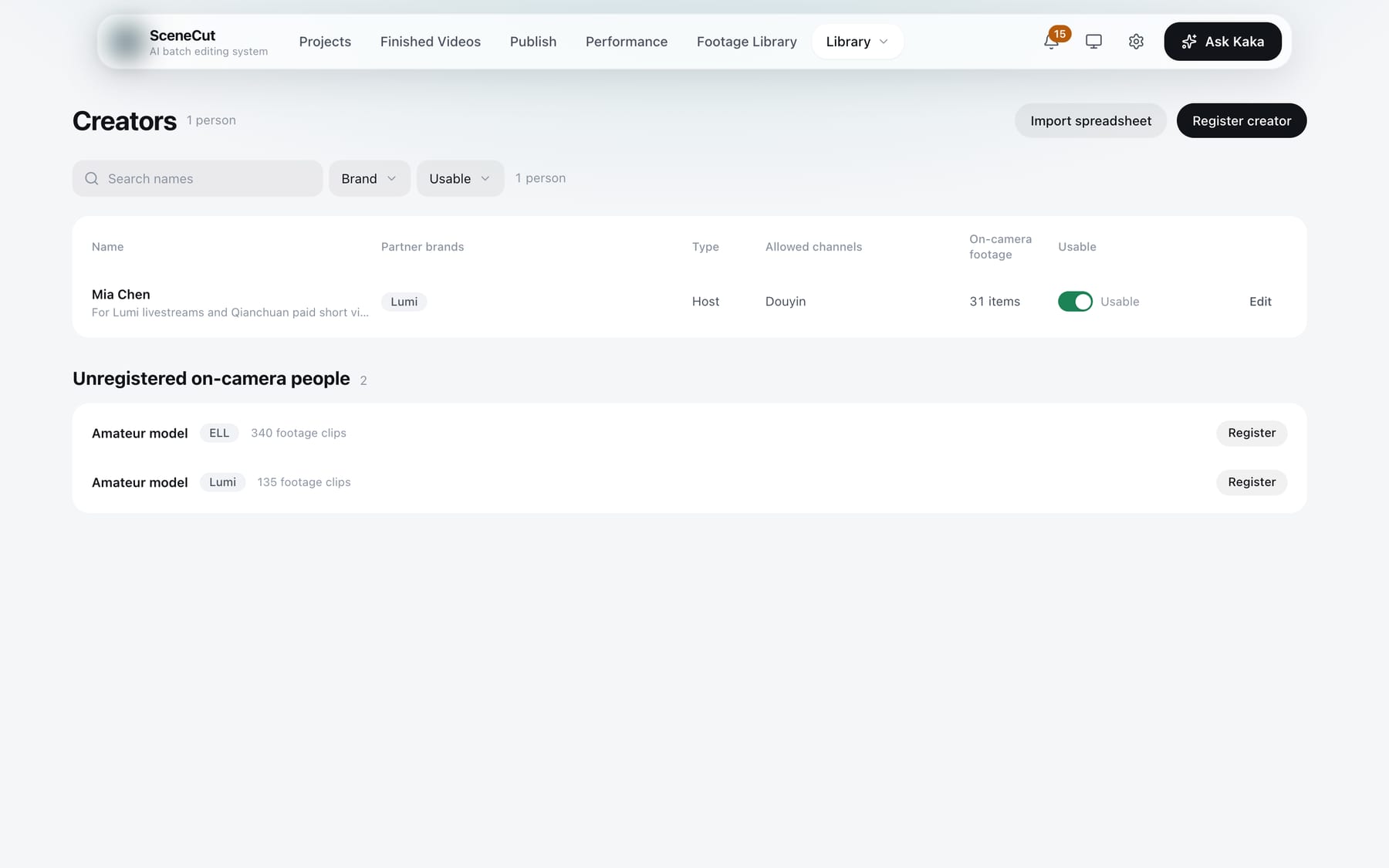
- “Import spreadsheet”, “Register creator”. Search by name, and filter by brand and whether usable.
- Spreadsheet imports (scripts, products, creators) accept English column headers such as Script, Product, Name, Type and Usable.
- Each creator has a “Usable / Not usable” switch. Once marked Not usable, footage they appear in is no longer cut into videos. For creators who work with several brands, expand the row to set it per brand; when some brands are not usable, it reads “Not usable for some brands”.
- In “Edit” you can change partner brands, the channels they can be used on, the cloned voice and the publishing accounts.
Brand guidelines
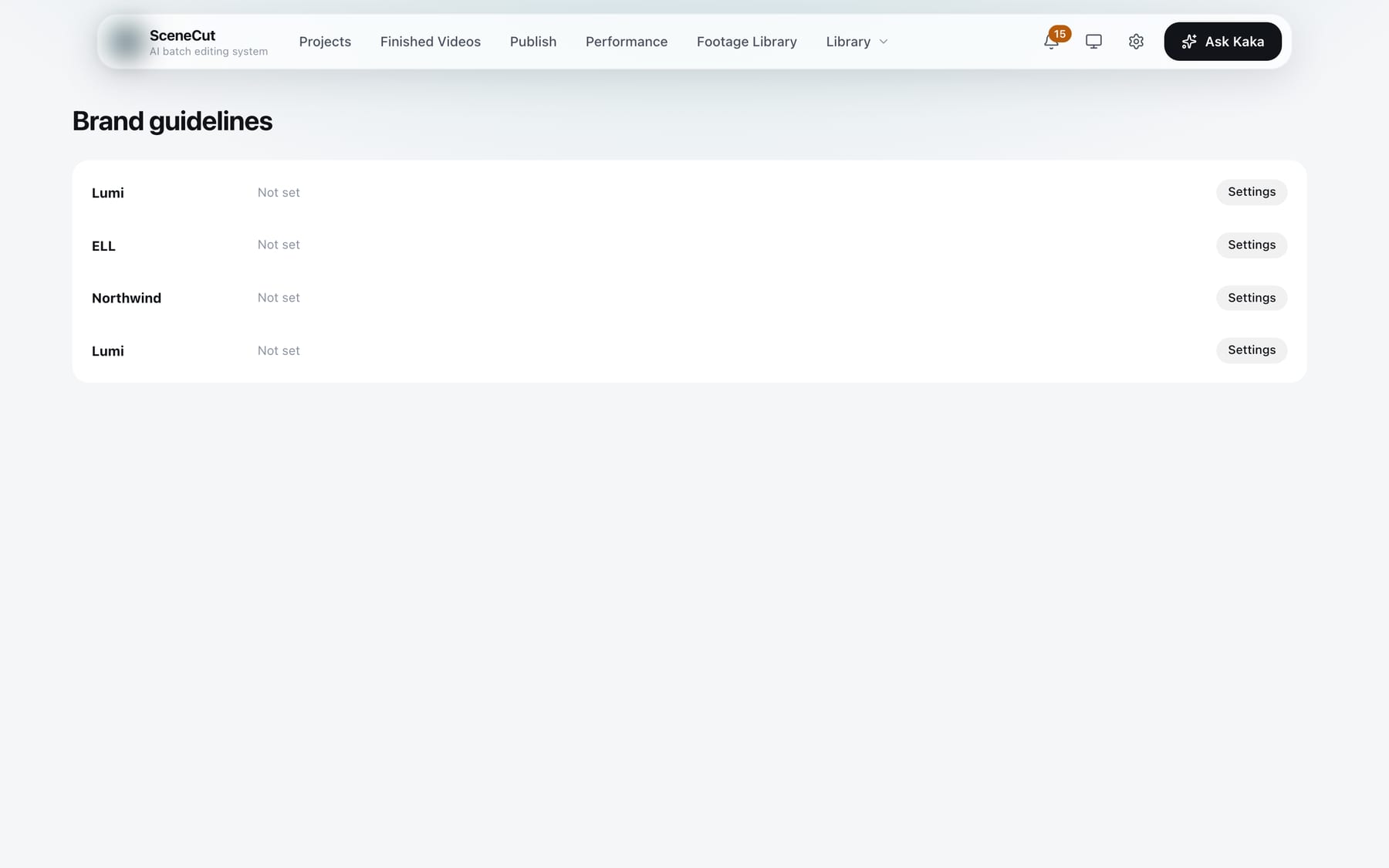
- Where to find it: on the home page, “Manage brands”, then click “Brand guidelines” on the brand’s row. There are also entry points in the top right of Products and in the project settings.
- You can set:
- Default style pack, fonts, banned words;
- Caption styles, music, default voice.
- Fonts and banned words are strict rules: fonts not on the list are replaced, and banned words are blocked.
- “Import from brand book”: upload a brand book (PDF or images), then click “Use selected” or “Don't use” for what was read from it.
Scripts
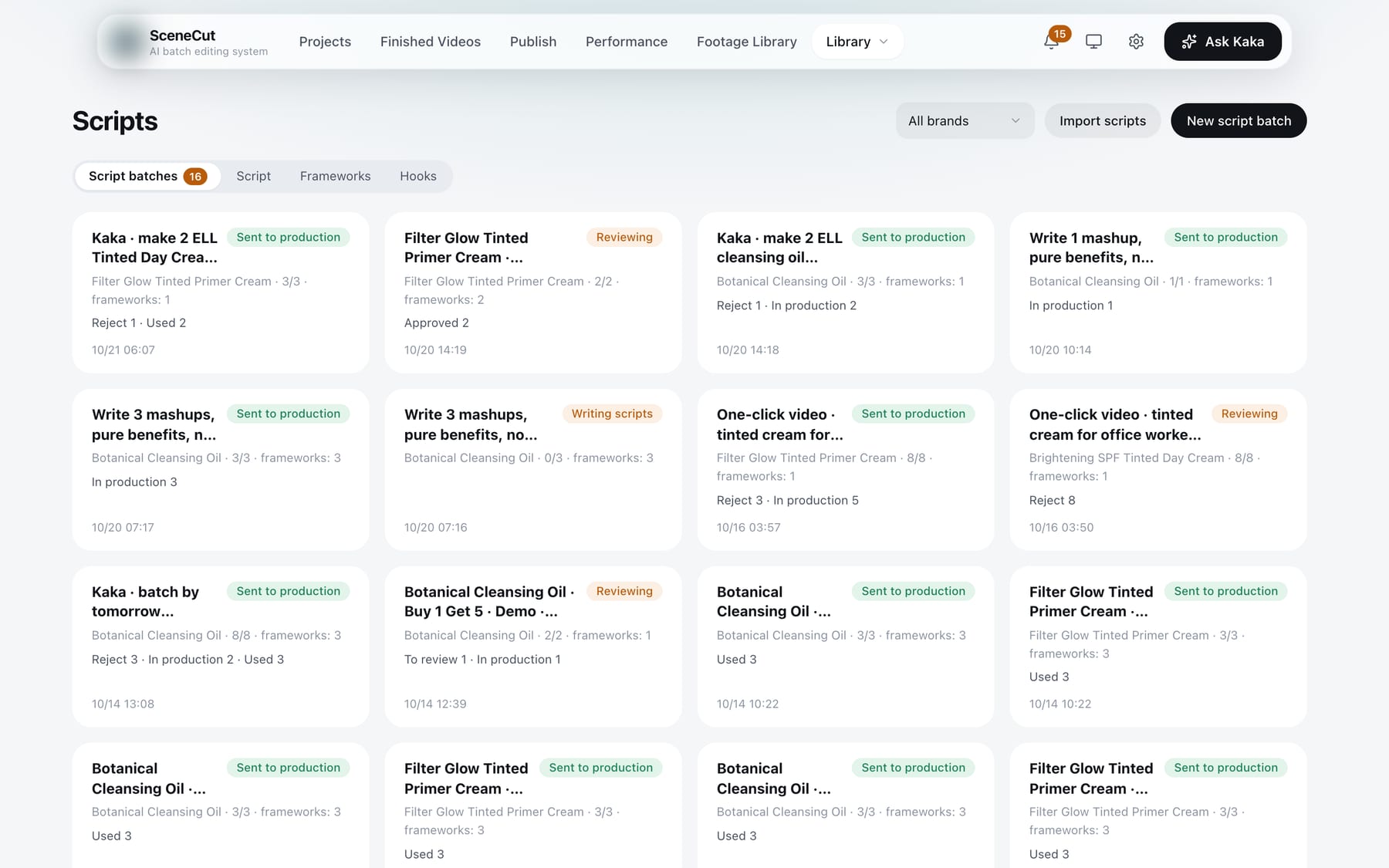
- Tabs: Script batches, Scripts, Frameworks, Hooks. Products are in “Library → Products”.
- Buttons: “Import scripts”, “New script batch” (choose a project first).
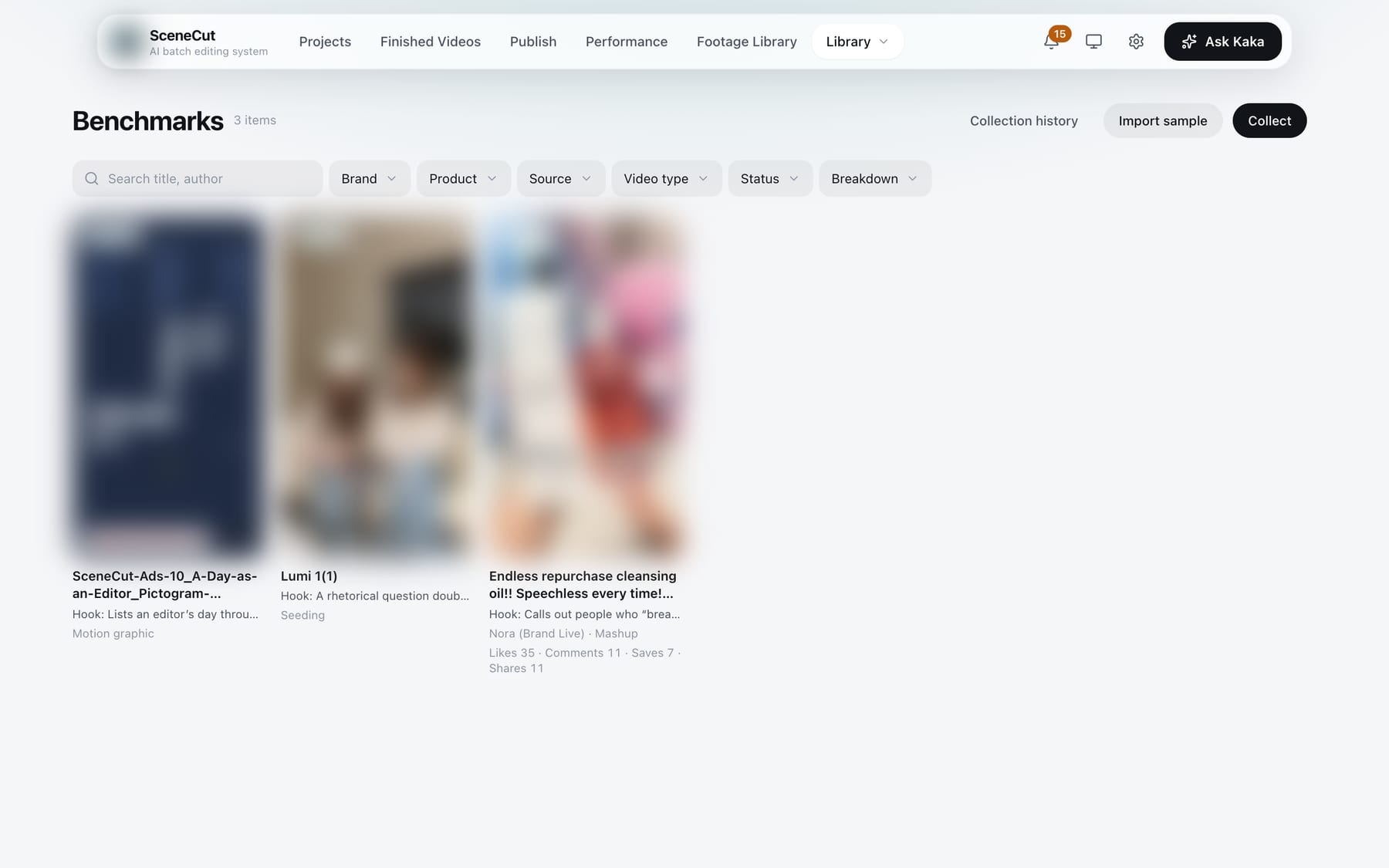
Benchmarks
- “Collect”: paste a Douyin share link or share code. After downloading, it is transcribed and broken down automatically.
- “Import sample”: “Choose file…” or “Choose folder…” (or paste a path). Imported videos wait for breakdown. When the top of the page shows “N reference previews waiting for breakdown”, tick them and click “Break down N selected”, or “Break down all”.
- Bottom of the details: “Breakdown” or “Break down again”, “Delete”.
- “Collection history”: view the “Log”, “Retry failed items”.
- Detail tabs: Kaka breakdown, Benchmark breakdown, Transcript, Shot board, Frames. Videos Kaka has broken down open on “Kaka breakdown” by default.
- “Save as framework / hook draft”: once the draft is confirmed in Frameworks, it can be chosen when writing scripts.
- Send a video through the “+” in Kaka’s input box to have it broken down; that video is also added to Benchmarks.
- When importing footage, videos in subfolders whose names contain sample(s), ref, reference(s), benchmark(s) or viral (whole words), or the Chinese words 样片, 参考, 对标 or 爆款, are added automatically as waiting for breakdown.
Presets
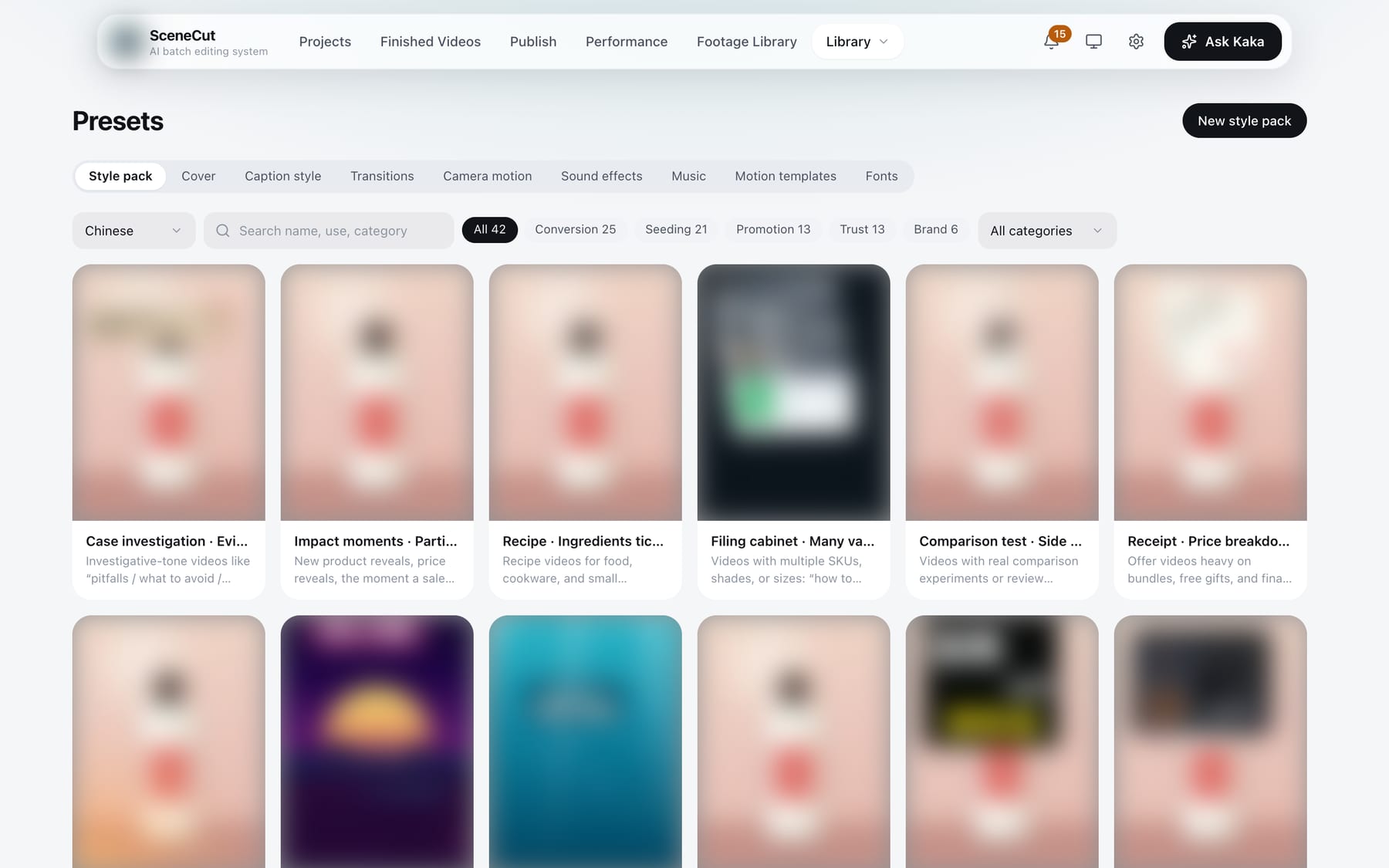
- Tabs: Style packs, Covers, Caption styles, Transitions, Camera motion, Sound effects, Music, Motion templates, Fonts.
- Style packs, caption styles, transitions, camera motion, motion templates:
- Each card shows a preview clip, a name and what it suits; hover to play;
- Search by name or use. Style packs can be filtered by use (conversion, seeding, promotion, trust, brand) and category; motion templates are grouped by use;
- Click a card to see the details: a large preview and what it does and doesn't suit. Style packs also list their components and the motion templates in the pack; click any item to see its details.
- Covers:
- SceneCut comes with 24 cover styles, each with a sample;
- At the top, choose how auto cover picks a style: “Pick per video”, “Random”, “Always use one style”. With “Always use one style”, click “Always use” on the style you want;
- The switch next to each style’s name disables it; disabled styles are left out of auto cover and random picks;
- For a single video, you can still click “Change style” in the publish form.
- Sound effects, music:
- The top section shows what is already in Presets; below is the online library we provide;
- Click a card’s cover to preview, click again to stop;
- You can search. Music can be filtered by mood and sound effects by category; very short music clips are grouped under “Short clips”. Scroll down and click “Show more…” to keep browsing, and “Refresh list” to reload the online library list;
- The download button next to a name adds it to the library; a check mark means it is already added;
- “Import music / sound effects”: you must choose the source of rights.
- “New style pack”: name it, then choose caption styles, transitions, camera motion, music, voice, sound effects and motion templates.
- “Upload font”: choose a .ttf or .otf file and select a license. After uploading, use “Make a caption style” in the “…” menu.
- The “…” menu on a card: built-in items only have “Duplicate”; your own have “Duplicate”, “Rename” and “Delete”. To fine-tune parameters, tell Kaka.
Voices
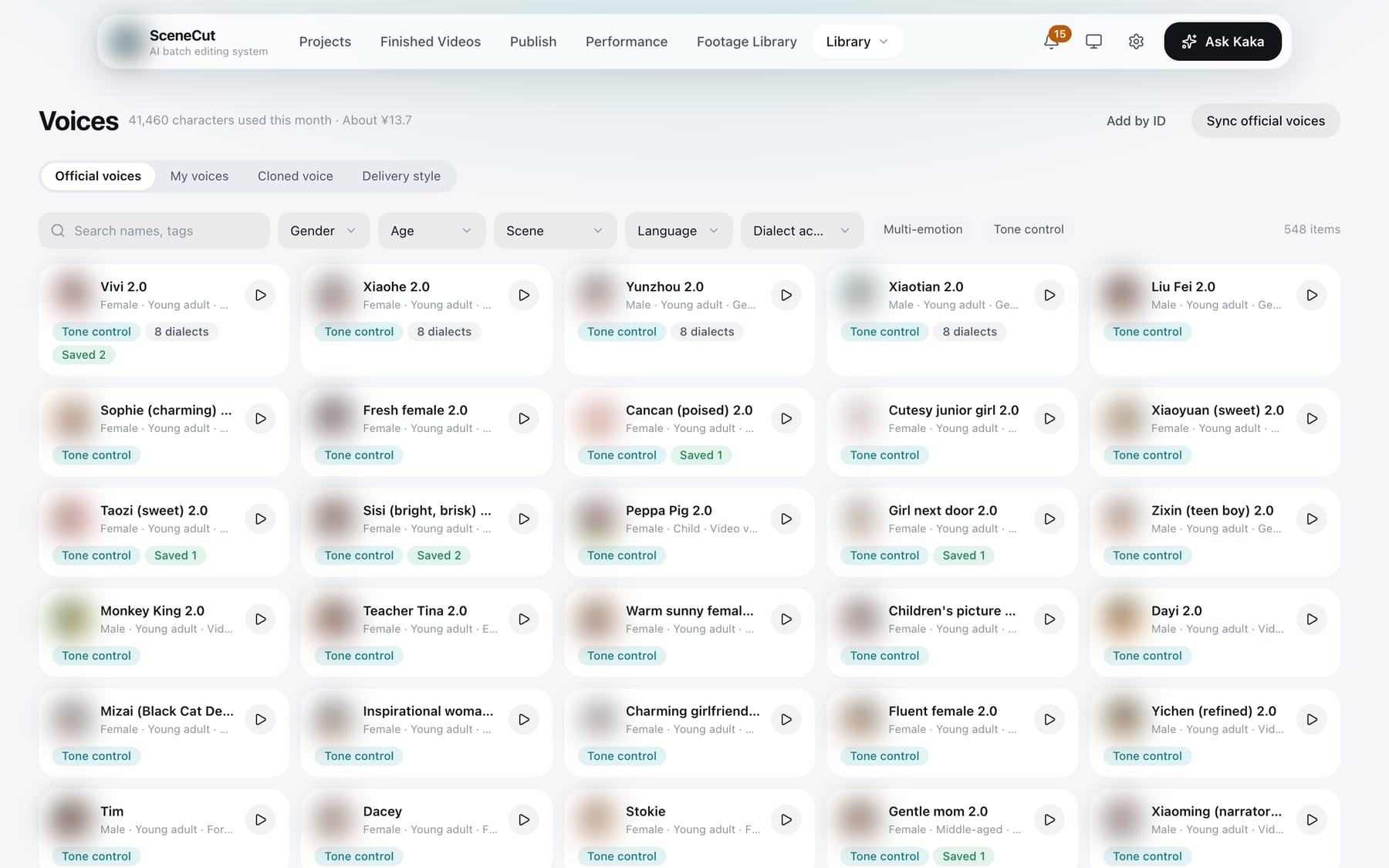
- Official voices:
- The filter row at the top: search; filter by gender, age, scenario, language, and dialect or accent; the “Multi-emotion” and “Tone control” switches; “Clear” resets them;
- Click the play button on the right of a card to preview. For voices without an official preview, click “Generate missing previews (N)” to fill them all in at once;
- Click a card to open the adjustment panel: adjust speed, volume and pitch; depending on the voice, adjust emotion or describe the tone, or choose a dialect. Listen with “Listen to this line”, and click “Save as my voice” when you are happy with it;
- You can also use “Add by ID”.
- My voices: three groups — Cloned voices, My voices, and Built-in. Click a card, adjust, then “Save” (for built-in voices, “Save as my voice”). Use “Delete” in the “…” menu; built-in voices can't be deleted.
- Cloned voices:
- Clone slots are provided by us. Open “Cloned voice” to see your slots. Slots are not included in the monthly quota and are purchased separately (199 CNY each, 15 training runs per slot). If you have no slots, contact us to enable them;
- On an empty slot, click “Clone with this slot”, choose a clean 14–30 second voice sample (up to 10 MB), and enter a name. If the sample has background noise, turn on “Noise reduction”;
- “Start cloning”;
- When cloning finishes, click “Add to Voices”.
- Click “Listen” on a trained slot to hear it. In the “…” menu, “Retrain (overwrites the existing voice)”; voiceovers already generated are not affected.
- Delivery styles: “New delivery style”. Built-in styles can be edited after “Save as”. Each video’s delivery style is chosen automatically from its script, so there is no default to set. A style can include a voice: it is used when this style is chosen in the voiceover panel and the brand guidelines don't specify a voice.
Editing Rules
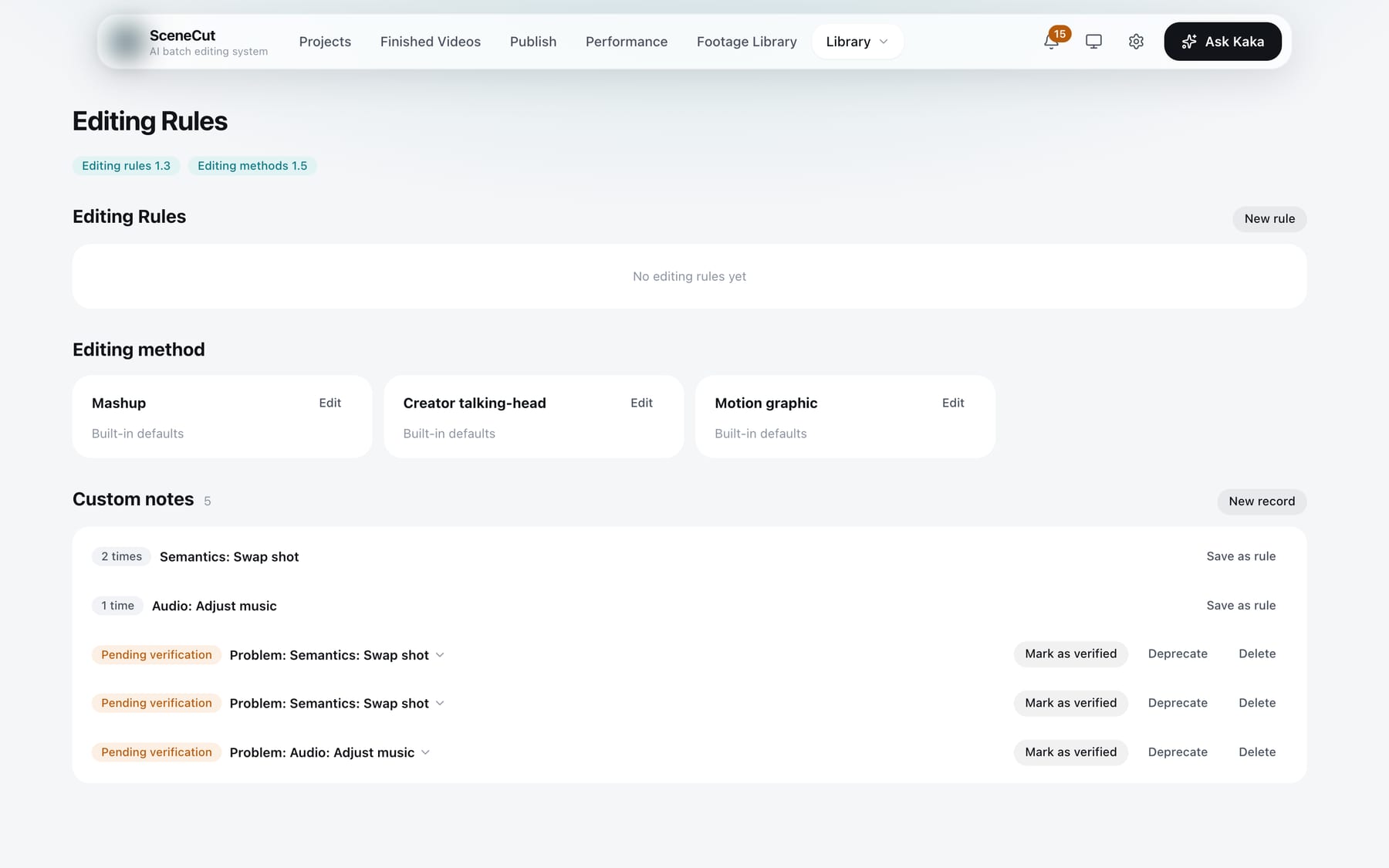
- The top of the page shows the version numbers of the built-in “Editing Rules” and “Editing method” (for example “Editing Rules 1.3”, “Editing method 1.5”). They change when SceneCut updates.
- Editing Rules:
- “New rule”: write a one-sentence rule and choose which steps it is “Used in” (writing scripts, script review, editing, packaging, caption layout, revisions);
- The “…” menu on each rule: “Edit”, “Delete”.
- Editing methods: one each for mashup, motion graphic and creator talking-head.
- Click “Edit” to set the total word count, the maximum characters per line, frame rate and loudness; for motion graphics you can also set a maximum total length in seconds. Anything left empty follows the built-in method.
- In “Requirements”, write one per line, for example “Don't end with ‘order now’”. Script writing, editing, packaging and captions all follow them.
- After “Delete” in the “…” menu, it reverts to the built-in method.
- Custom records:
- “New record”: fill in the problem, the original wording, how it was fixed and how it was verified, then click “Save”;
- Afterwards you can “Mark as verified”, “Deprecate” or “Delete”;
- When the same kind of problem has come up several times, click “Save as rule”, write a one-sentence rule and choose which steps it is used in.
- You can also tell Kaka directly, for example “From now on, keep each mashup line under 12 characters” or “Add a rule: don't use bright red for captions”.
The rules, editing methods and custom records you write on this page are synced online as written and used to improve the product. Don't include personal information in them.